How do I integrate Amelia with Mailchimp
Amelia integrates with Mailchimp to help you automatically build and maintain your customer mailing list. When enabled, customers can subscribe directly through your booking forms, and their details will be synced with your Mailchimp account.
This is useful for sending newsletters, promotions, or reminders to customers who booked through Amelia, without needing to manage email lists manually.
Mailchimp integration is available in the Standard, Pro, and Elite license plans
How do I connect Amelia to Mailchimp?
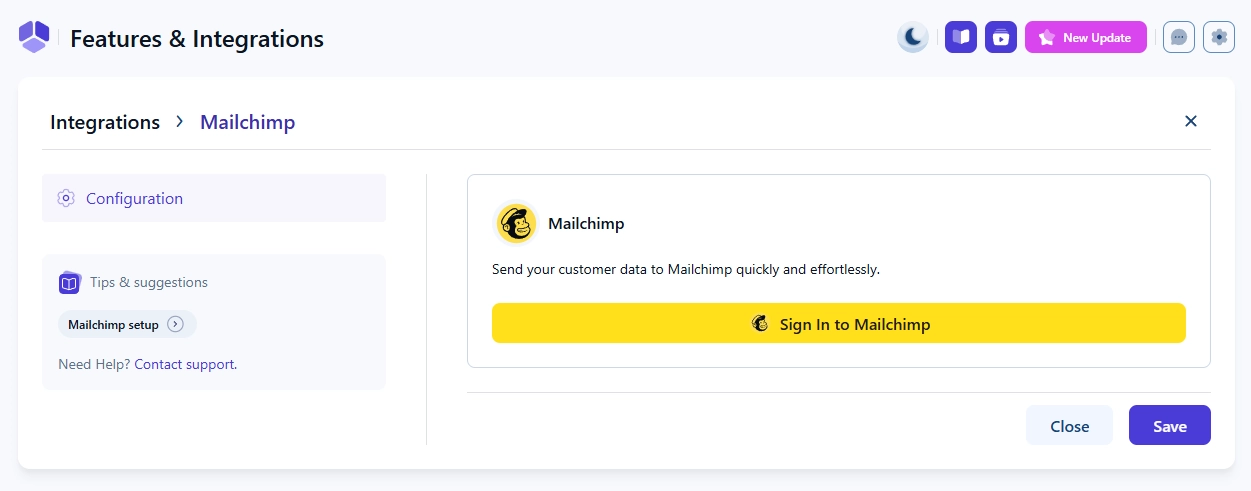
Access Features & integrations → Integrations → Mailchimp and click Enable. Once the integration is enabled, click the Set up button. In there, click the Sign in to Mailchimp button.
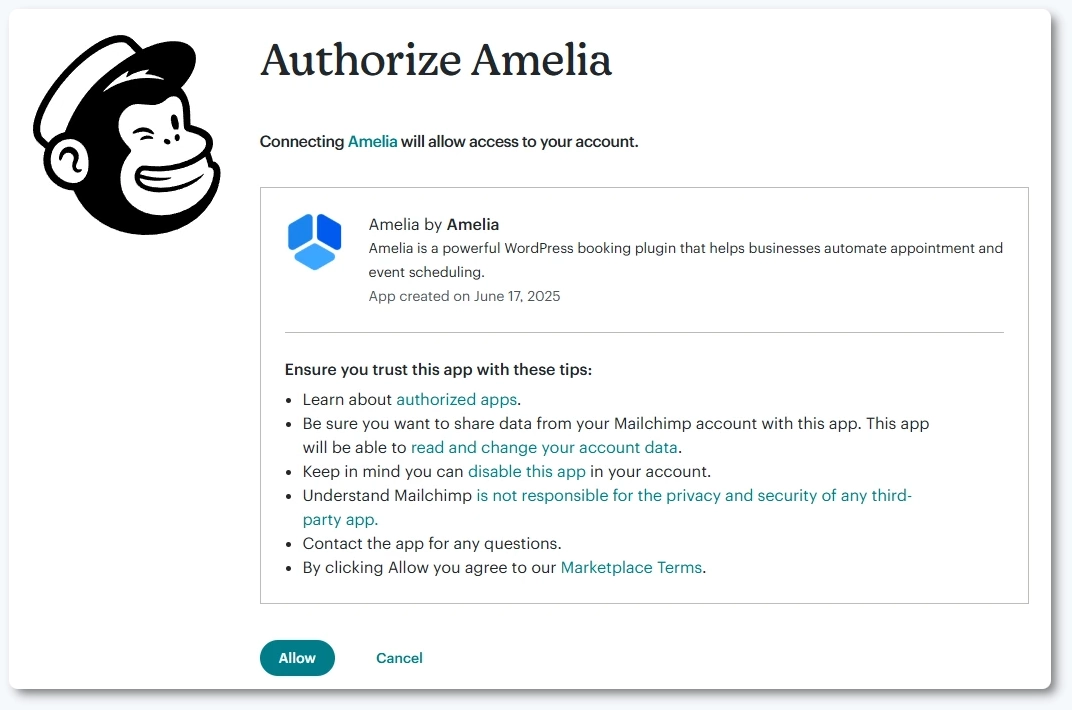
An Authorize Amelia screen will appear, showing the permissions Amelia will use. Click Allow and you’re done! Amelia is now connected to your Mailchimp account.
What happens after I connect?
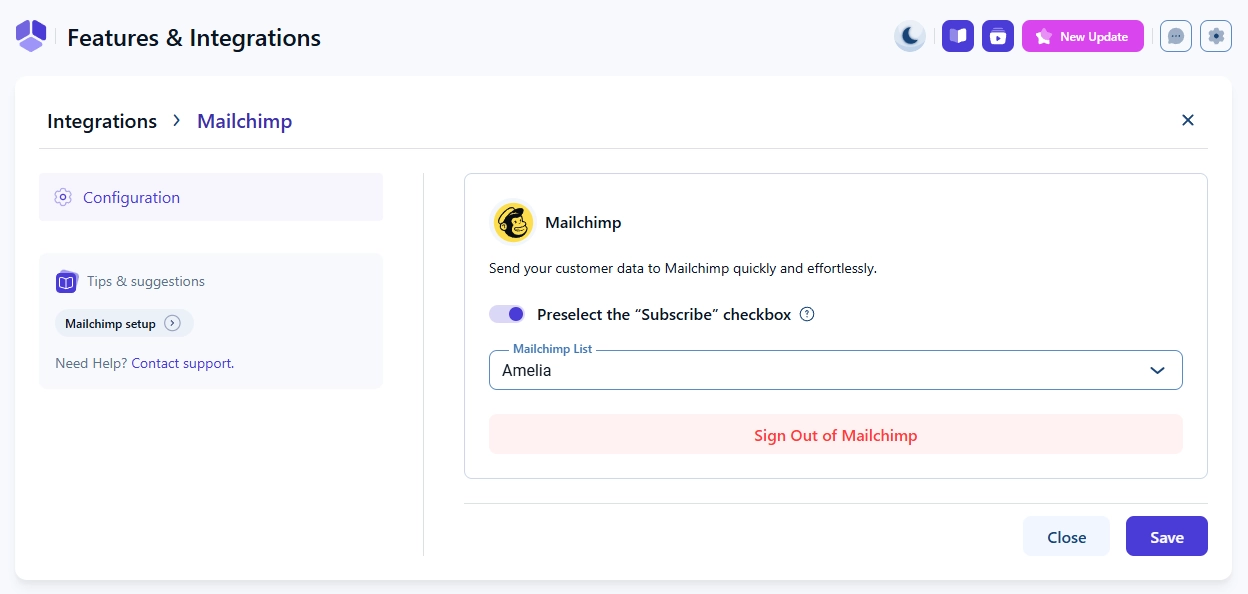
Amelia will automatically pull in your Mailchimp mailing lists. If you have a free Mailchimp account, only one list will be available in the dropdown inside Amelia.
How does the subscribe checkbox work?
Once Mailchimp is connected, your front end booking forms will display a Subscribe checkbox.
If the slider Preselect the “Subscribe” checkbox is enabled → the box will be pre-checked (customers can uncheck it if they want). If the slider is disabled → the box will appear, but customers must check it manually to subscribe.
Whether you pre-check the box or not depends on your preference. Pre-checking ensures more people subscribe, but leaving it empty respects explicit opt-ins.
What data is synced with Mailchimp?
- Name
- Phone number
- Birthday (if collected)
When customers update these fields in Amelia, the data updates in Mailchimp as well. If a customer is deleted from Amelia, they are automatically removed from your Mailchimp list.
What should and what shouldn't I do with Mailchimp?
Always:
- enable the Subscribe checkbox if you want to grow your mailing list;
- decide whether to pre-check it based on your marketing approach;
- verify that data is syncing by checking your Mailchimp list after a test booking.
Never:
- expect multiple lists on a free Mailchimp account (only one is supported);
- forget to test the subscription checkbox after setup.