 Spring Deals Are in Full Bloom

How do locations work in Amelia
Locations represent the physical places where your services are provided, such as offices, salons, or studios. Locations are optional, so you can use Amelia without creating any.
If your business operates in a single location, you may add it to use its details in notifications, or you can leave the Locations list empty. When you add only one location, it is automatically assigned to all employees.
How do I create a new location?
Open Amelia → Locations and click + Location. The location name is required, while the image, phone number, address, and description are optional.
Name and description can be translated into any additional languages you have enabled in General settings. If only one location exists, it is assigned automatically to all employees. When you create more than one, the location field becomes mandatory inside each employee’s profile.
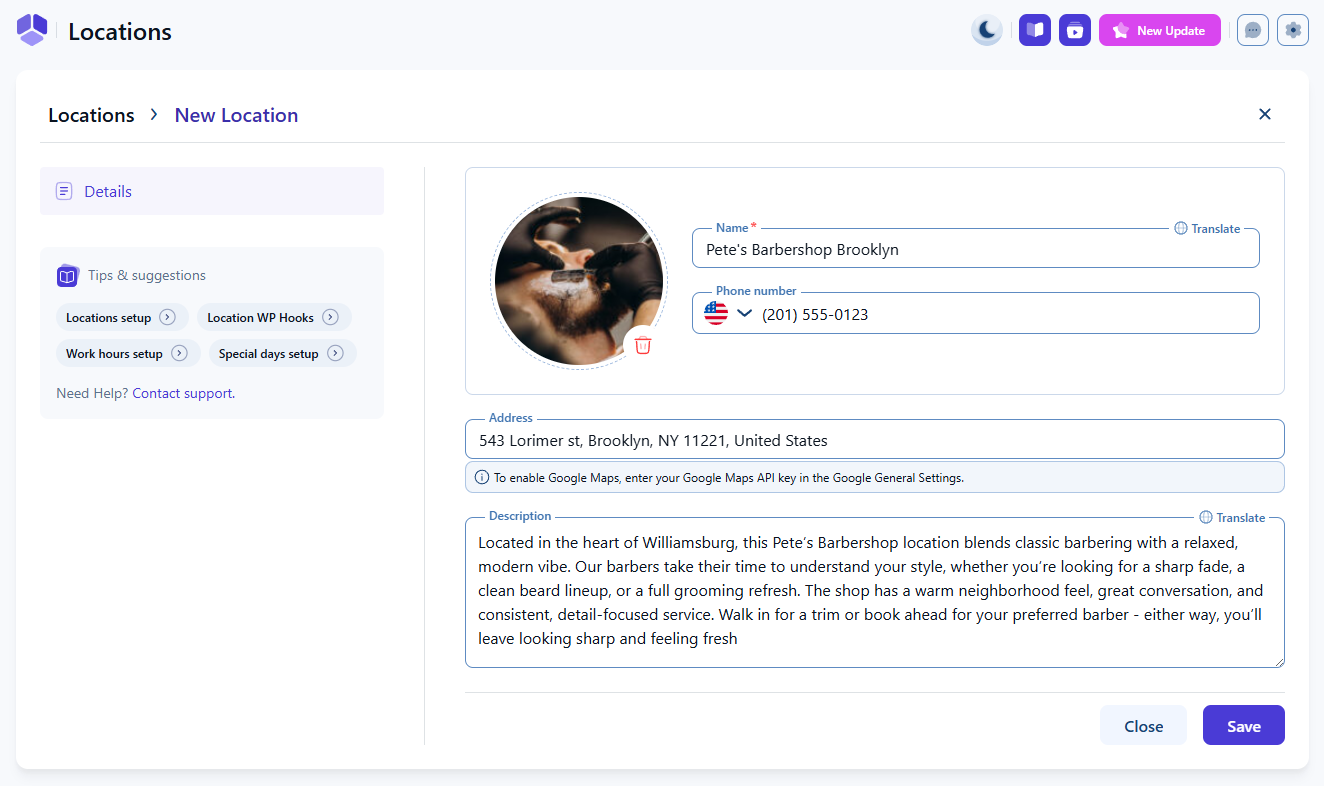
How does the address field work and how do I enable Google Maps?
The address field is a standard text field until Google Maps API is added. To activate map support, add your Google Maps API key in the Google General settings. Access it through Features & integrations → Integrations and choose any Google integration such as Google Calendar & Google Meet, Google Analytics, or Google social login. After enabling one of them, click Set up and open the General tab.
To use Google Maps fully, you must enable the following APIs in your Google Cloud Console:
Google Maps requires a project with an active billing account. A limited free usage tier is available, after which charges apply. Learn more in this article.
Once enabled, a map will appear under the address field, allowing you to drag the pin to adjust the exact location.
What can I enter in the location description?
The description field allows you to add useful details about the location, such as parking instructions, nearby landmarks, or access notes. This content can be translated using the built-in translation options for any additional languages enabled in Amelia.
What information does the Locations list show?
The Locations page shows all existing locations with their ID, name, address, phone number, visibility status, and the three-dots menu for editing, duplicating, hiding, or deleting each location. You can switch between list and grid view, edit the table to show or hide columns, and reorder the columns as needed. The name column cannot be hidden.
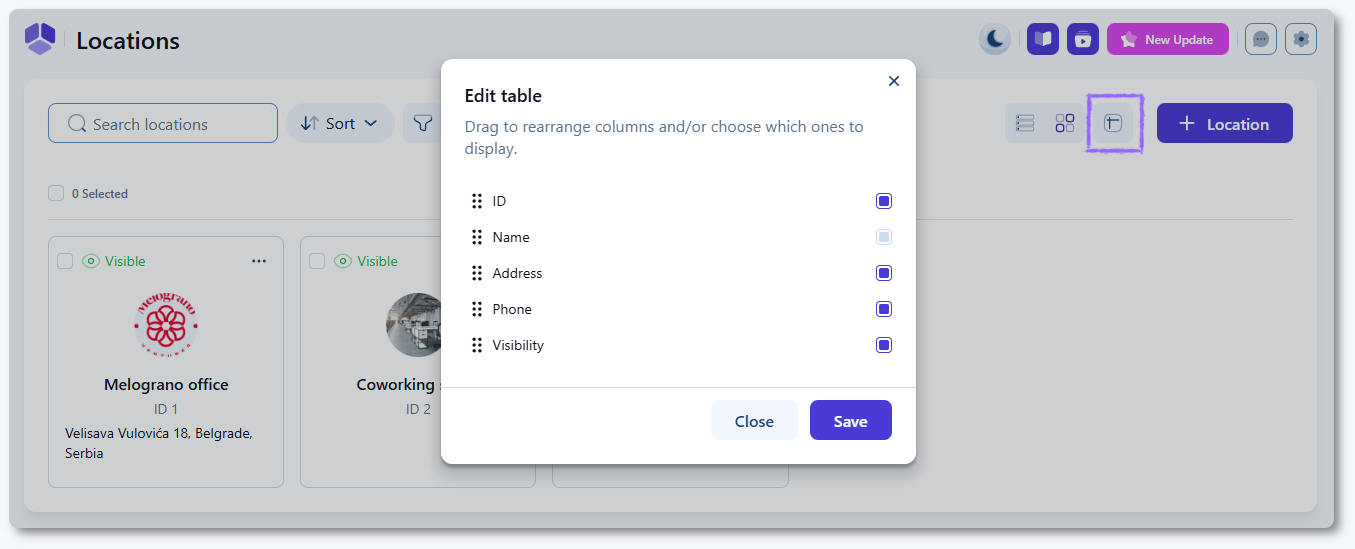
How do I view or edit location details?
Click a location card to open the Location details panel. This displays the phone number, address, assigned employees, and services connected through those employees. The panel also includes a Hide option. Hiding a location disables it temporarily without deleting it. Any employees or services tied to that location become hidden on the booking forms and in the back end until the location is made visible again.

What happens when I delete a location?
If a location has no connected employees or services, deleting it requires only a simple confirmation. When a location does have connected employees or services, Amelia displays a warning showing how many services are linked.
You can still delete the location, but affected employees and future appointments will remain without an assigned location. Only use this option if you understand the impact on scheduling and service availability.

How do locations connect to employees?
Once at least one location exists, the location field becomes required when editing or creating an employee. Employees can even have multiple working hours covering different locations. Learn more on the Employee details page.
What should I keep in mind when managing locations?
- Locations are optional unless you have multiple physical locations.
- More than one location requires assigning at least one to each employee.
- Google Maps requires enabling multiple APIs and an active billing account.
- Hiding a location hides its employees and services from booking forms.
- Deleting a location does not remove employees or services but unassigns them.
- Descriptions and names can be translated when multiple languages are enabled.