How do invoices work in Amelia
Invoices in Amelia allow you to automatically generate billing documents for your appointments, events, and packages. Once enabled, Amelia creates an invoice for every paid booking, and you can preview, send, or download these invoices directly from the Finance and Bookings sections.
Invoices are available in the Standard, Pro, and Elite license plans.
How do I enable the invoice feature?
You can enable invoices by opening Amelia → Features & Integrations → Features and activating the Invoices feature.
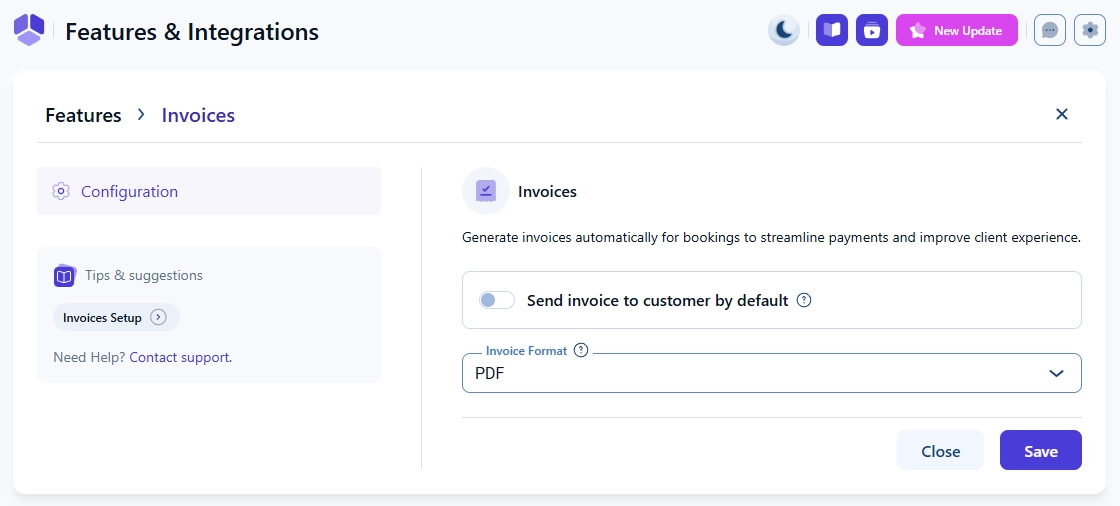
When it is enabled, the Enable button becomes Disable, and a Set up button appears. Selecting Set up opens the configuration screen, where you can enable Send invoice to customer by default and choose the Invoice format (PDF or XML).
Where can I view and manage invoices?
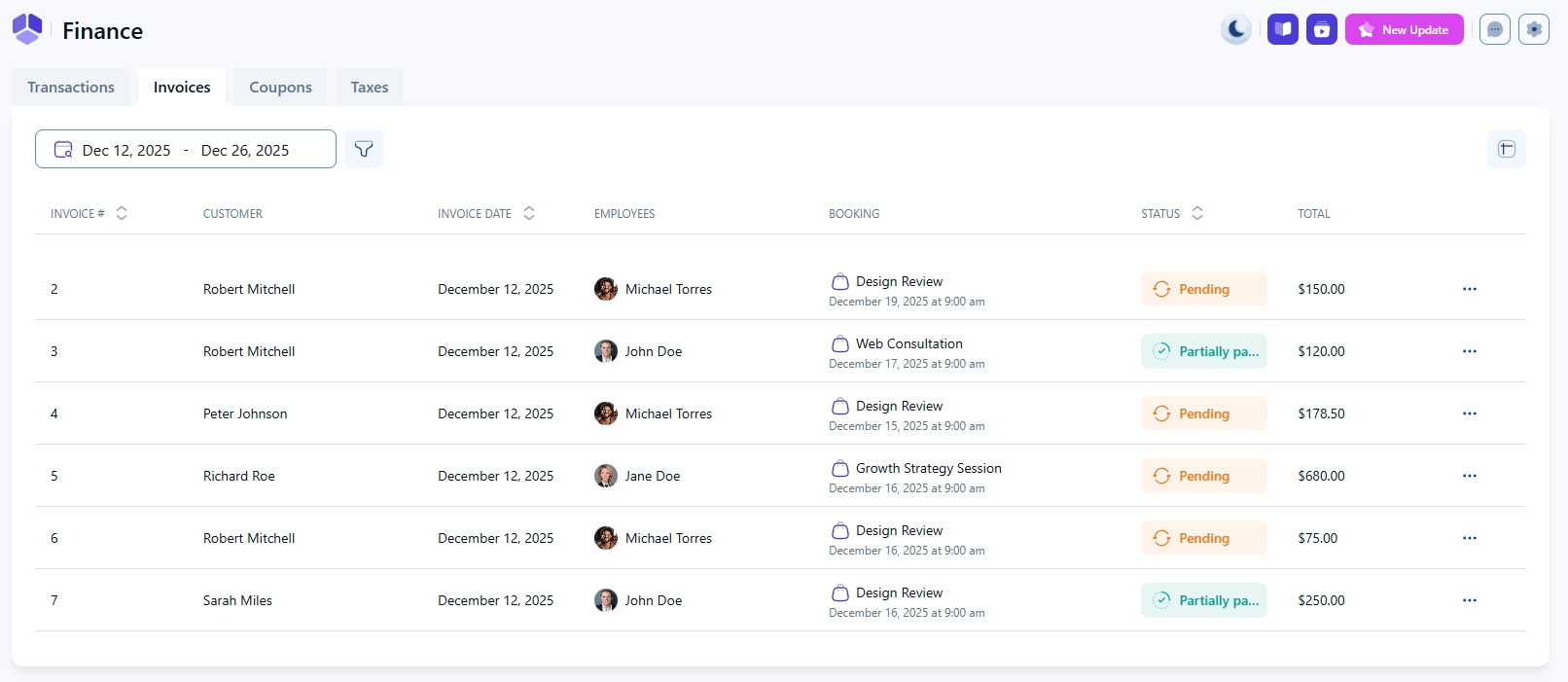
All generated invoices are available in Amelia → Finance → Invoices. Each invoice appears as a card showing the invoice number, customer details, amount, and payment status.
Clicking the three dots on an invoice card lets you download the invoice in PDF or XML, preview it in a new browser tab, or send it to the customer. Selecting the card opens a right side overview with the full invoice details and the same download and send options.
How can I preview, download, or send an invoice?
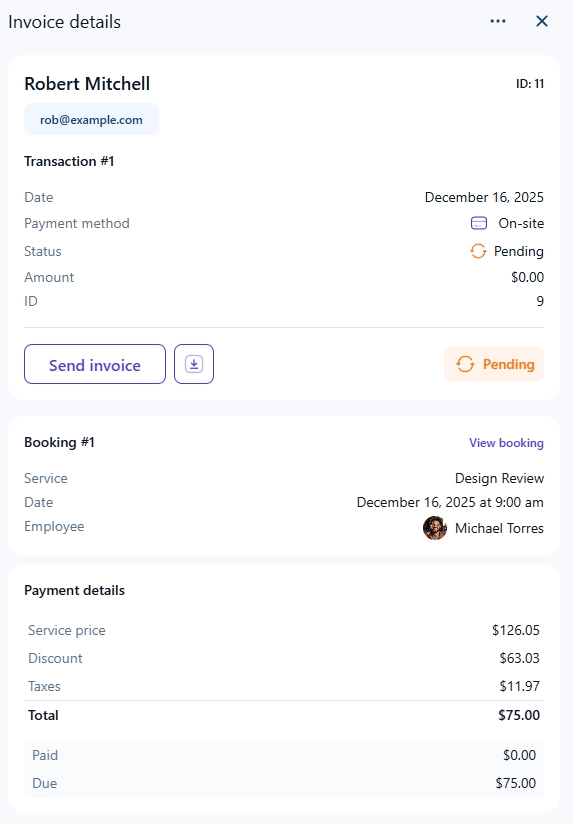
You can manage invoices directly from the right side overview that appears when you click an invoice. The panel shows the invoice data, customer information, booking information, and payment breakdown.
From here, you can Preview the invoice, Download it in PDF or XML format, or Send it to the customer. When sending from this panel, the invoice is emailed automatically to the customer’s address associated with the booking.
What does an invoice look like?
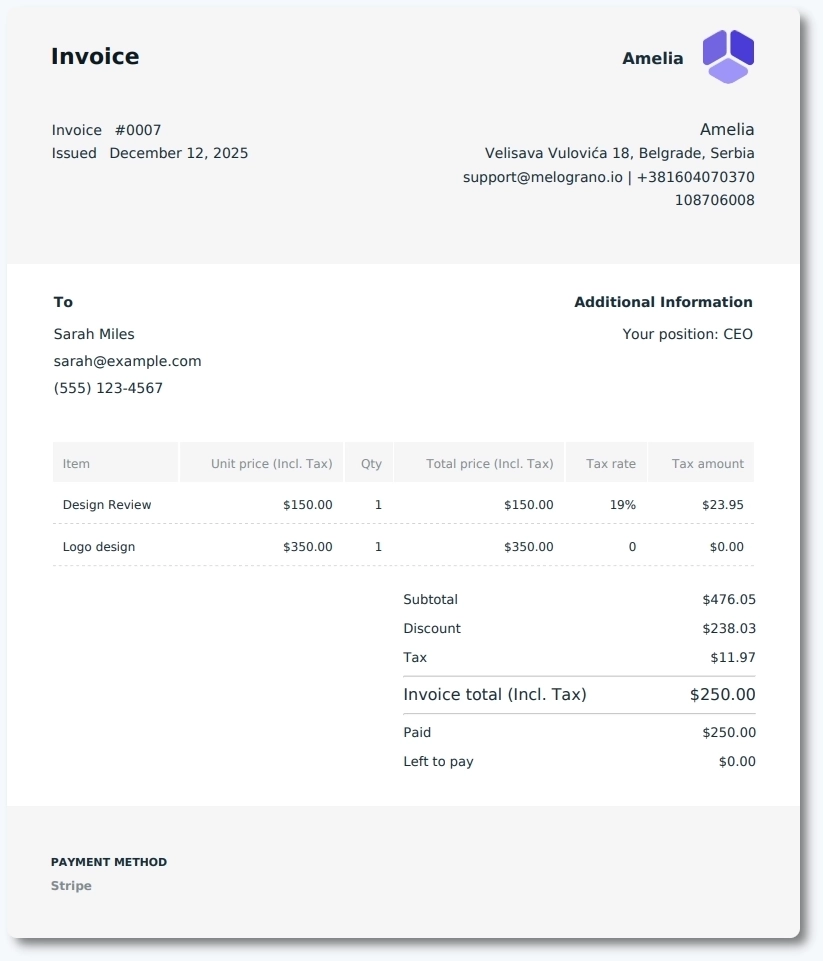
Invoices include customer and business details, appointment or event information, pricing breakdown, taxes, payment status, and the final amount charged.
The structure remains consistent to ensure customers receive clear billing documentation. Below is an example of a generated invoice in PDF format.
What details appear on an invoice?
Invoices in Amelia contain company, customer, and booking information in a structured layout. The details shown depend on your company settings, tax settings, and the items booked.
- The top right corner displays your company logo, name, address, email, phone number, and VAT number, all pulled from Amelia Settings → Company → General.
- The top left corner includes the invoice title, the auto generated invoice number, and the issue date. The numbering sequence starts from 0001 unless you change it in the database.
- Below the header, the invoice shows customer information such as the customer’s name, email, and phone number. If any customer custom fields (enabled for the invoice) were filled out during booking, they appear as Additional information. If a custom field was not filled in, the label appears with an empty value.
- The booking details table lists the purchased items, including services, packages, and extras. Each item displays the unit price, quantity, tax rate, tax amount, and the total amount for that line. Tax values depend on whether taxes are included in or excluded from the price.
- At the bottom of the invoice, you will see the subtotal, tax amount, and final total. The invoice also includes the amount paid, any remaining balance, and the payment method used for the booking.
What is the difference between PDF and XML invoices?
How do I access invoices from the bookings page?
You can also open invoices directly from the Bookings section. Select a booking to open the right side overview, scroll to the payment details, and click View invoice. This opens the same invoice panel used in the Finance section, allowing you to preview, download, or send the invoice without navigating away from the booking.
How can I change the starting invoice number?
By default, Amelia numbers invoices sequentially starting from #0001.
If you’d like to start from a higher number, you can manually adjust this through your database.
To do this:
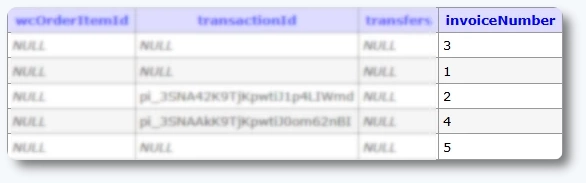
- Open your WordPress database using a tool such as phpMyAdmin.
- Find the table named
your_prefix_amelia_payments(note thatwp_is the default prefix but may differ on your site). - Sort the invoiceNumber column in descending order to see the highest current number.
- Edit that number to be one less than the number you want next.
- Example: If the highest number is “7” and you want the next invoice to be #0026, set this value to 25.
Changes here affect only future invoices; existing invoices remain unchanged.
What should I keep in mind when working with invoices?
- Invoices are created automatically for paid bookings once the feature is enabled.
- Sending invoices by default can be enabled or disabled at any time.
- PDF files are intended for customers, while XML files support accounting systems.
- All invoice history is stored in the Finance section for easy tracking.
- Invoice preview opens in a new browser tab for faster review before sending.