How to set up Google social login in Amelia
Google social login allows customers and employees to access their Amelia panels with a single click using their Google accounts, without needing passwords or manual account creation. Once you enable the integration and connect your own Google Cloud OAuth app, Amelia can validate each login based on the email registered in the system.
Google social login integration is available in the Standard, Pro, and Elite license plans.
How do I enable Google social login in Amelia?
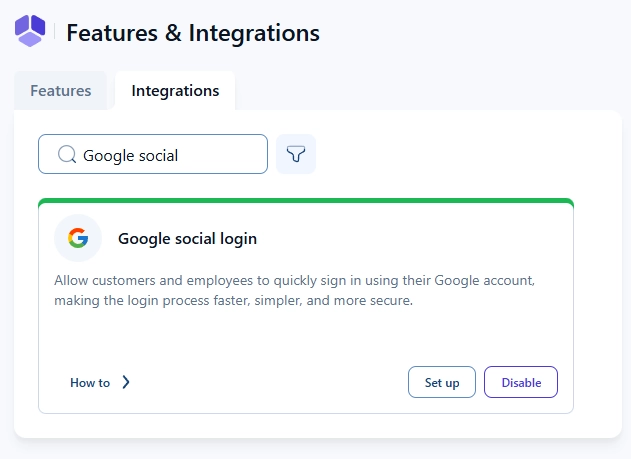
To enable Google social login, open Features & integrations → Integrations and activate the Google social login feature. After enabling it, click the Set up button to access the configuration page. It is not enabled by switching any sliders on, but it is configured in the same place as the Google Calendar integration.
What do I need to configure before using Google social login?
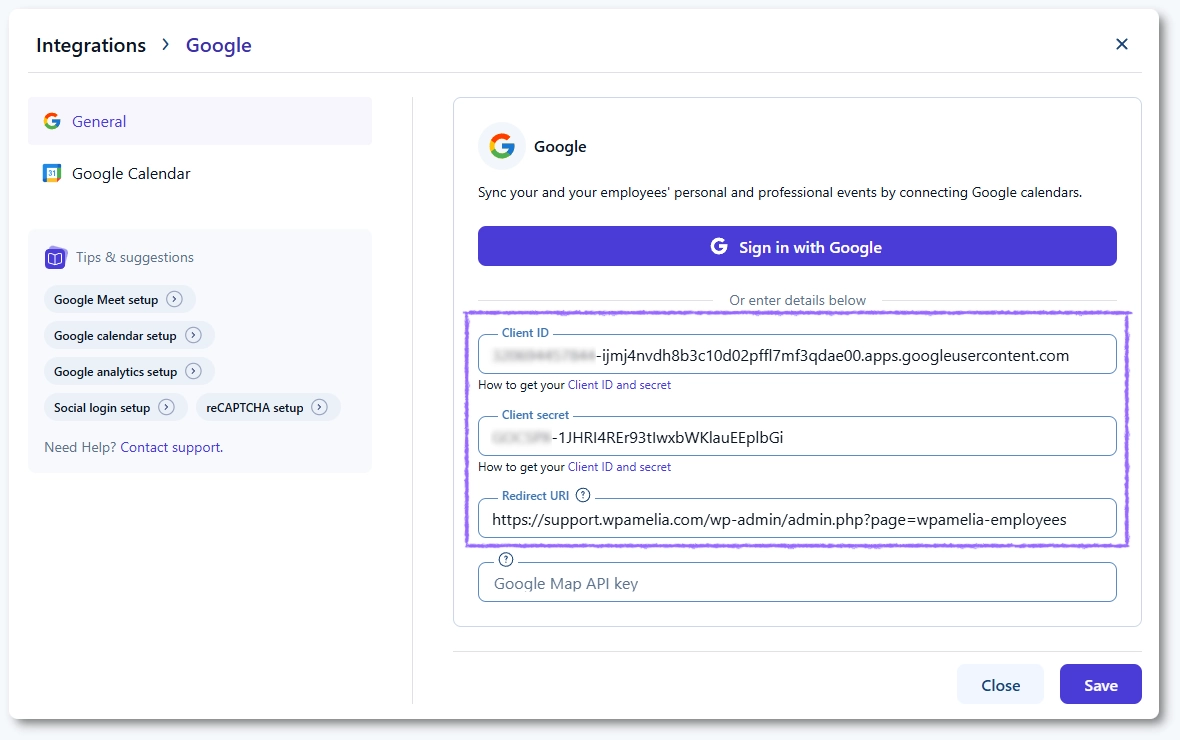
Google social login requires your own Google Cloud OAuth application. Although the setup page looks identical to the Google Calendar integration, the Sign in with Google button cannot be used for social login because it connects through Amelia’s default Google app.
To enable social login, you need to create your own OAuth app in Google Cloud Console and configure it following the steps from the Google Calendar advanced setup.
After creating the app, copy its Client ID and Client secret into Amelia and ensure the Redirect URI from Amelia is added to your OAuth settings.
Which Google Cloud settings are required for social login?
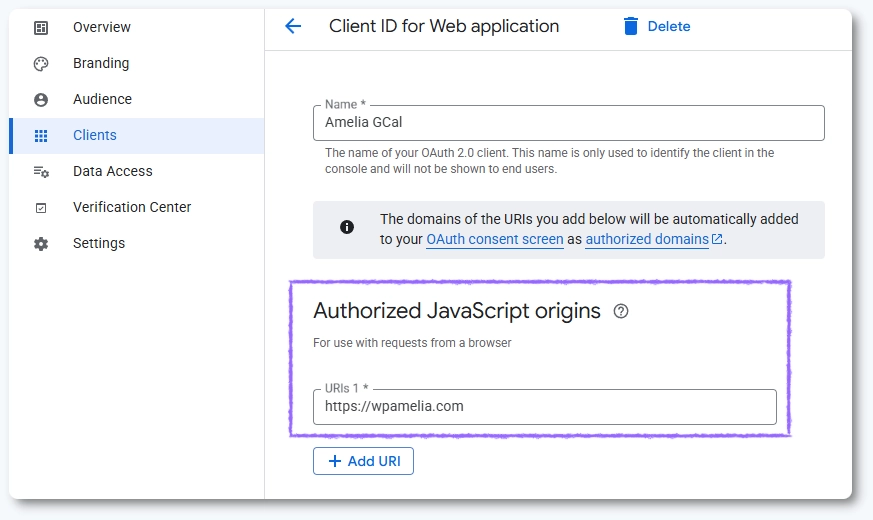
In the Google Cloud Console, open APIs & services → Credentials → select your OAuth 2.0 client and add your website domain under Authorized JavaScript origins. Scroll down, and click Save.
This allows Google to validate browser requests and prevents login from being blocked by security policies. Confirm that your Redirect URI from Amelia is also added under Authorized redirect URIs so the authentication flow can complete successfully.
How do employees and customers sign in using Google?
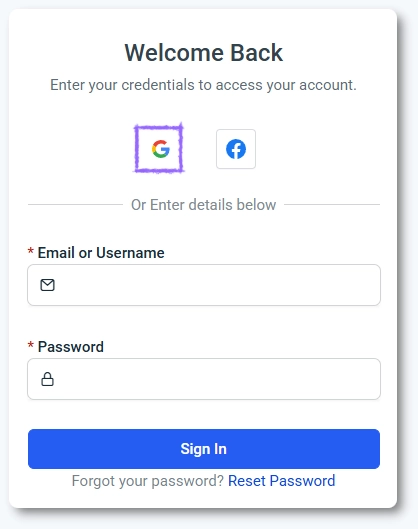
Users can log in by clicking Sign in with Google on Amelia’s login screens. Amelia checks the Google account email and grants access only if that email already exists in the system.
For customers, the Google email must match an existing customer profile. For employees, the Google email must match the employee’s configured email address.
No additional options or toggles are required once OAuth credentials are added.
What should I keep in mind when setting up Google social login?
- Your own Google Cloud OAuth app is required because Amelia’s built-in Google app cannot be used for social login.
- Your website domain must be added in Authorized JavaScript origins to avoid browser security issues.
- The Google account email must already exist in Amelia as a customer or employee.
- No extra sliders or checkboxes need to be enabled after adding the OAuth credentials.