How does the events waiting list feature work in Amelia?
The waiting list feature allows customers to join a queue when an event reaches full capacity. Once enabled, customers can join the waiting list from the front end and administrators can manually approve them from the back end. This helps you avoid losing potential attendees and gives you more control over capacity.
The events waiting list is available in Pro and Elite license plans.
How do I enable the Waiting List feature?
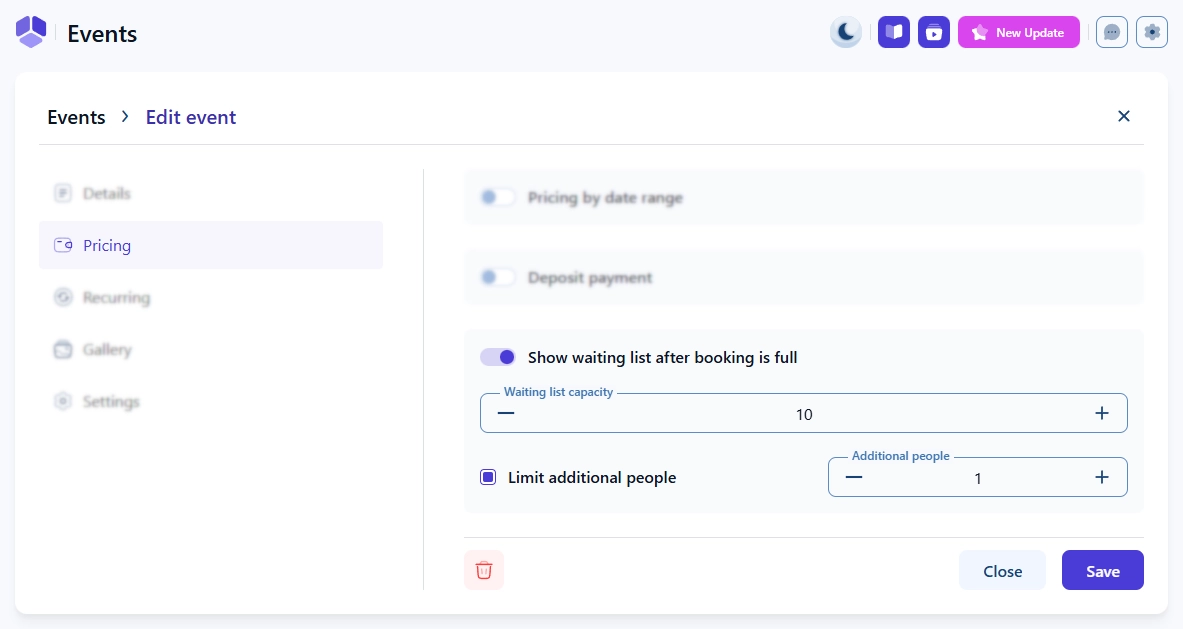
You can enable the Waiting List feature in Features & Integrations under the Features tab. Once enabled, this option appears in each event’s Pricing tab. There is no setup screen for this feature, so it becomes active immediately after enabling.
How does the Waiting List capacity work?
The waiting list has its own capacity, separate from the event capacity. For example, an event may allow 30 attendees, while its waiting list may allow 10 additional people. This lets you manage how many people can join the queue even when the event is full.
How does the Waiting List appear on the front end?
The Waiting List feature does not change or load additional elements into the Event List or Event Calendar forms.
These forms behave normally until the event reaches full capacity, at which point:
- List view: clearly shows Full and the Join waiting list button
- Calendar view: shows a smaller Join waiting list note due to layout constraints
Regardless of the form used, the same modal steps appear.
What happens after a customer joins the waiting list?
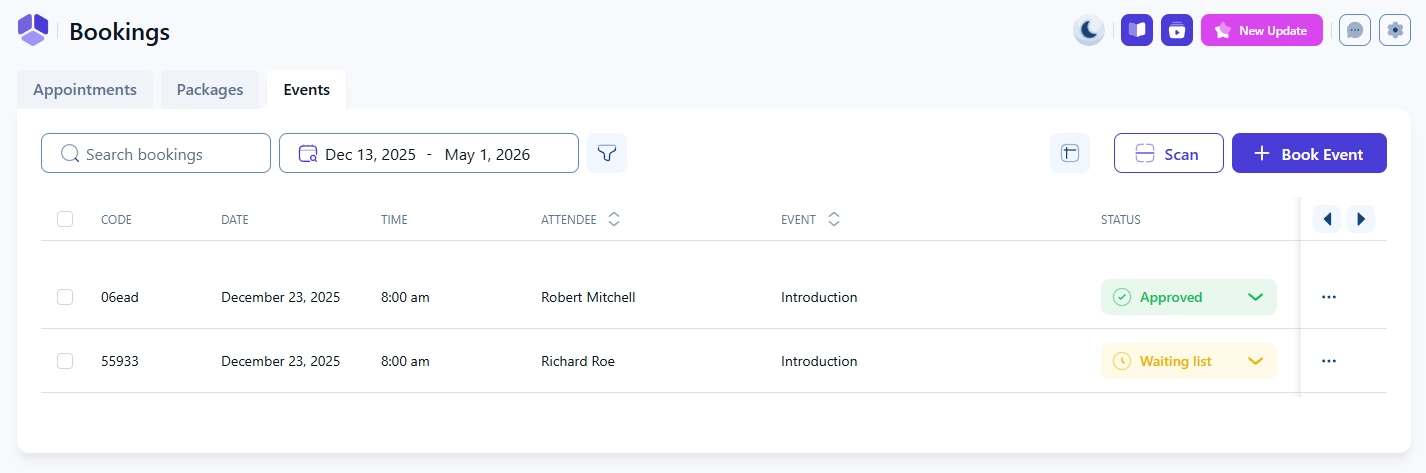
Once a customer joins the waiting list, their booking is stored with the Waiting list status in Bookings under the Events section. Administrators can manually approve any attendee regardless of their position in the queue. Approving a waiting list attendee can exceed the event’s defined capacity because admins have the ability to overbook events.
What do customers see after joining the waiting list?
Instead of a booking confirmation, customers see a message confirming they have joined the waiting list and showing their position.
This position is informational only. You can approve anyone at any time, regardless of their position in the queue.
How do I manually add or manage waiting list attendees?
When adding an attendee via Bookings → Events → + Book event, you must manually choose Waiting list from the Status dropdown.
If you select Approved instead, Amelia will:
- Overbook the event
- Send the attendee a confirmation email
- Mark them as a confirmed attendee
This can cause confusion, so double-check the status before saving.
Admins can add attendees to a full event, potentially creating an overbooking for the event. Always double check if you want to save an attendee as Approved or if they should be on the Waiting list.
What notifications are sent to waiting list customers?
Amelia includes a default Waiting list confirmation email notification template. You can customize this message in the Notifications section. The confirmation message shown on the front end also includes the customer’s position on the waiting list, although this number is only informational and does not affect approval order.
What should I keep in mind when using the waiting list?
- Waiting list has its own capacity, independent from event capacity
- Feature must be enabled per event
- Process is manual (not automated)
- Customers do not see other attendees or their positions
- Confirmation email template for waiting list exists and can be customized