 Spring Deals Are in Full Bloom

How do I customize the Event calendar booking form
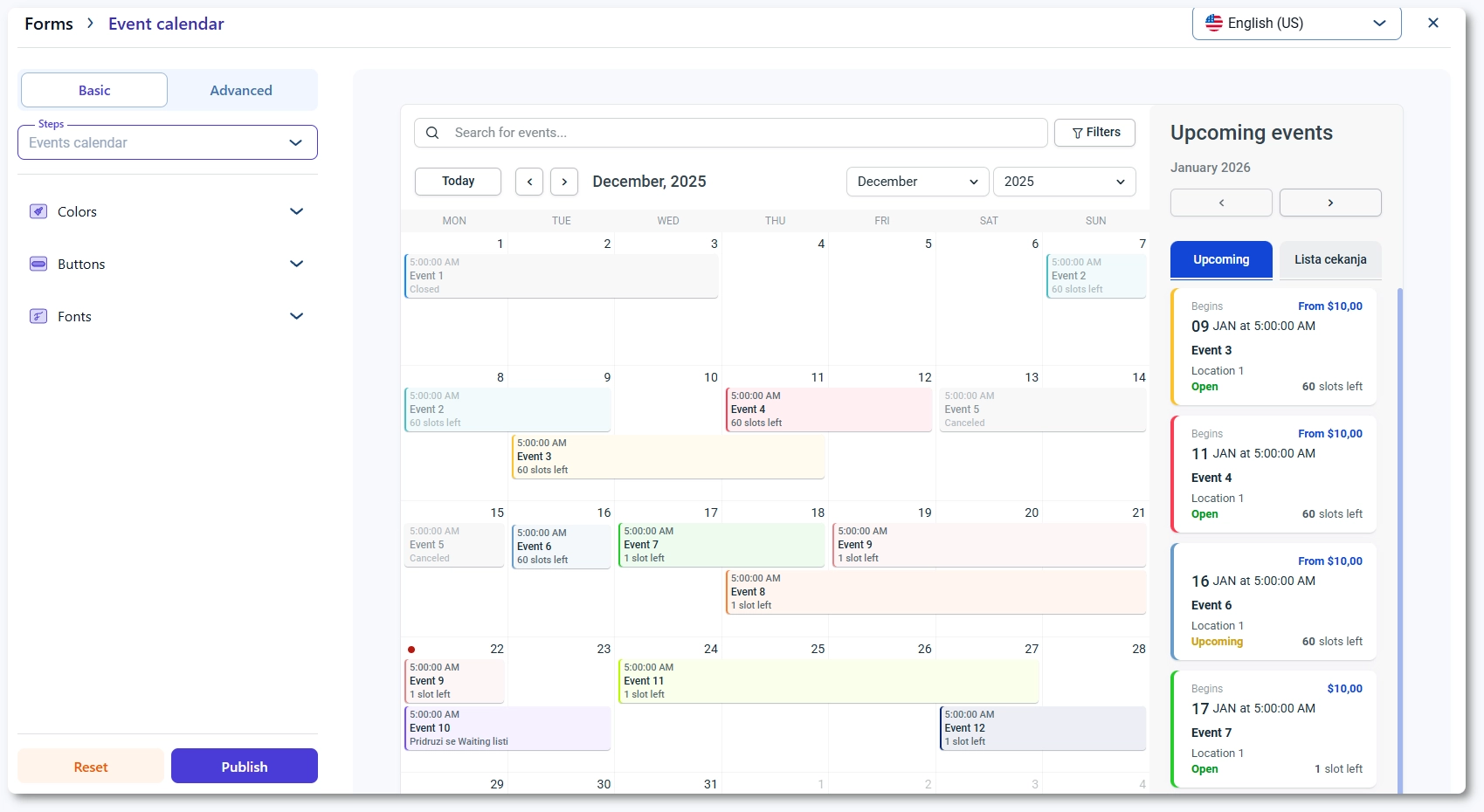
The Event calendar form displays your events in an interactive calendar layout, allowing customers to browse dates, open event details, and complete their booking in a guided flow.
It follows the same design structure as Amelia’s other forms, with a Basic tab for global styling and an Advanced tab for step specific controls. Once a customer selects an event, the booking continues through the same series of steps used in the Step-by-step form, so updating your global colors and button styles ensures consistency across the entire event experience.
For example, adjusting your calendar highlight colors or event card layout helps customers quickly locate the events they are interested in.
Where do I access the Event calendar customization?
Open Amelia → Customize and choose Event calendar from the list of form types. A live preview is shown on the right, and the left side includes the Basic and Advanced tabs.
The Steps dropdown lets you switch between Events calendar, Event info, Bringing anyone with you popup, Customer information, Payment, and Congratulations. Each step contains its own layout and elements, so design options change depending on which step you select.
What can I configure in the Basic tab?
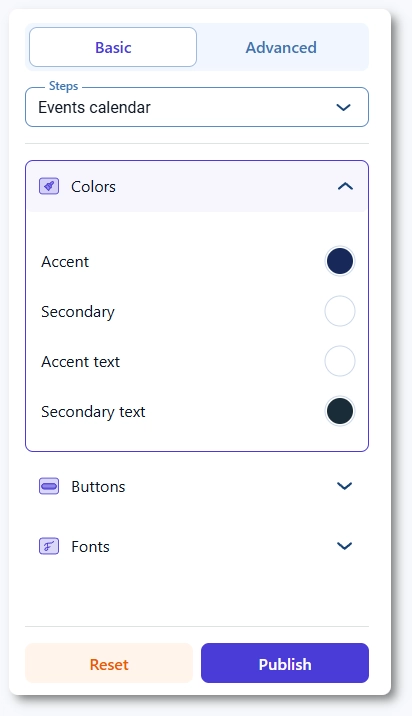
The Basic tab controls global styling across the entire Event calendar flow, including colors, buttons, fonts, layout, and sidebar visibility.
Global changes apply to all steps without needing to configure each one individually. Because the calendar layout has unique visual elements, global colors help define the base appearance while ensuring the later steps in the booking process match your selected theme.
Switching between list and grid layout is available when relevant, and hiding the sidebar can simplify the design for more compact event displays.
What can I configure in the Advanced tab?
The Advanced tab allows you to fine tune each step in the event booking process. It includes Options for controlling field behavior and visibility, Labels for renaming text elements, and Colors for customizing specific areas of the selected step.
Because the Event calendar form contains both browsing and booking steps, the controls vary per step. Calendar steps include settings for date highlight colors, inactive dates, and event markers, while booking steps include input field labels, dropdown styling, and button customization.
Each step can be configured separately, letting you tailor the browsing and booking experience in detail.

What steps are available in the Event calendar form?
- Events calendar – shows the main calendar interface with event indicators, active dates, and hover states.
- Event info – displays detailed event information including description, schedule, staff, and capacity.
- Bringing anyone with you popup – used when events allow multiple attendees; this popup includes quantity selectors and participant controls.
- Customer information – collects attendee details using the same structure as the Step-by-step form.
- Payment – includes payment method selection, pricing summaries, and checkout elements.
- Congratulations – final confirmation screen shown after successful event booking.
Each step includes its own design controls, so adjusting labels, field behavior, or colors applies only to the currently selected stage.
What should I keep in mind when customizing the Event calendar form?
- Ensure calendar highlight colors have enough contrast so event dates are easy to identify.
- Review the Event info step carefully because long descriptions or images may require spacing adjustments.
- Use Labels in the Advanced tab to clarify event details, attendee instructions, or popup titles.
- Test the “Bringing anyone with you” popup on mobile because quantity controls may appear differently on smaller screens.
- Keep the color scheme aligned with the Step-by-step form so the transition between event browsing and booking feels consistent.
- Clear any website caching once you publish changes so calendar colors and updated labels appear correctly.