Limited time discount Book Smarter This Christmas
Up to 50%Off

How employee permissions work in Amelia

Employee permissions control what your staff members can do with appointments, events, and customers in Amelia. You can also decide how they access the Employee Panel and whether there is a limit on the number of appointments per employee.

To open these settings, go to Amelia → Settings → Roles & permissions → Employee.

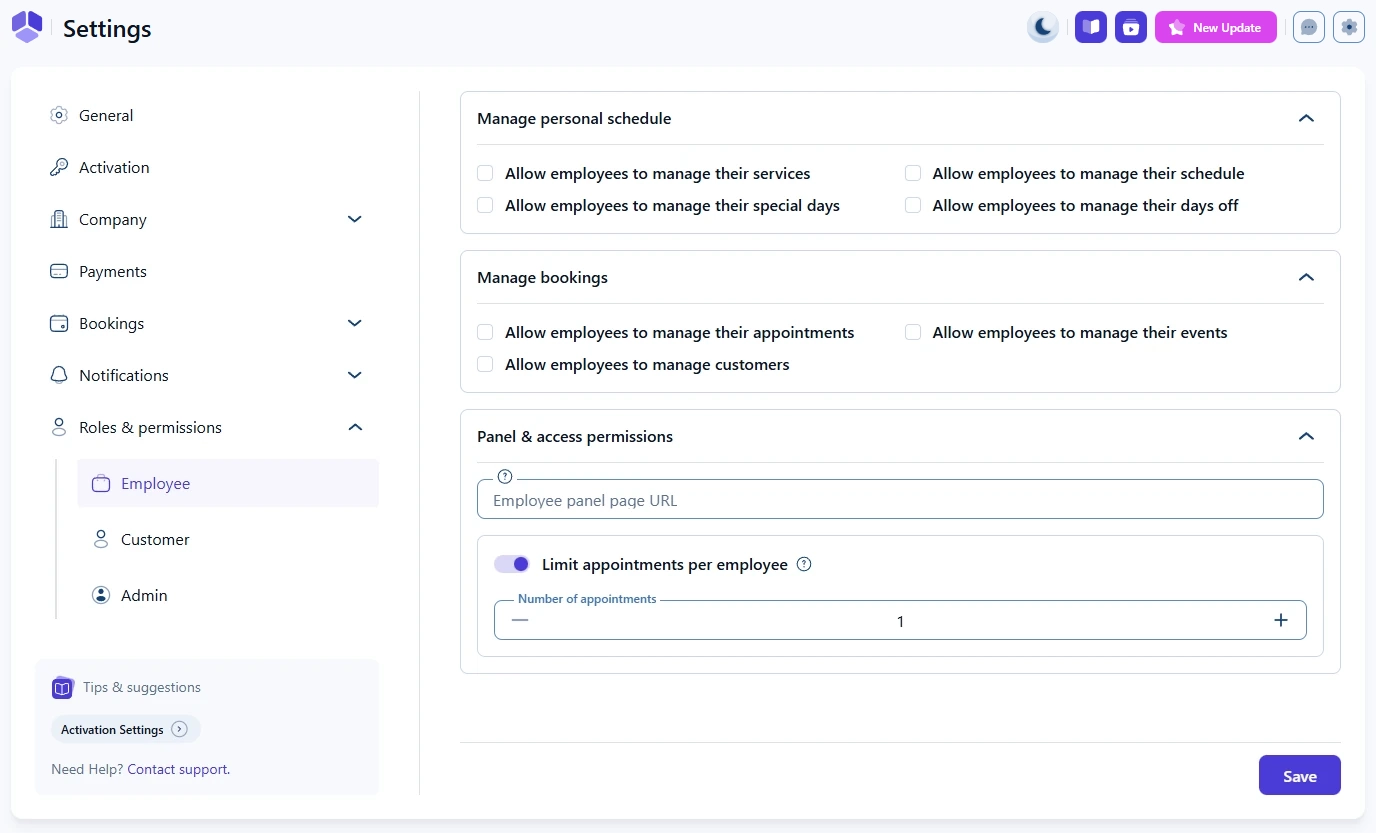
Employee roles and permissions settings in Amelia

How can employees manage bookings?

In the Manage bookings section you decide what employees are allowed to do with their own bookings and customers.

You will see three options:

  • Allow employees to manage their appointments – when enabled, employees can view and manage their own appointments in the back end or through the Employee Panel. This usually includes rescheduling, cancelling, or approving appointments assigned to them.
  • Allow employees to manage their events – when enabled, employees can manage events where they are assigned as an employee. They can change event dates, capacity, and attendee status, depending on your setup.
  • Allow employees to manage customers – when enabled, employees can view and edit customer details such as names, contact information, and notes. If you prefer to keep customer data restricted, leave this option disabled.
Info Info

If you give employees permission to manage customers, make sure they understand your data privacy rules and how customer information should be handled.

How do panel and access permissions work for employees?

The Panel and access permissions section controls how employees access their panel page and how many appointments they can have.

You will see the following options:

  • Employee panel page URL – paste the URL of the page where you added the Employee Panel shortcode. Employees will use this link to log in and manage their schedule. For more details, see the Employee Panel documentation.
  • Limit appointments per employee – enable this option if you want to set a maximum number of appointments for each employee.

When Limit appointments per employee is turned on, use the Number of appointments field to set the limit. Once an employee reaches that number of active appointments, Amelia will prevent new bookings for them until some of their appointments are cancelled or completed.

Alert Please note

Limits are useful if you want to cap how many active bookings a staff member can handle at the same time, for example in cases where only a certain number of sessions are included in a contract.

What should I check if employees cannot access their panel?

If employees have trouble accessing their panel, check the following:

  • Make sure the Employee Panel page is published and the URL in Employee panel page URL is correct.
  • Confirm that the employee has a WordPress user connected to their Amelia profile, as described in the Employee Panel documentation.
  • Verify that the employee has the correct role and enough permissions to manage their bookings.