 Spring Deals Are in Full Bloom

How to set up the employee panel
The Employee Panel gives employees an easy way to manage appointments, events, working hours, special days, days off, assigned services, and personal information without accessing the WordPress back end.
It appears on a regular WordPress page and provides a focused workspace where employees can view bookings, update availability, and access their profile from any device.
You decide what employees can change, and the panel automatically adjusts to permissions you configure in Amelia.
How do I create the Employee Panel page?
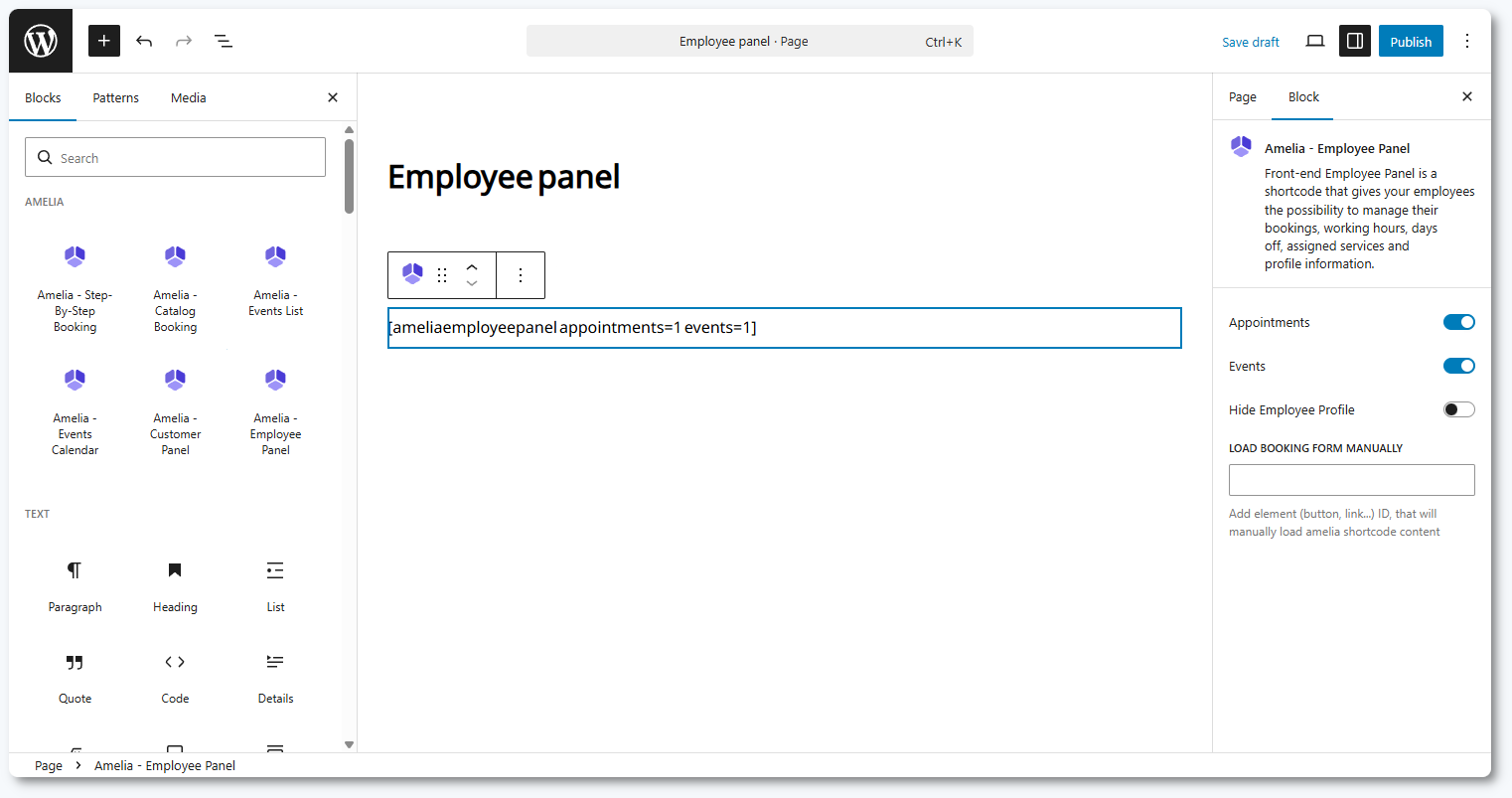
To create the Employee Panel, add the Amelia – Employee Panel block to any WordPress page using Gutenberg, Elementor, or Divi. After inserting the block, you will see three sliders that control the panel’s content:
- Appointments: shows or hides the appointments section
- Events: shows or hides the events section
- Hide employee profile: removes access to the employee’s profile panel
When Hide employee profile is enabled, employees cannot access their profile from the panel and therefore cannot edit working hours, special days, days off, services, personal details, or integration settings.
At least one of the content sliders (appointments or events) must stay enabled so the panel has content to display.
If you are not using a supported builder, you can use these shortcodes:
[ameliaemployeepanel appointments=1 events=1][ameliaemployeepanel appointments=1][ameliaemployeepanel events=1]
After the page is created, the panel becomes active immediately. Full functionality depends on the settings you configure in Settings → Roles & permissions → Employee.
How do I enable access to the Employee Panel?
The Employee Panel becomes active as soon as the page is published. To allow employees to log in, you must configure a password for each employee. Amelia does not support token-based login for employees.
You can set or update the employee’s password in the back end when creating or editing their profile. Employees can also request a password change directly from the Employee Panel login page by clicking the password reset option before signing in.
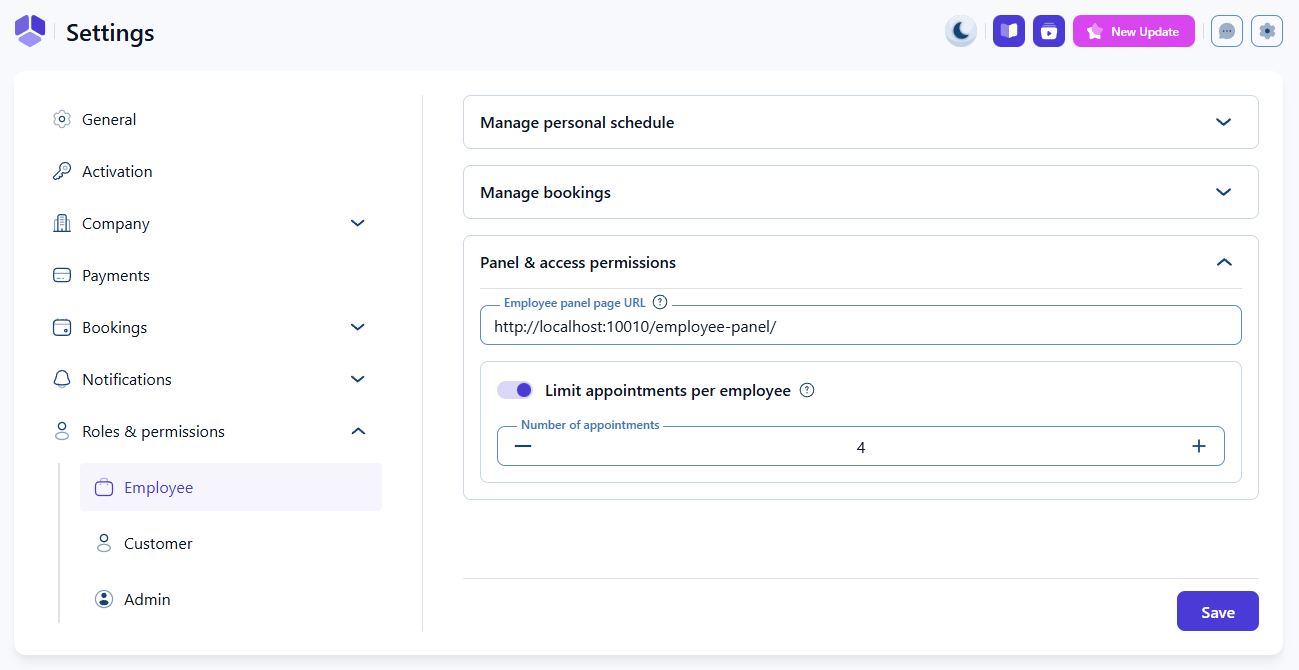
To ensure that employees receive the correct panel link in notification emails, open Settings → Roles & permissions → Employee and enter the Employee Panel page URL into the Employee Panel Page URL field inside Panel & access permissions.
This section also includes the Limit appointments per employee setting. When enabled, it caps the number of appointments an employee can accept per day, regardless of how many time slots are available in their working hours.
How can I allow employees to manage customers, bookings, and schedule?
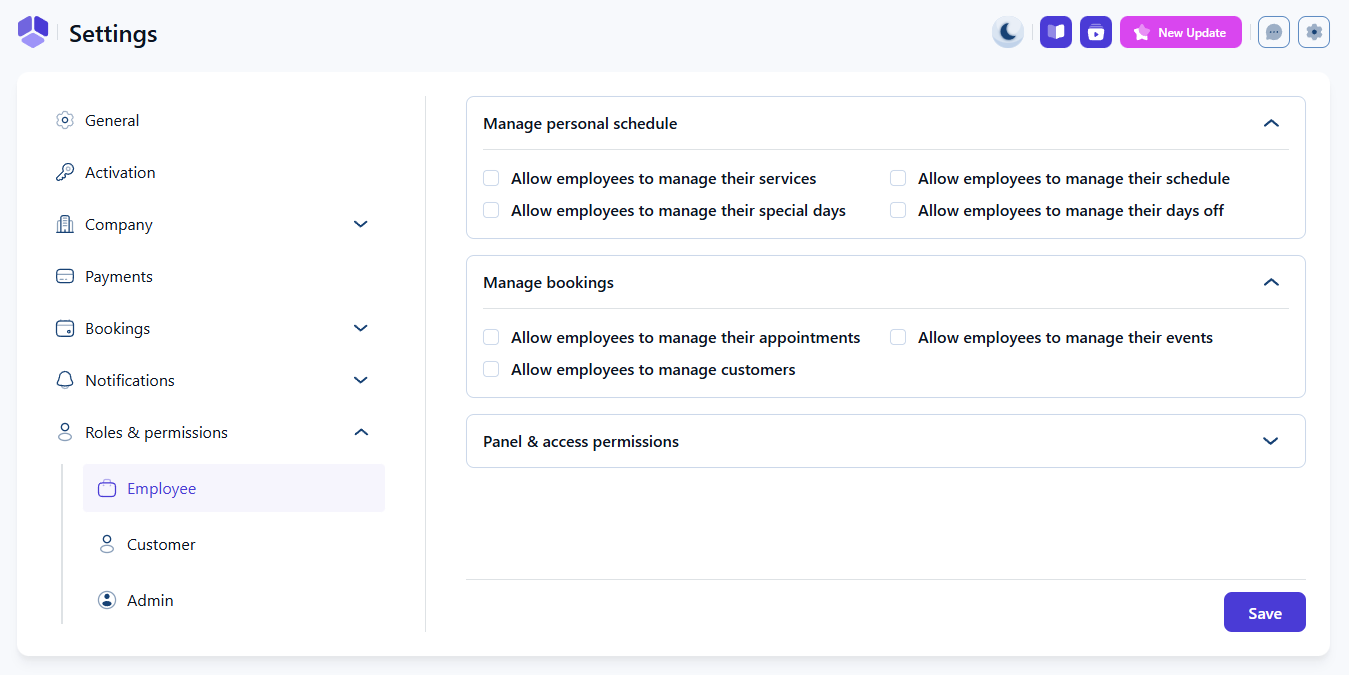
To allow employees to adjust their schedule and availability from the front end, go to Settings → Roles & permissions → Employee and expand the Manage personal schedule section. Here you can enable or disable:
- Allow employees to manage their services: allows employees to assign or unassign them from available services
- Allow employees to manage their special days: allows employees to configure their special days
- Allow employees to manage their schedule: allows employees to manage their working hours
- Allow employees to manage their days off: allows employees to define their personal days off
These options appear inside the employee’s profile in the Employee Panel. If Hide employee profile is enabled in the panel block, employees will not see their profile at all and therefore cannot change any of these items.
To let employees manage bookings, expand the Manage bookings section. Here you can allow:
- Manage appointments: allows employees to reschedule or cancel their own appointments
- Manage events: allows event hosts to manage their events
- Manage customers: allows employees to create customers and assign multiple participants to group appointments
These settings affect the booking actions employees see in the appointment or event details within the Employee Panel.
 Note
Note
When Allow employees to manage their services is enabled, employees will see all categories and services created in Amelia, not only the ones assigned by the admin. This allows them to freely assign or unassign themselves to any available service.
If you want to restrict employees to only the services assigned by the admin, this option should remain disabled, and service assignments should be managed exclusively from the back end.
How do employees receive access to the panel?
Employees always access the panel by logging in with a password. There is no token-based login for the Employee Panel.
Admins can set the employee’s password inside the employee profile in the Amelia back end. Employees can also reset their password from the Employee Panel login screen by using the password recovery option before logging in.
The Panel access email template in Notifications → Employee uses the %employee_panel_url% placeholder to send the correct link to the panel. This placeholder must remain unchanged, since it ensures that employees are directed to the proper login page. Using the actual page URL will prevent the access token from working.
How does the time zone feature work for employees?
If the Time zones feature is enabled, employees can choose the time zone in which they want to see their schedule. This is helpful when employees work remotely or across different regions, since appointment times will display in their selected local time.
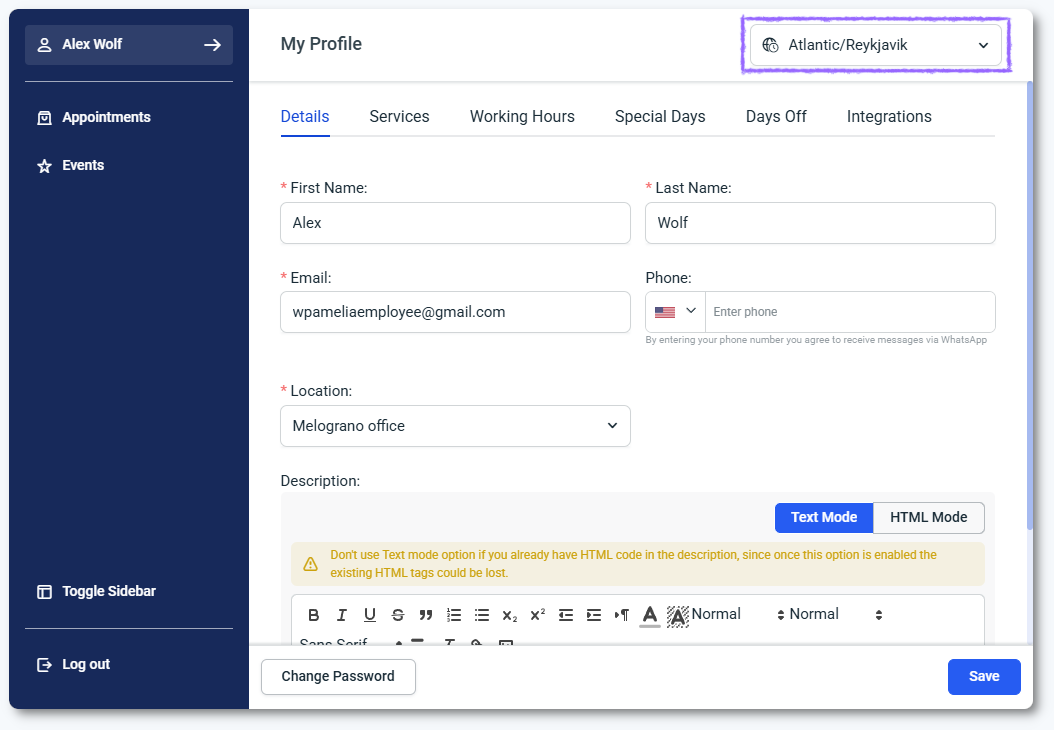
Employees can temporarily change their display time zone using the dropdown in the top right corner of the panel. This only affects how appointment and event times are shown on the screen. The moment the page is refreshed, the panel returns to the employee’s saved time zone. This option does not update the time zone stored in the back end.
To change the employee’s time zone permanently, click the employee’s name in the top left corner to open the profile, choose the new time zone, and click Save. This updates the time zone on the back end as well.
If the Time zones feature is disabled, the time zone dropdown does not appear.
How do I customize the Employee Panel?
You can customize the Employee Panel’s look and feel by opening Customize in the Amelia menu and selecting Employee Panel. This area allows you to modify colors, fonts, labels, and layout so the panel matches your brand design. A separate guide covers the customization options in detail.
What should I keep in mind when using the Employee Panel?
- Employees always log in with a password. There is no token-based login for the Employee Panel.
- Passwords can be set or updated by the admin in the back end, or by the employee via the password reset option on the panel login page.
- At least one content slider (appointments or events) must stay enabled in the panel block so the panel has something to display.
- If Hide employee profile is enabled, employees cannot access their profile, change their services, schedule, days off, special days, personal details, integrations, or time zone.
- Temporary time zone changes via the dropdown in the top right corner only affect how times are displayed and reset when the page is refreshed.
- Permanent time zone changes must be saved in the employee profile by clicking the name in the top left corner, choosing the time zone, and clicking Save, which also updates the back end.
- Schedule management and booking permissions are controlled in Settings → Roles & permissions → Employee, so review them when you change your processes.
- The appointment limit option in Panel & access permissions limits how many appointments an employee can have per day, regardless of how many slots fit in their working hours.
- Employees can manage customers only if Manage customers is enabled in the Manage bookings section.
- Visual appearance and texts are customized from the Customize → Employee Panel section, not from within the panel itself.