 Make This Winter Your Most Organized Yet

How does the Divi Builder integration work with Amelia
Amelia integrates directly with the Divi Builder, allowing you to add booking forms, event views, and customer-facing panels to your pages using native Divi modules, without manually creating or pasting shortcodes.
For example, if you’re building a service page with Divi, you can insert an Amelia booking form module, preselect a specific service or employee, and publish the page with a fully functional booking flow that matches your layout.
What do I need before using Amelia with Divi Builder?
To use the Divi Builder integration, the following must be installed and activated on your website:
- Amelia WordPress Booking Plugin
- Divi Theme and Page Builder plugin
Once both are active, Amelia modules become available directly inside the Divi editor.
How do I add Amelia booking forms using the Divi editor?
In the Divi editor, Amelia booking views are available as dedicated Divi modules that you can add to any page layout.
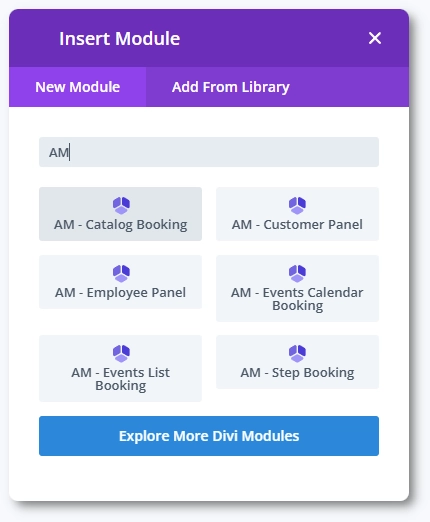
When creating or editing a page, enable the Divi Builder, add a row, and click the gray plus button to insert a new module. Amelia modules will appear in the module list, and you can also find them quickly by typing AM into the search field.
Which Amelia modules are available in Divi?
Each Amelia booking view is available as a separate Divi module, allowing you to choose exactly what you want to display on a page:
- AM – Catalog Booking
- AM – Customer Panel
- AM – Employee Panel
- AM – Events Calendar Booking
- AM – Events List Booking
- AM – Step Booking
This separation makes it easier to build pages with a clear purpose, such as a dedicated booking page, an events landing page, or a customer account area.
How do I preselect booking parameters in Divi modules?
Each Amelia module includes options that match the booking view you selected. For the AM – Step Booking, you can enable Preselect Booking Parameters to control what the customer sees when the form loads.
When enabled, you can predefine values such as:
- Category
- Service
- Employee
- Location
- Default layout version
- Add a trigger that will allow you to Load the booking form manually
- Define the trigger type
- Enable the slider to show the form in an Amelia popup
This allows you to create focused booking pages, for example a page that always opens with a single service or a specific employee already selected.

How do I publish a page with Amelia modules in Divi?
After configuring the Amelia module and arranging your layout, click the purple three-dots menu in the bottom center section of the page, and then click Publish or Update in the bottom right corner (depending on whether you’ve just created the page or are updating an existing page).
The page will be published with the Amelia booking form fully active on the front end.

What should I keep in mind when using Amelia with Divi?
- Always add a row or section before inserting an Amelia module
- Use preselected parameters for cleaner, conversion-focused pages
- Avoid placing multiple booking views with overlapping purposes on the same page
- Test the booking flow on the front end after publishing