 Spring Deals Are in Full Bloom

How do I customize Amelia’s booking forms
Amelia’s Customize section lets you style each booking form and panel so the front end matches your brand colors, your website theme, and the user experience you want to provide.
Every form has its own design settings, so you can tailor layouts, colors, labels, and visual elements separately while relying on the same design system that powers the Step-by-step booking form.
For example, if you want a bright palette for your main booking form but a more compact layout for the Customer panel, you can configure each form individually under Amelia → Customize without affecting others.
Where do I access the Customize settings?
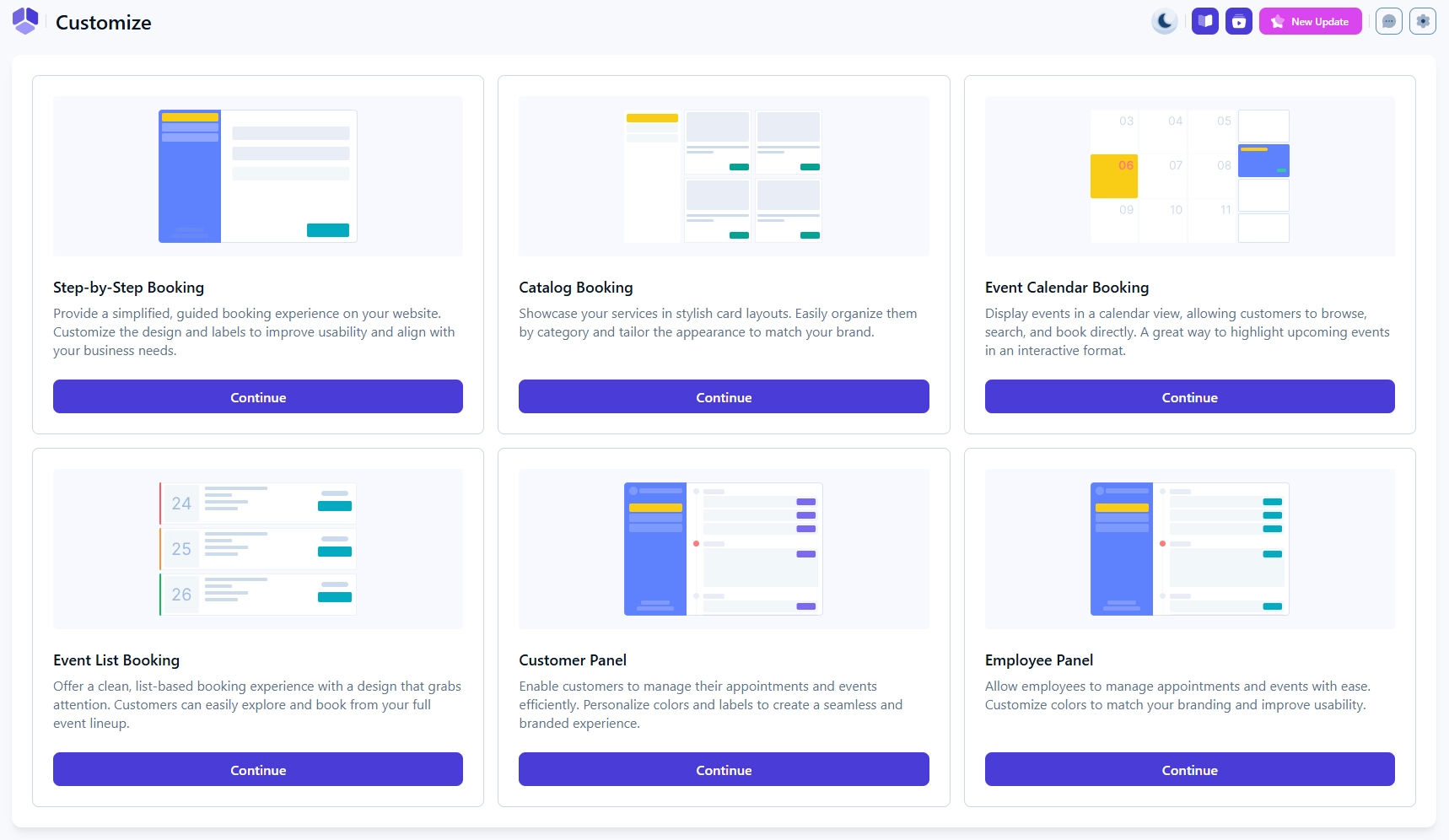
You can access all design options by opening Amelia → Customize in the WordPress menu. This page displays all available front end forms as separate cards, and choosing any of them opens a dedicated editor where you can adjust typography, form colors, buttons, spacing, and labels.
Each form loads its own preview so you can see changes in real time. Once you save your design settings it is recommended to clear any caching on your website so the updated styles appear correctly on the front end.
The light or dark mode of Amelia’s back end interface does not affect front end styles because each form has its own design controls in the Customize section.
What can I customize in Amelia’s booking forms?
All design settings are built on top of the Step-by-step form’s layout engine, so every form gives you the same set of tools for adjusting the appearance of your booking experience.
You can modify global colors, accent colors, typography, button styles, step titles, labels, and you can preview each change in real time.
Some forms also include specific design elements that only apply to that layout, such as calendar colors for the Event calendar or card styles for the Catalog booking form. These settings allow you to match Amelia to your website’s theme without custom CSS.
Which forms can I customize?
- Step-by-step booking – the core form that defines the design foundation for all other layouts.
- Catalog booking – card based service browsing with design controls for cards, categories, and service tiles.
- Event calendar booking – calendar based event browsing with options for calendar colors, active states, and highlights.
- Event list booking – list based event layout with controls for item spacing, labels, and event badges.
- Customer panel – customizable panel where customers manage bookings, payments, packages, and details.
- Employee panel – design settings for the employee workspace used to manage schedules, appointments, and events.
Since all forms use the same design structure, the Step-by-step form is the best place to learn how the color system and layout options behave before moving on to the other forms.
What should I keep in mind when customizing forms?
- Use high contrast color combinations so all labels and buttons remain readable on different backgrounds.
- Test the design on mobile and tablet sizes because spacing and button layouts may appear differently on smaller screens.
- Clear caching after saving changes so your updated design loads correctly on the front end.
- Review each form type separately because design changes do not transfer between forms unless manually recreated.
- Avoid adding custom CSS unless you need advanced adjustments that the Customize settings do not cover.
- Check the preview area after major changes to confirm that text, icons, and steps remain aligned and accessible.