Limited time discount Book Smarter This Christmas
Up to 50%Off

How do custom notifications work in Amelia

Custom notifications let you create additional appointment and event messages that extend Amelia’s default notifications. You can tailor content to specific services, choose when messages are delivered, and customize separate notifications for customers and employees.

Info Note

Custom notifications are available in the Standard, Pro, and Elite.

They can be created for Email, SMS, and WhatsApp, depending on the tab you are currently editing.
How do I enable the custom notifications feature?

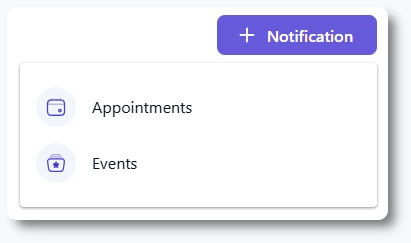
You can enable custom notifications by opening Amelia → Features & Integrations → Features and activating the Custom notifications feature. Once enabled, the Enable button becomes Disable and a Set up button appears. Selecting Set up opens the Notifications page, and when this feature is active, the page displays a + Notification button in the top right corner for creating custom templates.

Add Notification button in Amelia Notifications page

How do I create a new custom notification?

To create a new notification, open Amelia → Notifications and click + Notification. You can choose between creating a notification for Appointments or Events. The page opens in the To customer tab by default, so if you need a custom notification for employees, switch to the To employee tab before creating it.

Once selected, a modal appears where you can name the notification and choose the notification type.

Combined view of action based and scheduled notification options in the Amelia custom notification modal
Info Please note

The screenshot above shows both action-based and scheduled options together for demonstration purposes, but in Amelia only one notification type can be selected at a time.

What types of custom notifications can I create?

You can choose between an action-based notification, which sends messages when certain appointment or event actions occur, and a scheduled notification, which sends reminders or follow up messages relative to the booking time.

Both types can be used for appointments or events, depending on what you selected when creating the notification.

What is an action-based notification?

Action-based notifications are sent when specific appointment or event actions occur. You can select Approved, Pending, Rejected, Canceled, Details changed, Rescheduled, or Waiting.

  • Approved and Pending notifications are sent when a booking is created with that status or when the status changes.
  • Rejected and Canceled notifications cover cases when an employee rejects or a customer cancels an appointment.
  • Details changed is used when important information like date, time, or location is updated, and Rescheduled is used when the appointment is moved to a different time.
  • Waiting is sent when a customer is added to the waiting list for an appointment, similar to the default Appointment waiting list notification.

What is a scheduled notification?

Scheduled notifications are sent based on a time offset from the appointment or event. You can choose whether the notification should be sent Before, After, or on the Same day, enter a numeric value, and select a time unit such as minutes, hours, days, weeks, or months.

The Services dropdown defaults to All services, so you can leave it as is or limit the notification to specific services.

If you enable Send only this notification, the default notification for that action will not be sent for the selected services, and only this custom message will be delivered.

Alert Please note

Scheduled notifications require a cron job on your website so messages are sent at the defined time. You can find setup steps in the Scheduled notifications guide.
How do service selections affect a custom notification?

Each custom notification can apply to all services or only to selected ones. By default, All services is selected, which means the custom notification will be used whenever the chosen action or schedule is triggered for any service. If you select specific services instead, the notification will only be sent for those, and any services not selected will continue to use the default notification templates.

How do I write the content of a custom notification?

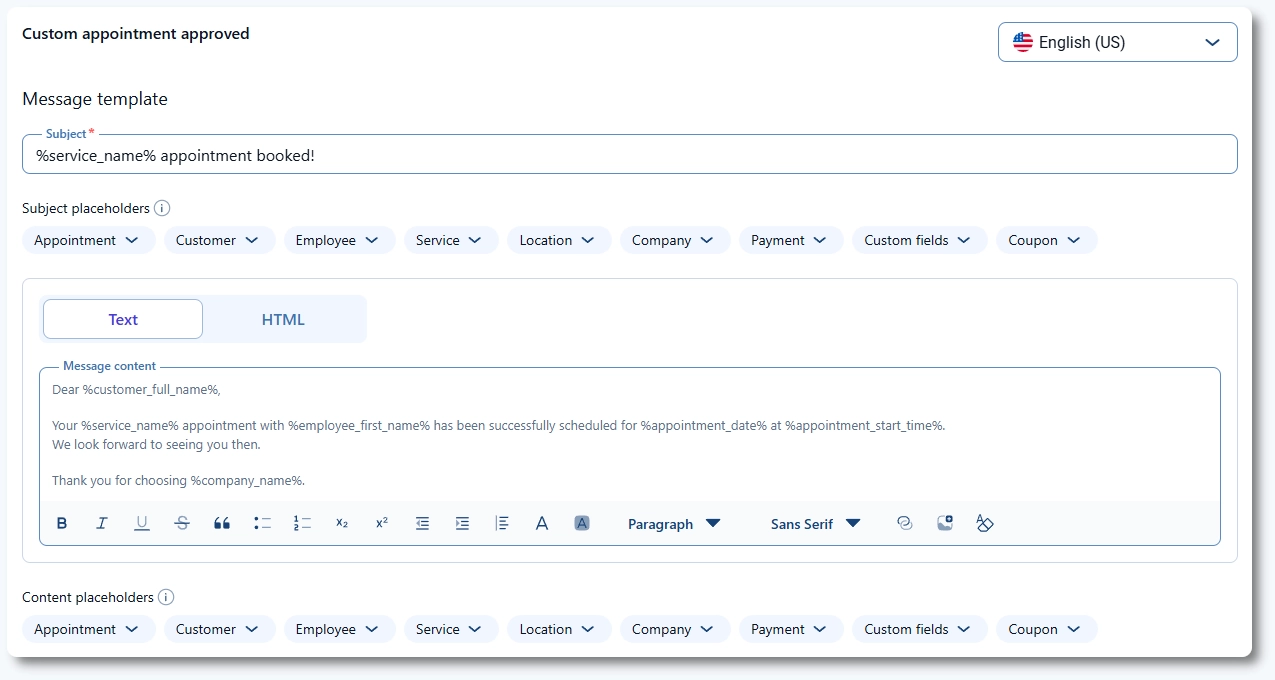
After configuring the notification type and service selection, you can define the content in the editor.

For email notifications, you can add a Subject and write the message in the Message content field. For all channels, you can insert placeholders to include appointment or event details automatically. The available placeholders match the selected notification type and recipient.

A Language dropdown in the top right corner lets you translate the notification into multiple languages when you run a multilingual site.

Custom notification editor in Amelia with subject, message content, placeholders, and language selector

What should I keep in mind when creating custom notifications?

  • Create customer and employee notifications separately, since each is managed under its own tab.
  • Use action based notifications for status changes and scheduled notifications for reminders or follow up messages.
  • Adjust the Services dropdown when you need different messages for different service groups.
  • Enable Send only this notification if you want to replace the default notification for the selected services.
  • Configure a cron job before relying on scheduled notifications so they are sent at the correct time.
  • Use the language selector to provide localized versions of your custom notifications when your site is multilingual.
