Limited time discount Book Smarter This Christmas
Up to 50%Off

How do I start creating a new event in Amelia

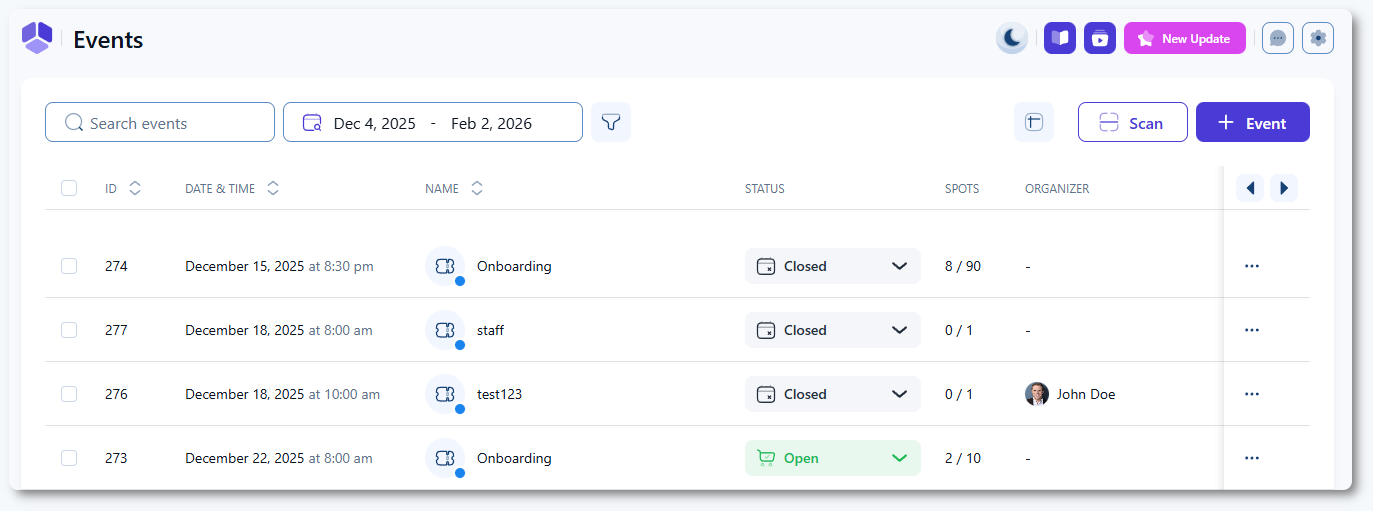
To create a new event, open Amelia → Events and click + Event in the top right corner. This opens the Details tab, where you need to enter all required information before saving the event.

Amelia Events page showing the add event button

Which information is required when creating an event?

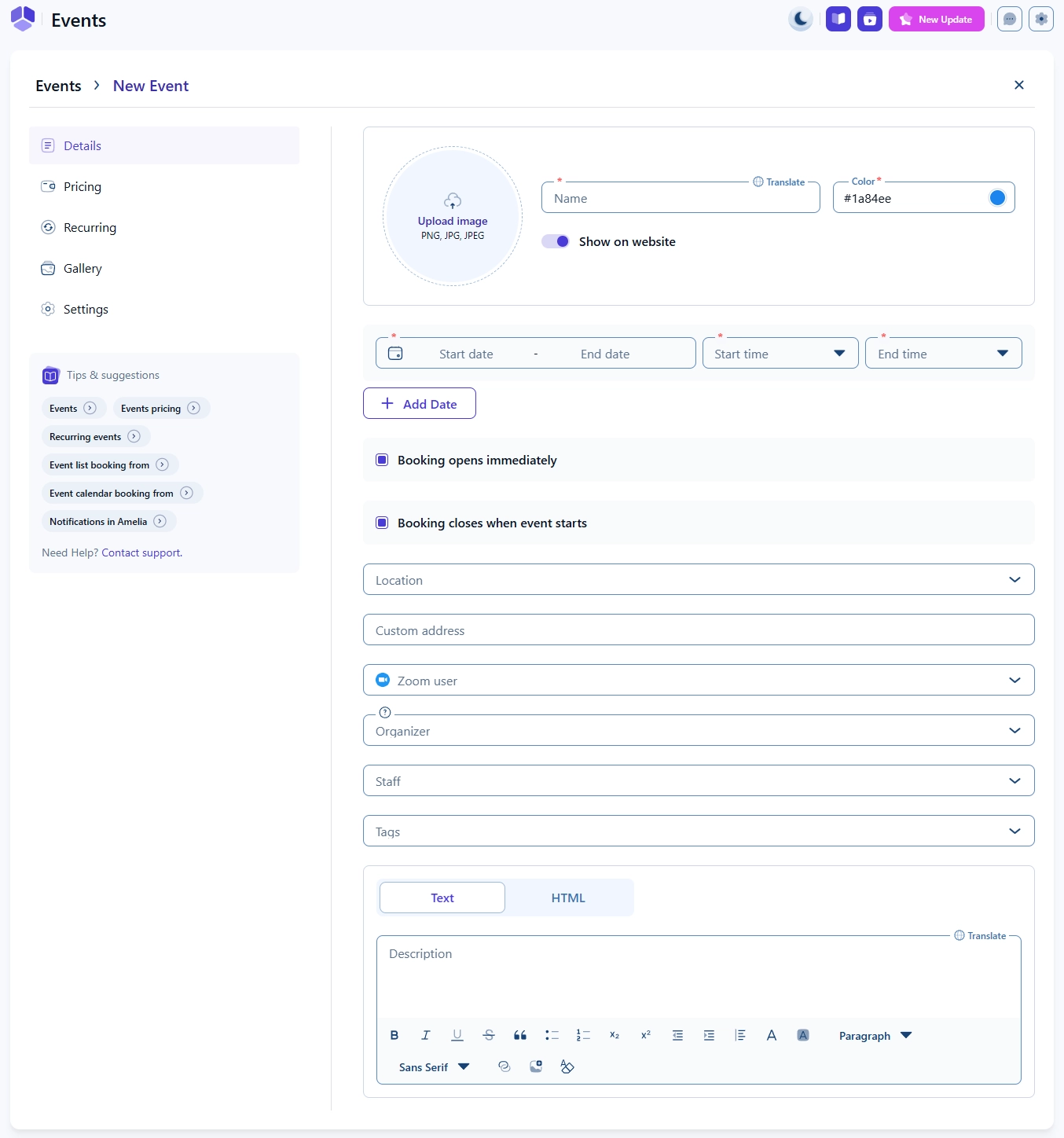
Every event requires the following details:

  • Name – the event name is mandatory and can be translated if multiple languages are enabled in Settings → General settings.
  • Start date and end date – define when the event takes place.
  • Start time and end time – the hours during which the event is held.

All other fields on this page are optional, including the uploaded image, description, and additional dates.

Event creation details tab with name, dates, time, image and color options
Info Note

If you add an image to an event, it will be shown only in the Events list booking form, in the list itself, while the images uploaded through the Gallery tab will be seen in the event preview when Read more is clicked in the Events list form or the event card itself is clicked in the Events calendar form.
How do I define single-day, multi-day, or irregular event dates?

To create a single-day event, click the start date and double-click the desired date in the calendar.

To create a continuous date range, click one date and then select the final date. After choosing the dates, define the start and end time of the event.

Multi-day events use the same time range for each day. For example, selecting January 3rd to January 7th with the time set to 12:00 pm to 4:00 pm means the event will run from 12:00 pm to 4:00 pm on January 3, 4, 5, 6, and 7.

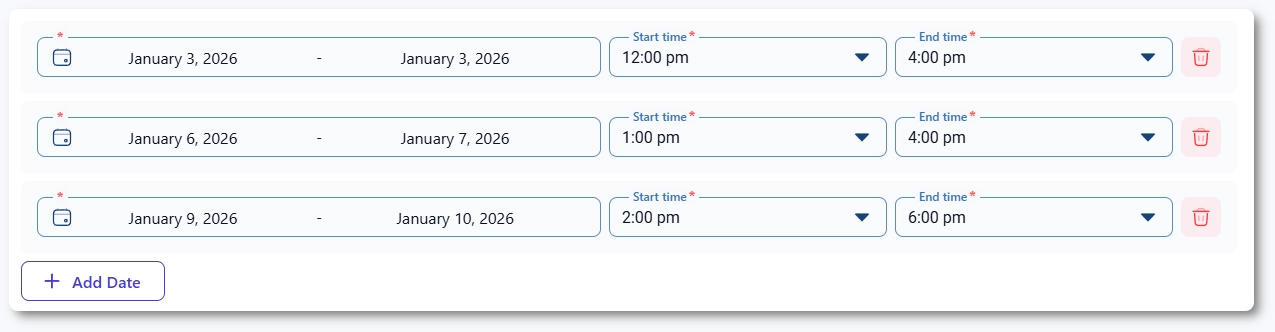
If your event occurs on irregular days, use + Add date to add multiple date groups. Each date group can have different ranges and different times.

Event creation form showing multiple date groups with Add Date button

How do booking open and close rules work?

The Booking opens immediately option enables booking as soon as the event is created. Disable it if you want the event to become bookable later, then set the desired date and time for bookings to open.

Booking closes when event starts prevents customers from booking once the event begins. Disable it if you want to define a custom closing date and time.

Booking opens and booking closes options in Amelia event creation
Info Note

Both rules depend on the event’s defined dates. Booking cannot open after the event begins, and it cannot close after the event ends.

How do I set the event location?

Use the Location dropdown to select one of the locations created in Amelia → Locations.

If you need a custom venue that is not part of your Locations list, use the Custom address field. This field accepts free text and replaces the selected location for this event.

Info Note

If you select a Location from the dropdown list, the Custom address field disappears.

Event location dropdown and custom address field in Amelia

How do online meeting integrations work for events?

If Zoom is enabled in Amelia, a Zoom user dropdown appears. Select a Zoom user from the list coming from your Zoom account. Each booked customer will receive a Zoom meeting link generated for this event.

The Organizer field allows you to select one employee who will appear as the organizer in Google Calendar, Outlook Calendar, or Apple Calendar events. Only one organizer can be selected.

Employees added under Staff are included as additional event staff. Multiple employees can be selected here, and they are added as guests in synced calendar events.

Info Note

Google Meet and Microsoft Teams don’t have their own dropdowns in the event settings. If the selected organizer is already connected to Google Calendar or Outlook, and the Meet or Teams integrations are enabled, Amelia will automatically generate the meeting links.

These links will be included in customer notifications as long as the notification templates contain the corresponding placeholders.

Event fields for Zoom user, organizer, and staff selection

How do tags work for events?

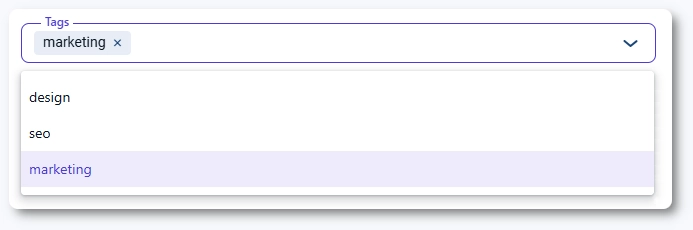
Tags help categorize and filter events. If tags already exist, they appear in the dropdown. To create a new tag, type its name and click it in the dropdown to add it. Tags cannot currently be deleted.

Tags can also be used in shortcodes and blocks to preselect events for specific front-end booking pages.

Tag selection field with existing tags shown in the dropdown

How do event descriptions work?

The Description field uses the Tiptap text editor or HTML mode. If you switch to HTML mode and return to the text editor, any HTML-only formatting will be removed. Descriptions can be translated into any language added in Settings → General settings.

Info Note

You can fully create and publish an event using only the Details tab. If you need to define pricing, capacity, deposit rules, payment methods, or recurring schedules, visit the other articles in the Events category of this documentation.

What should I keep in mind when creating events?

  • At least one date is required before saving an event.
  • Multi-day events apply the same time range to every day in the selected date range.
  • Booking rules cannot exceed the event’s date boundaries.
  • Locations and custom addresses are mutually exclusive for a single event.
  • Only one organizer can be assigned, but multiple staff members can be added.
  • Tags cannot currently be removed once created.
  • The event must be set to Show on website to appear in front-end booking forms.