Creating an employee is the first required step for making your services bookable in Amelia. The employee creation process is done through a full-page editor that guides you through all necessary configuration steps.
Where do I start creating a new employee?
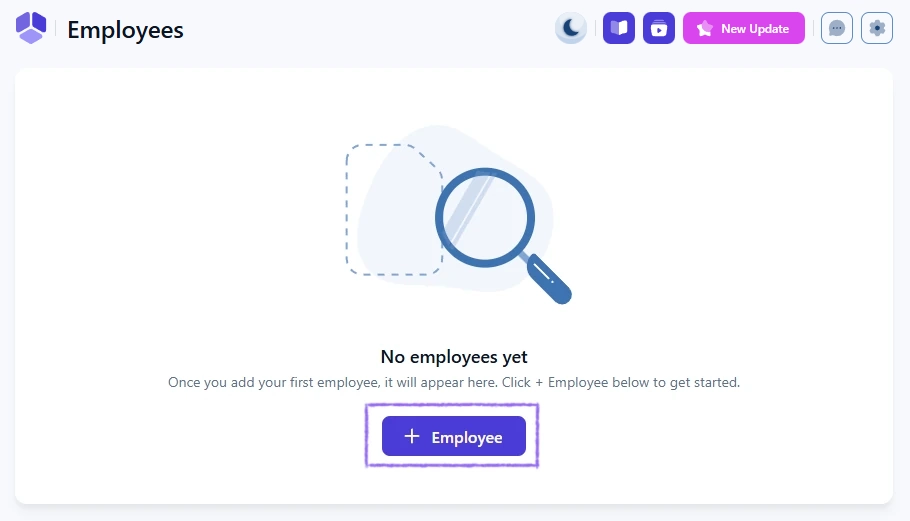
To start, open the Employees page from the Amelia menu in your WordPress back end. If no employees exist yet, the page opens in an empty state with a centered + Employee button. Clicking this button opens the employee creation screen.
After your first employee is created, the + Employee button is shown only in the top-right corner of the Employees list and is used for adding any additional employees.
What happens after I click + Employee?
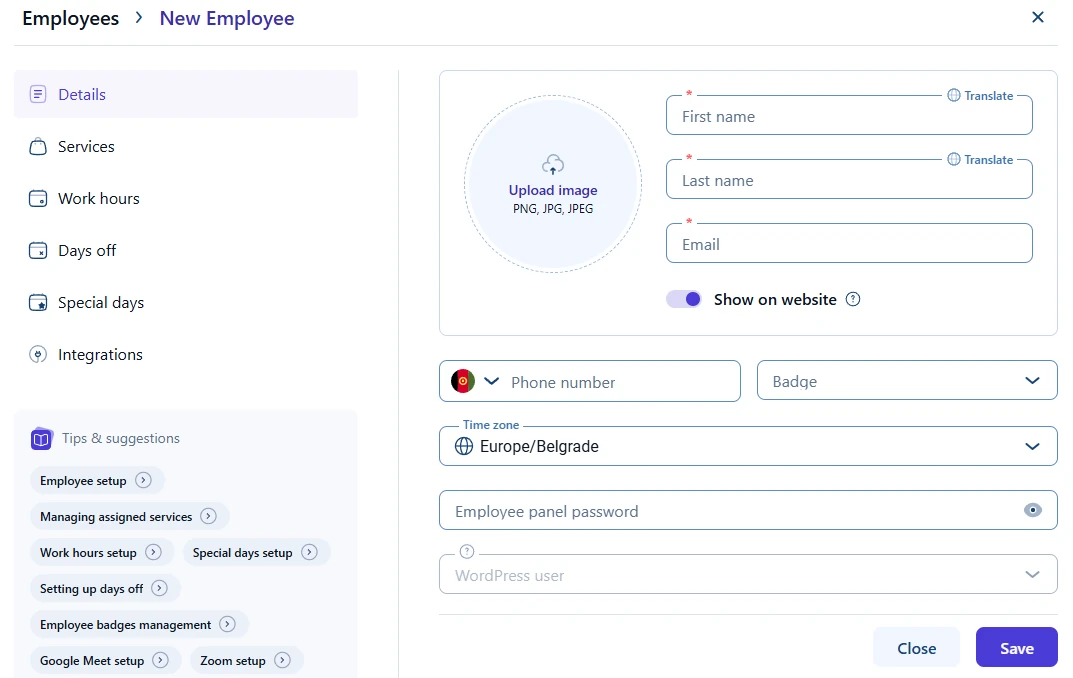
When you click + Employee, the Employees page switches into a full-page creation interface. This interface is organized into multiple tabs that allow you to configure all aspects of the employee profile in a clear step-by-step flow.
The available tabs are:
Details
Services
Work hours
Days off
Special days
Integrations (only visible if at least one integration is enabled)
What is the minimum required data to create an employee?
An employee can be saved as soon as the required fields inside the Details tab are filled in. These include first name, last name, and email. All other configuration steps can be completed later if needed.
Is the Integrations tab always visible?
The Integrations tab is shown only when at least one of the supported integrations is enabled in Amelia, such as Google Calendar and Google Meet, Apple Calendar, Outlook Calendar and Microsoft Teams, Zoom, or Stripe. If no integrations are enabled, this tab is completely hidden from the employee creation screen.
What happens after the employee is saved?
Once you save the employee, the page automatically reloads into the Employees list view. From this point on, the employee can be edited, hidden, duplicated, or assigned to services, depending on your configuration.
Are duplicate, hide, and delete options available during creation?
No management actions are available while an employee is being created for the first time. Options such as duplicate, hide, and delete become available only after the employee has been successfully saved and the profile is opened again in edit mode.
 Spring Deals Are in Full Bloom