How do I create and edit coupons in Amelia
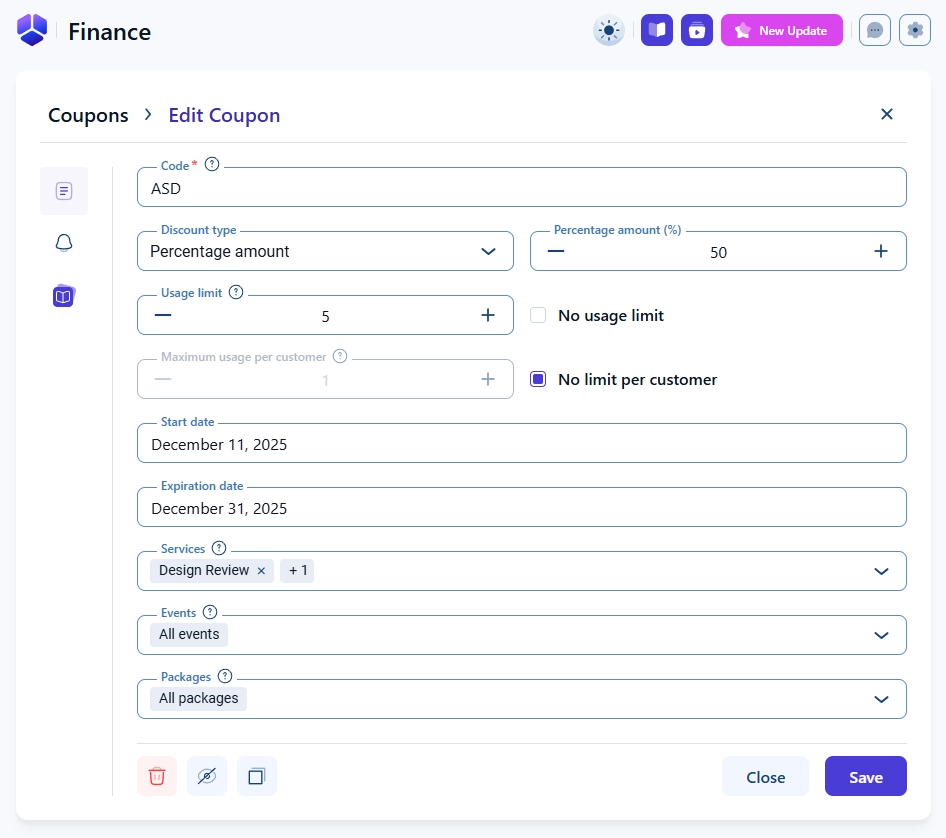
You can create new coupons or modify existing ones through the coupon form in the Amelia back end. The form includes settings for the coupon code, discount type, usage limits, date range, service and event assignments, and automated notifications.
How do I open the coupon creation screen?
You can create a new coupon by opening Amelia → Finance → Coupons and selecting + Coupon either in the top right corner or in the empty state area. Existing coupons can be edited by clicking them and selecting Edit coupon in the right side panel or by opening the three dots menu and selecting Edit.
How do coupon code and discount settings work?
The Code field is required and defines the exact text customers must enter during booking. Discount type lets you choose between a percentage based discount and a fixed amount discount, and the field next to it changes depending on the selected type. Percentage discounts reduce the booking price proportionally, while fixed amount discounts subtract a specific value in your store’s currency.
How do usage limits affect coupon availability?
You can control how many times a coupon can be used through the Usage limit setting, which becomes editable once the No usage limit option is disabled. The Maximum usage per customer setting works similarly and defines how many times a single customer can apply the coupon. Enabling both options lets you manage overall coupon usage and individual customer limits precisely.
How do start and expiration dates work?
The Start date defines the first day the coupon becomes valid, so it cannot be applied to bookings made before this date. The Expiration date defines the last day when the coupon can be used, and once this date passes, the coupon becomes inactive automatically. Neither field is required, but defining both helps control promotional time frames.
How do I assign coupons to services, events, and packages?
Coupons can be assigned to specific Services, Events, or Packages by selecting them from the dropdown menus. If you want the coupon to apply to everything, select the ALL option instead of manually selecting each item. Selecting all currently available items is not the same as selecting ALL, and newly created services, events, or packages will not be included unless ALL is chosen.
Selecting individual services, events, or packages includes only those items, while selecting ALL includes both current and future items of that type.
How do coupon notifications work?
In the Notification tab, you can set a Notification interval, which defines how many approved bookings must occur before a customer receives a coupon automatically. A value of 0 disables notifications entirely. If the interval is greater than 1, the Recurring notification option becomes available and sends the same coupon again after each completed interval. For events, the interval counts the number of different events a customer attends.
To send coupons automatically, the corresponding coupon placeholder must be included in the email notification template.
How are coupons applied during booking?
Customers can apply coupons in the front end during the Payments step of the booking form. The coupon field appears only when the selected service, event, or package is eligible for the coupon, and the coupon must be visible, active, and valid for the chosen date, employee, and price. Payment method selection does not affect whether the coupon field is shown.
In the back end, coupons can be applied when creating an appointment by opening the Customers tab after selecting the service, employee, and date and time. The coupon field appears only after these selections because pricing may vary depending on the employee or time slot. Coupons can only be applied to service bookings created in the back end; event and package bookings do not support coupon entry from the back end.
Coupons can be added to back end bookings only for services. Event and package bookings do not support coupon entry in the back end.
What should I keep in mind when creating coupons?
- Check usage limits to ensure the coupon can still be applied when notifications are sent.
- Use the ALL option when you want coupons to apply to future services, events, or packages.
- Define start and expiration dates to control promotional periods more effectively.
- Confirm that the coupon placeholder exists in your email templates when using automatic notifications.