How do coupons work in Amelia
Coupons let you offer fixed or percentage based discounts for services, events, and packages. You can enable the feature, manage coupon visibility, review coupon details, export coupon data, and adjust table columns directly from the Finance section of the Amelia back end.
Coupons are available in all license plans.
How do I enable the coupons feature?
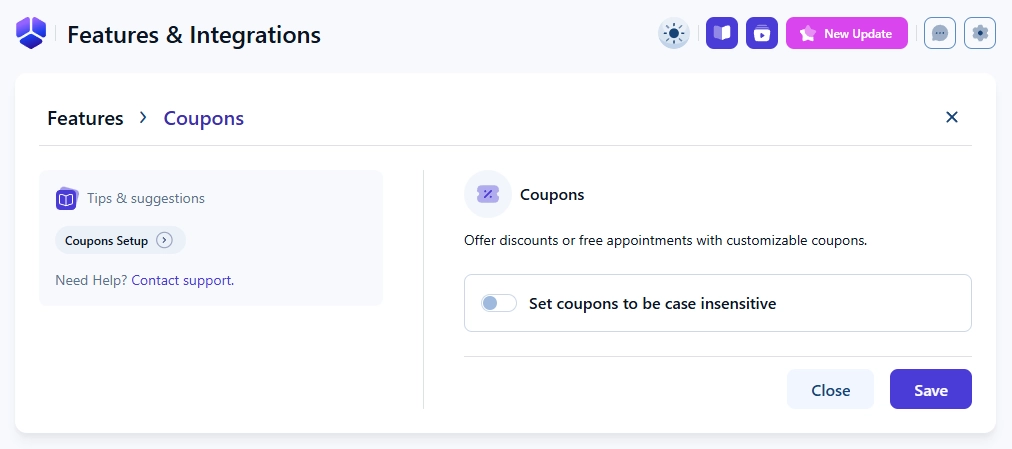
You can enable coupons by opening Amelia → Features & Integrations → Features and activating the Coupons feature. Once enabled, the Enable button becomes Disable, and a Set up button appears next to it. Selecting Set up opens a single option called Set coupons to be case insensitive, which defines whether uppercase and lowercase characters need to match exactly when customers enter coupon codes during booking.
Coupons are case sensitive by default, and enabling this option lets customers apply the coupon regardless of letter casing.
How do I access and navigate the Coupons page?
You can view and manage all coupons in Amelia → Finance → Coupons. If no coupons have been created yet, the page displays an empty state with a + Coupon button, and an additional + Coupon button is located in the top right corner. The page also includes a search bar, filters for Services, Events, and Packages, and a table where all existing coupons appear.
How does the coupons table work?
You can customize the table by selecting the Edit table icon in the top right. In the modal that opens up, you can rearrange columns by dragging them and toggle individual columns on or off. The Code and Discount columns are always shown, while Deduction, Visibility, Start date, Expiration date, Services, Events, and Packages are enabled by default. Additional columns like Usage limit, Limit per customer, and Times used can be enabled for detailed tracking.
The Export button allows you to generate a CSV file, choose whether to use a comma or semi colon as the delimiter, and select which values to include, such as Code, Deduction, Deduction (%), Services, Events, Limit, and Used.
How do I view coupon details?
Clicking a coupon in the table opens a right side details panel where you can see all information about the coupon, including discount type, assigned services, usage limits, date range, and visibility. The panel also includes an Edit coupon button that lets you modify the coupon directly from the overview.
What actions are available in the coupon menu?
When the details panel is closed, each coupon card shows a three dots menu with options to Edit the coupon, Hide it from use, Duplicate it to quickly create a similar coupon, or Delete it from the system.
What does coupon visibility mean?
Visibility determines whether a coupon can be used during booking. A visible coupon is active and can be applied by customers, while a hidden coupon is inactive and cannot be used even if it has a valid date range and unused limits. Enabling the Usage limit and Times used columns helps you monitor remaining availability, and once these values reach the same number, the coupon is effectively used up.
A non visible coupon cannot be applied during booking, regardless of usage limits or expiration settings.
What should I keep in mind when managing coupons?
- Enable optional columns like usage limits and times used when you need to track coupon performance.
- Use the visibility setting to temporarily disable coupons without deleting them.
- Edit table settings to simplify your workflow by showing only the columns you need.
- Export coupon data when you need external reporting or a backup of coupon activity.
