Limited time discount Book Smarter This Christmas
Up to 50%Off

How do I create Azure credentials for Outlook Calendar integration in Amelia

To connect Amelia with Outlook Calendar and Microsoft Teams, you must create an application in Microsoft Azure (Microsoft Entra ID). This application is used to securely authenticate Amelia and allow calendar synchronization and online meeting creation.

The setup is done entirely in the Azure portal and requires creating an app registration, configuring redirect URIs, and generating a Client ID and Client Secret.

Info Note

Azure is Microsoft’s public cloud computing platform used to manage services such as Outlook Calendar and Microsoft Teams. You can log in using outlook.com, office365.com, or hotmail.com accounts
How do I create a new application in Microsoft Entra ID?

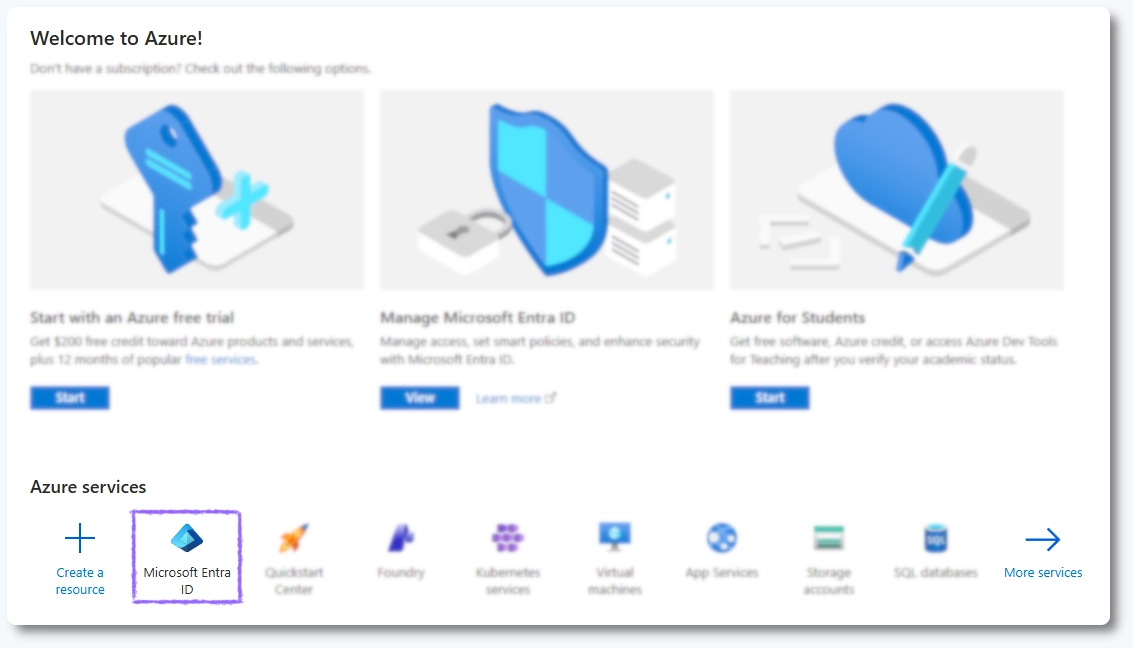
Start by logging in to the Azure portal and opening Microsoft Entra ID, which is used to manage app registrations and authentication.

Azure portal dashboard with Microsoft Entra ID option visible

In Microsoft Entra ID, open App registrations from the left-hand menu and click New registration.

Microsoft Entra ID App registrations page with New registration button

How do I register the application?

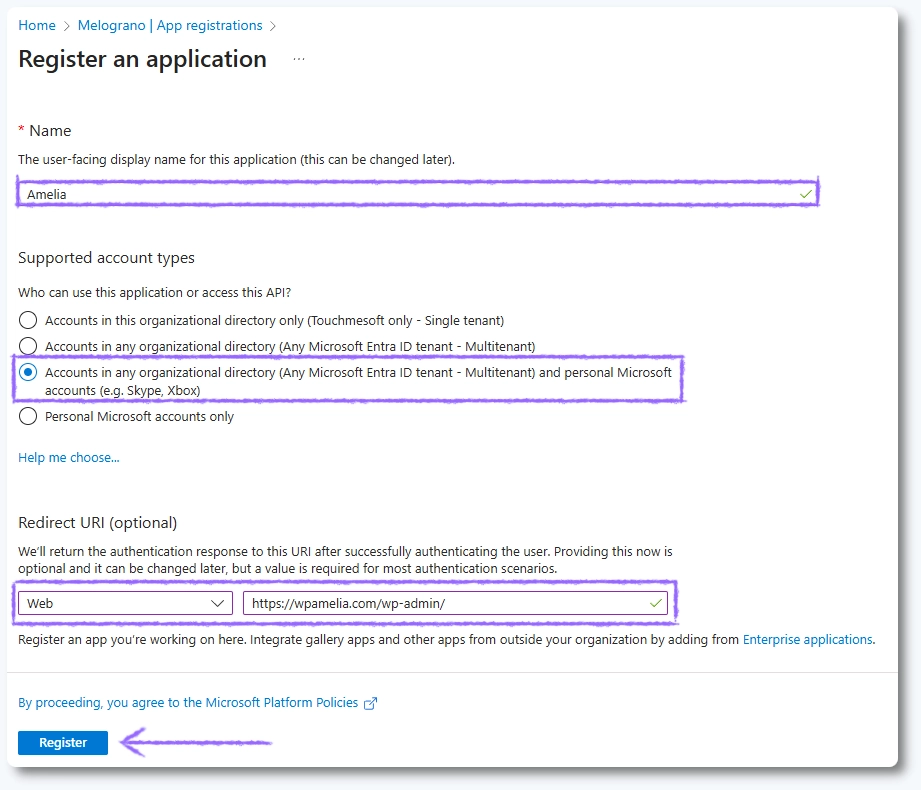
In the Register an application screen, configure the following options:

  • Enter a name for your application (for example, Amelia Outlook Integration).
  • Under Who can use this application or access this API?, select Accounts in any organizational directory (Any Azure AD directory – Multitenant) and personal Microsoft accounts.
  • Under Redirect URI, select Web.
  • Paste the Redirect URI provided in Amelia’s Outlook Integration settings.

After completing these fields, click Register.

Azure Register an application screen with multitenant and redirect URI configured

Where do I find the Client ID?

After the application is created, Azure will open the application overview automatically.

Copy the value labeled Application (client) ID and paste it into the Client ID field in Amelia’s Outlook Integration settings.

Azure application overview showing Application client ID

How do I generate a Client Secret?

To generate a Client Secret, open Certificates & Secrets from the left-hand menu and click New client secret.

Azure Certificates & Secrets page with New client secret button

Add a description for the secret and select 730 days (24 months) as the expiration period. Click Add to create the secret.

Azure client secret creation with 24 months expiration selected
Info Note

The client secret expires after 24 months. Once it expires, you must generate a new secret to continue using the Outlook Calendar integration in Amelia
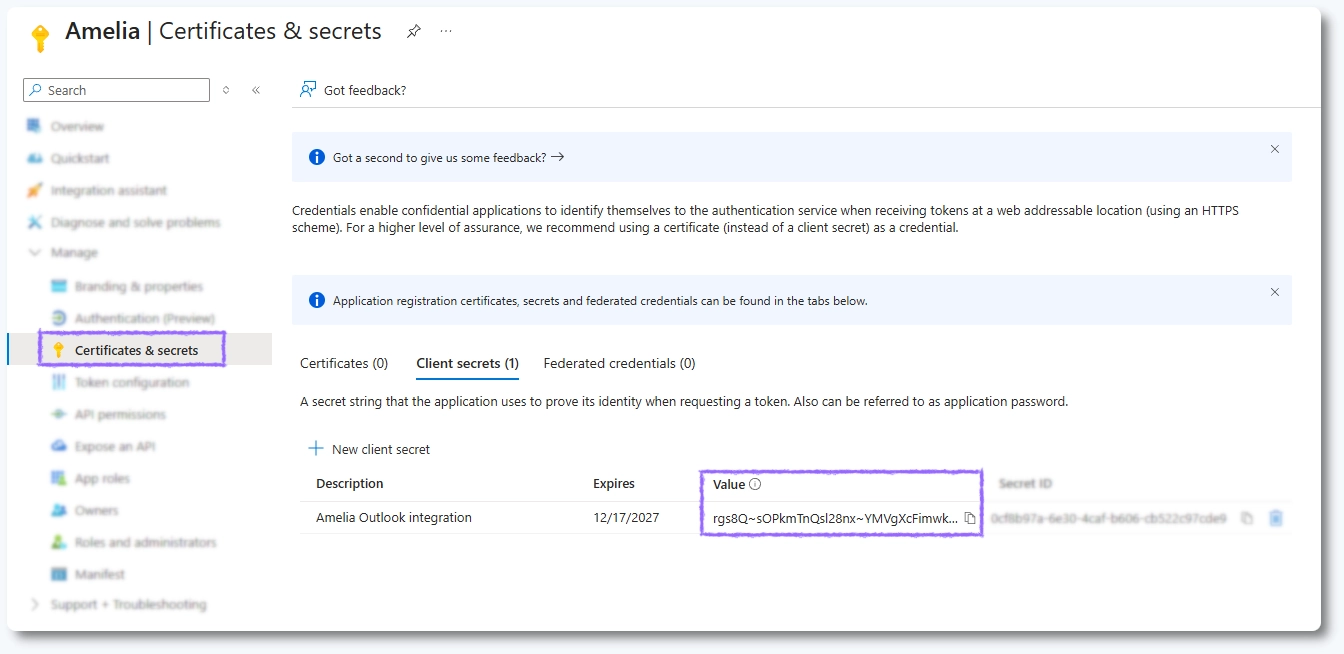
Azure client secret value displayed after creation

What does the Redirect URIs do?

The Redirect URI defines where users are returned after authenticating with Outlook. This value can’t be edited in Amelia.

By default, Amelia uses the following structure:
https://yoursite.com/wp-admin/

Make sure this URL is added under Redirect URIs in your Azure application.

If you allow employees to connect their Outlook calendars from the front-end Employee panel, you must also add the URL of the page where the Employee panel is located as an additional Redirect URI.