 Spring Deals Are in Full Bloom

How do I connect the main Google account in Amelia using the standard setup
You can connect Google Calendar and Google Meet in Amelia through the simple Sign in with Google setup. This method requires no developer configuration and supports localhost environments, making it ideal for most installations. Once connected, Amelia will sync appointments and create Google Meet links automatically when Google Meet is enabled.
How do I access the Google setup screen?
After enabling the integration in Amelia → Features and integrations → Integrations, click the Set up button inside the Google Calendar and Google Meet card.
In the setup screen, open the General tab. This is where you establish the main Google connection that employees rely on when syncing their calendars.
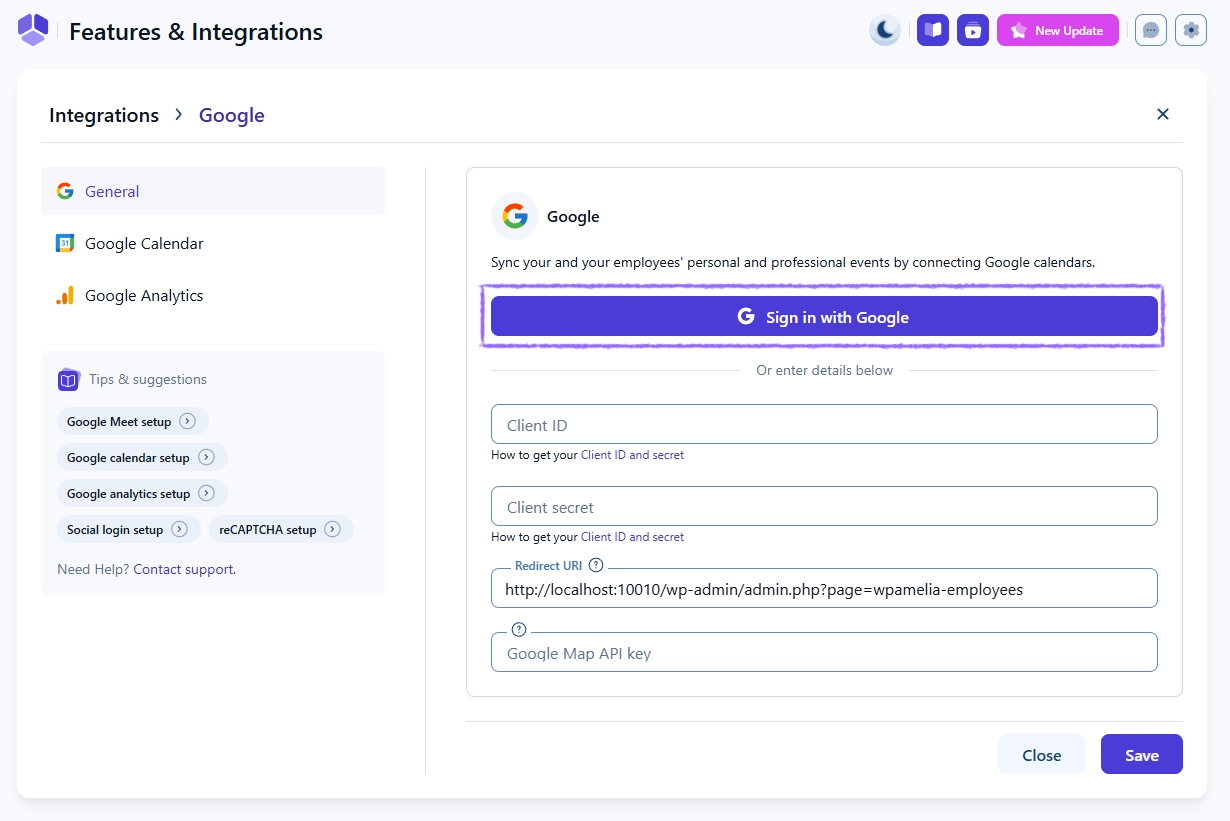
How do I sign in with Google?
In the General tab, click Sign in with Google.
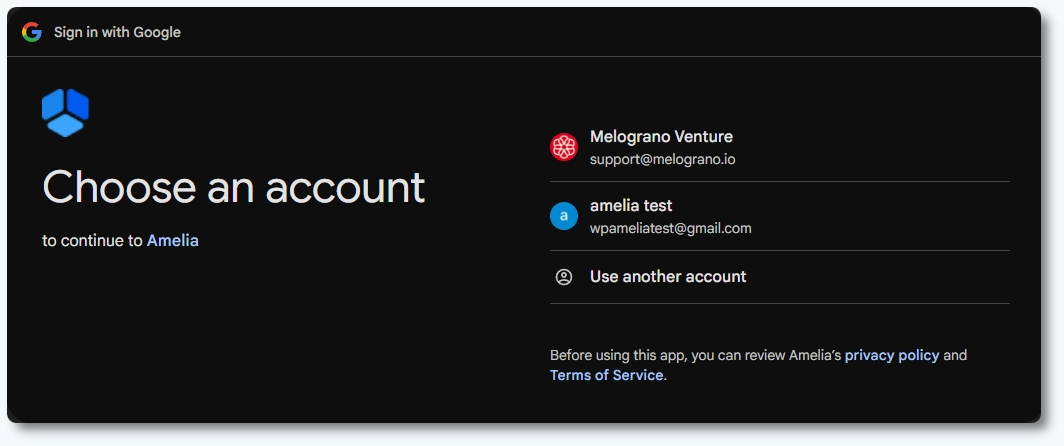
If you are already logged into one or more Google accounts in your browser, Google will show a list of available accounts. Otherwise, you will be asked to log in.
Choose the account you want Amelia to use for syncing and calendar access. This Google account becomes the primary account for the integration and determines which calendars can be assigned to employees later.
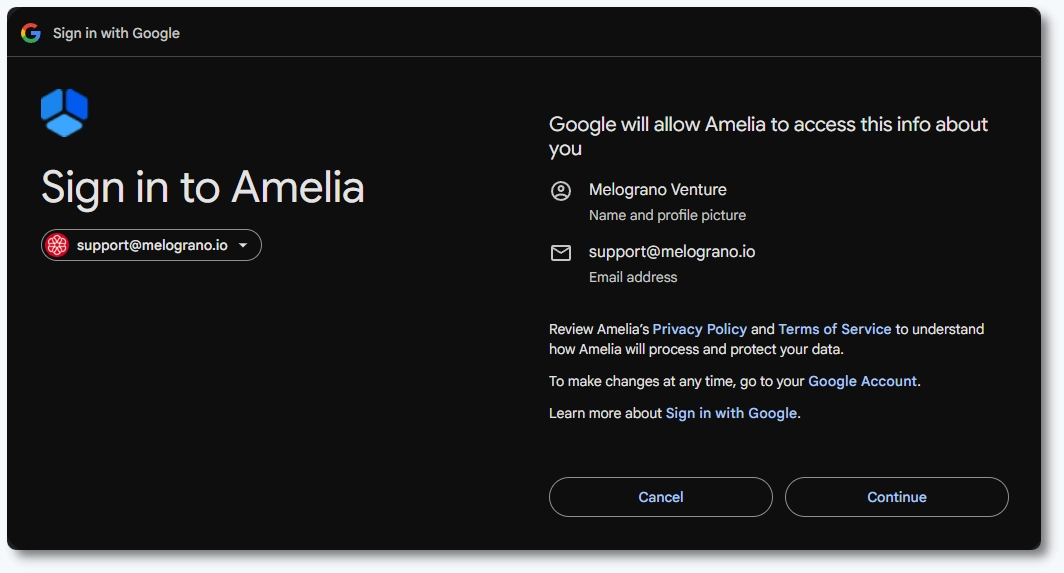
Once an account is selected, the next screen shows what Amelia will be allowed to access:
- Name and profile picture
- Email address
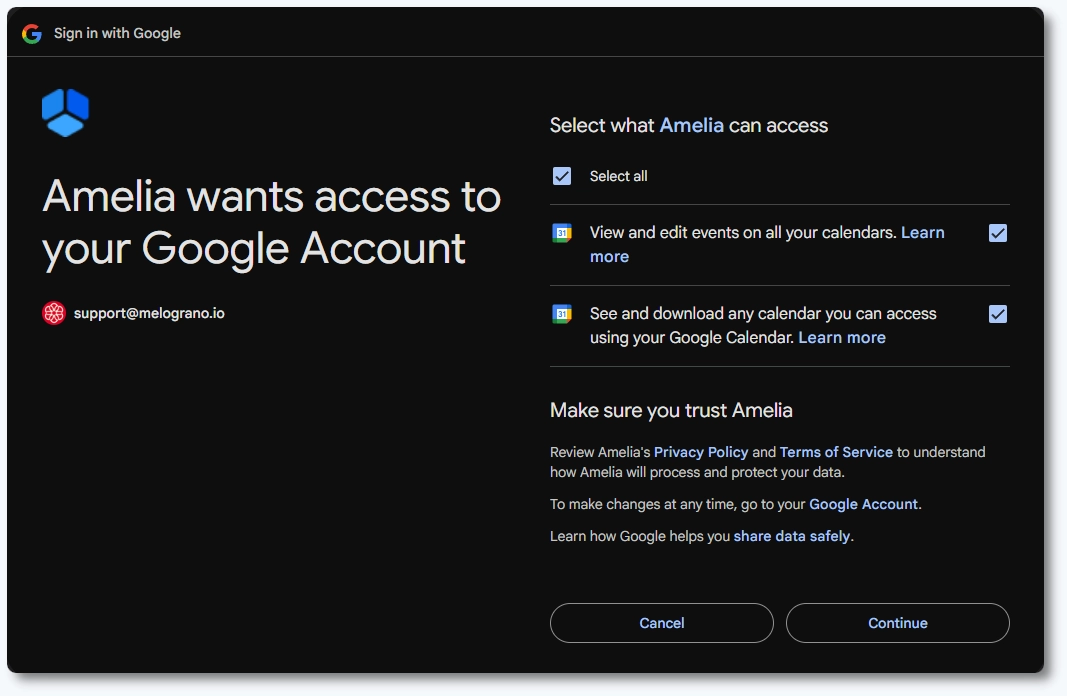
What permissions do I need to allow?
Google displays a list of permissions that Amelia needs in order to sync appointments and manage events properly.
You must check the Select all box, which grants access to:
- View and edit events on all your calendars
- See and download any calendar you can access using Google Calendar
These permissions are required for creating, updating, and syncing appointments. Without them, the integration will not function correctly.
What happens after I confirm the connection?
After clicking Continue, Google redirects you back to Amelia.
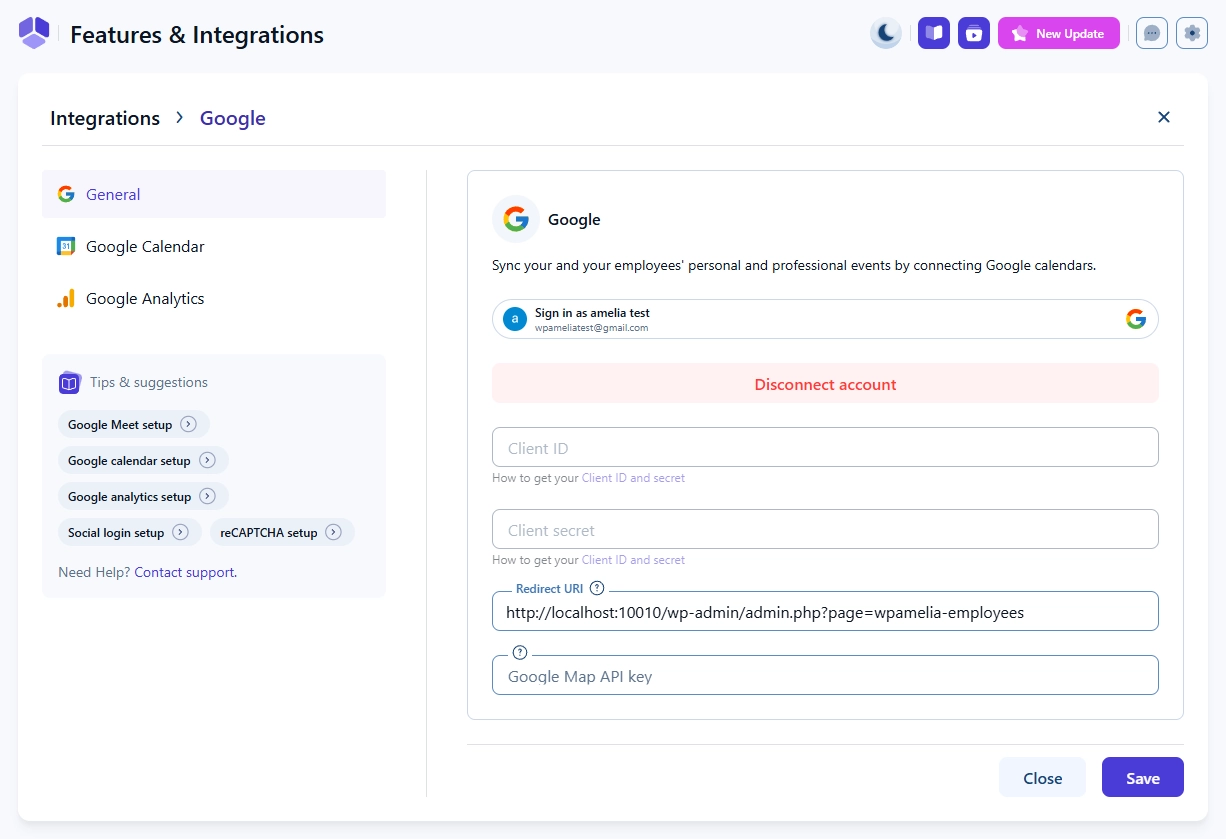
In the General tab, you will now see:
- Disconnect account button
- Client ID and Client secret fields disabled
- Redirect URI automatically generated based on your site URL
- Google Map API key field, used for locations and address custom fields
This confirms that the standard connection was established successfully.
Administrators may now proceed to configure calendar behavior in the Google Calendar tab or enable Google Meet.
Can employees connect their own Google calendars?
Yes. After the main connection is established by an administrator, employees can connect their personal Google Calendar accounts.
They can do this either through their Employee Panel or through their WordPress profile if their WP user role is linked to their Amelia employee profile.
If an employee connects a personal calendar, it overrides any calendar assigned by the administrator. Amelia will indicate this with an Overridden by employee label in the Google Calendar settings.
What should I keep in mind when using the standard connection?
- Only administrators can establish the initial connection in Features & integrations.
- The Google account used during this step determines which calendars are available for assignment to employees in the setup screen.
- Employees can connect their own Google accounts later, unless an admin has already assigned a calendar to them during setup. In that case, the admin-defined calendar takes precedence.
- The Redirect URI is generated automatically and it can’t be changed.
- This connection method supports localhost environments, which makes it suitable for testing and development setups.
- Appointments are not synced retroactively. To push existing bookings to Google Calendar, open each appointment and click Update without making any changes.
- If an admin assigns a calendar to an employee, the employee will see that a Google Calendar is connected in their profile, but the Disconnect option will be disabled.
- Admins can override employee connections at any time, while employees cannot override calendars assigned by admins during the Google Calendar setup.