 Spring Deals Are in Full Bloom

How can I set up and use the Catalog booking form in Amelia?
The Catalog booking form lets customers browse your services visually and book directly from a structured category layout. It can be added to any page using Amelia blocks, widgets, or shortcodes.
How do I add the Catalog form to my website?
You can add the form using Amelia blocks in Gutenberg, Elementor, or Divi, or by placing a shortcode on any page. Shortcodes can also be filtered to show only specific services, categories, employees, or locations.
Examples:
[ameliacatalogbooking]– shows the entire Catalog.[ameliacatalogbooking category=1]– shows only services from Category ID 1.[ameliacatalogbooking service=1]– shows only the service with ID 1.[ameliacatalogbooking employee=1]– shows services provided by Employee ID 1.[ameliacatalogbooking location=1]– shows services available at Location ID 1.
You can combine filters to tailor exactly what customers see. All available shortcodes are listed on the Amelia Shortcodes page.
What do customers see first in the Catalog form?
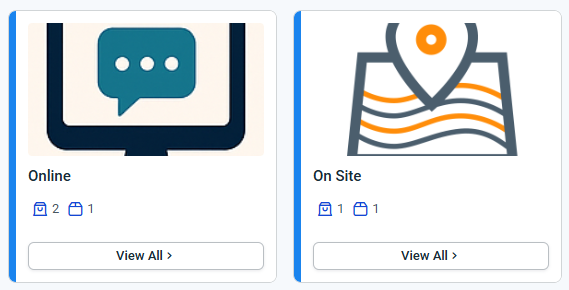
Depending on how you configured the form when you added it to the page, the Catalog may show a category selection step first.
This step can be disabled with Gutenberg, Elementor, or Divi blocks by enabling the Skip Categories step slider, or by adding the categories_hidden=1 in the shortcode, if you want to skip category selection entirely.
How do customers browse services in the Catalog?
After selecting a category, customers see all services inside it. The layout shows service cards, including name, duration, price, and an optional image. A sidebar with categories and filters may appear if enabled in Customize.

What does the “View employees” option show?
When customers click View Employees, a modal opens listing all employees assigned to that service. If employee descriptions are added, each employee expands so customers can learn more before booking.

How do customers proceed to booking from the Catalog?
Customers can click Book this service from the employee modal or the Continue button on the service card. This opens the Service overview page, where clicking on the Book now button in the upper right corner brings up the Step-by-step booking form in a popup.
The Step-by-step form’s layout does not have to match the Catalog design because the two forms are styled separately in the Customize section.

How does the Catalog form interact with the Step-by-step form?
The Step-by-step form that opens in the popup is automatically filtered. Service and category are already preselected. Optionally, employee and location selections are also be skipped if there’s only one employee assigned to the service, and that employee is assigned to a single location.
In that case, customers simply choose the remaining fields like date, time, customer details, and payment method.
How are packages displayed in the Catalog form?
If a service belongs to one or more packages, the Catalog displays packages next to individual services. Packages are always listed first, and their order cannot be changed at this time.
When a customer selects a package, the popup shows a narrower view where they can scroll through included services and assigned employees. Only the Your information and payment steps are required because selections are inherited from the Catalog.

Can the Catalog booking form be customized?
Yes. You can style the form in Amelia → Customize → Catalog Booking to adjust colors, labels, visibility of filters, and category behavior. The design is completely separate from the Step-by-step form’s design.
What is not covered on this page?
This article focuses on how the Catalog form works for customers and how it interacts with booking steps. It does not cover design and layout controls such as search visibility, employee and location filters, category sidebar options, All / Services / Packages toggles, or label and color customization. These are part of the form design settings and are documented separately in Customize → Catalog.
What should I keep in mind when using the Catalog form?
- The Catalog layout is best for businesses offering multiple services or categories and needing visual browsing.
- The booking popup always uses the Step-by-step form settings, so any fields, recurring logic, extras, or payments are controlled there.
- Filters, search bar, category sidebar, and other interface elements depend on your Customize settings and may differ from the examples shown.
- Packages appear first in the list, and the order cannot currently be changed.
- Availability, employees, locations, and pricing fully depend on how your services and schedules are configured.