Limited time discount Book Smarter This Christmas
Up to 50%Off

How to use the cart feature in Amelia

The cart feature lets customers book multiple appointments in a single flow instead of completing separate bookings for each service. For example, a customer can book a haircut, a manicure, and a massage in one go, review everything in a single summary, and then confirm and pay once at the end. This makes booking faster for customers and reduces the chance that they abandon the process halfway through.

Info Note

The Cart feature is available in Pro and Elite licenses only and it doesn't work for events, recurring appointments, or packages.
How does the cart feature work in the booking flow?

You can enable the Cart feature in Features & Integrations. There are no additional settings to configure. Once it is enabled, a new Cart step is added to the front end booking forms, and it is not available in the back end.

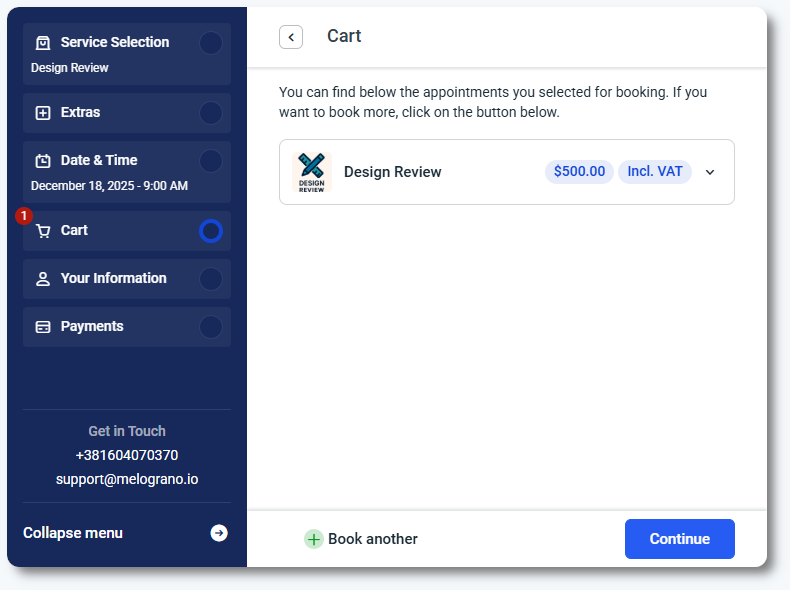
When a customer selects a service, date, and time in the front end form, they will see two options: Book another and Continue. Book another takes them back to the service selection step so they can add more appointments to the cart, while Continue moves them forward toward entering their details and finishing the booking.

As customers add more appointments, all of them are listed in the cart step before the Your information step. Each item shows important details like service name, date, time, and any deposits or taxes so customers can confirm that everything looks correct. They can remove any appointment they no longer need or go back to add more services if required.

When more than one appointment is in the cart, customers can click the arrow on the far right of each item to expand and edit it. This lets them change the service, employee, location, date, or time without starting the booking from scratch. Previously selected time slots do not block adding new appointments and the system prevents double booking of the same time slot, so the flow stays flexible and safe for your schedule.

Cart step showing Book another and Continue buttons in the Amelia booking form
Alert Please note

Cart cannot be used as a replacement for chain appointments. Customers simply add multiple separate appointments to the cart and confirm them together, instead of booking them one by one.

How are customer details and payments handled in the cart?

After reviewing the cart, the next step is Your information. If your services use custom fields, all fields from all selected services are displayed together here. For example, if service 1, service 2, and service 3 each have different custom fields, all of them will appear in this step so the customer can fill everything in one place. This keeps the experience organized and avoids repeating the same details across multiple forms.

The final step is Payments, where customers see a breakdown of the price for each appointment in the cart, along with the total cost. Deposits are calculated based on the services that have deposits defined, and the total deposit reflects the combined value of all such services. This helps customers clearly understand what they are paying for before confirming the booking.

The cart uses all enabled payment methods from Settings → General settings → Payments. Even if a specific service has an on-site payment method disabled, it will still be available as a payment option in the cart as long as it is enabled globally in Amelia’s payment settings.

Cart payment step showing a price breakdown for each service and the total amount

How does the cart feature integrate with notifications and customization?

Cart bookings are covered by dedicated notification templates, so you can keep customers informed about everything they booked in one message. In Notifications, you will find Cart purchased templates for both email and SMS. When you open one of these templates, you can configure how the %cart_appointments_details% placeholder behaves. This allows you to choose which details about the appointments are included in the message and match the content to your communication style.

Once the cart feature is enabled, a Cart step also appears in Customize. Here you can adjust button types, control how VAT is displayed when taxes are enabled and configured, and edit the labels shown in the cart step. This gives you control over both the look and wording of this part of the form so it fits the rest of your booking experience.

Notification modal showing configuration options for the cart appointments details placeholder in Amelia

What should I know about the cart feature?

  • Availability – The cart works only for appointments and is not supported for events, recurring appointments, or packages.
  • Deposits – Deposits are calculated based on the services that have a deposit defined, and the total deposit in the cart combines these individual amounts.
  • WooCommerce taxes – If you use WooCommerce, taxes are added only for items that have a tax configured in WooCommerce.
  • Refunds – If you need to refund a cart purchase, each appointment must be refunded separately. There is no option to refund the entire cart in a single action.
  • Back end usage – The cart step is available only in front end booking forms and cannot be used when creating appointments in the back end.
