 Make This Winter Your Most Organized Yet

How does the Calendar work in Amelia
The Calendar page in Amelia is a back end scheduler that shows all scheduled appointments and events in one place. It allows you to view availability, manage bookings, reschedule appointments, and quickly access booking details without leaving the calendar.
The calendar supports multiple views, advanced filtering, and direct booking creation, making it the central place for daily schedule management.
How do I open the Calendar page?
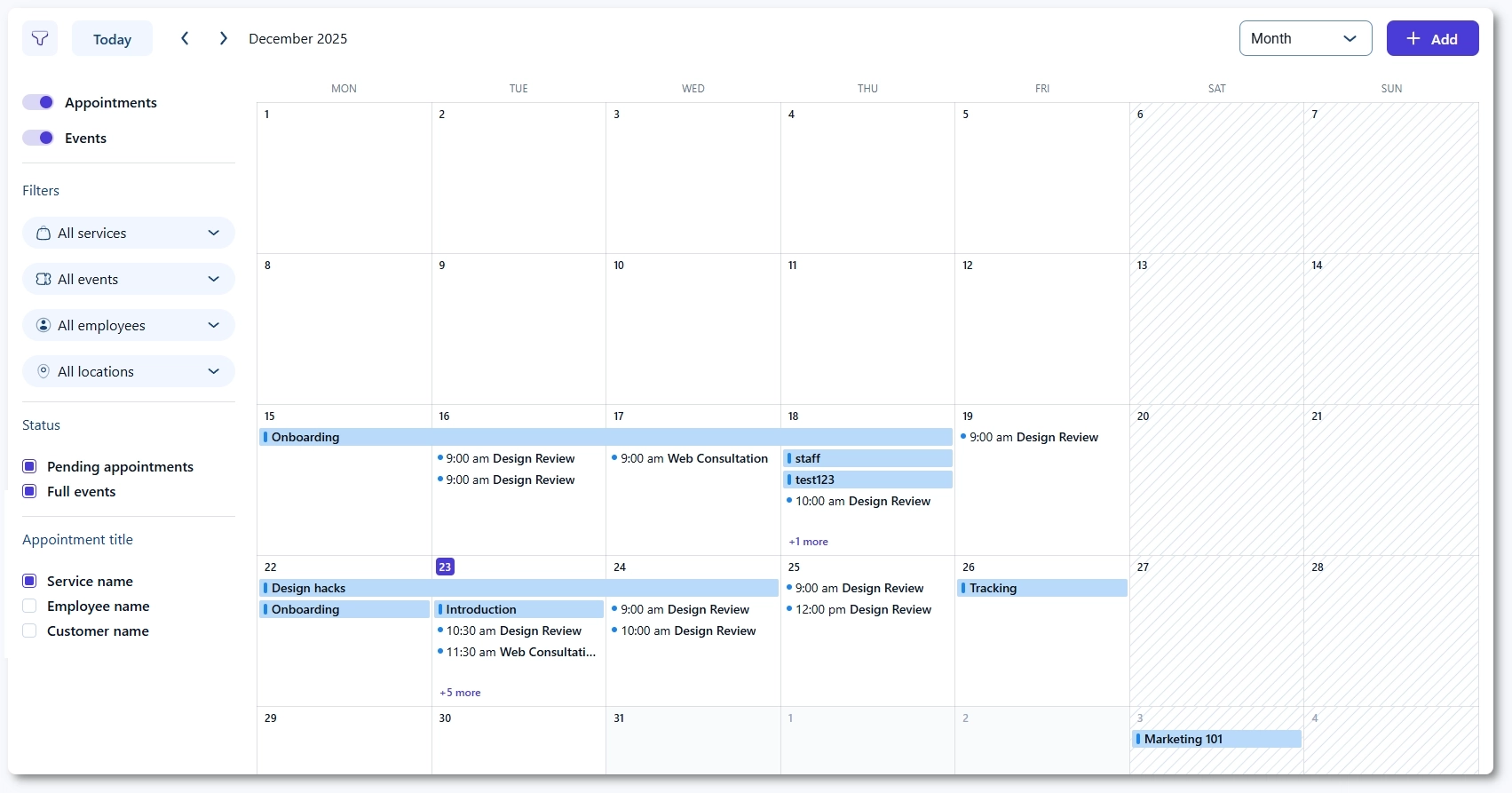
To open the Calendar, go to your WordPress admin area and navigate to Amelia → Calendar. The calendar loads immediately with all scheduled appointments and events, along with controls for navigation, view selection, and filtering.
What do I see in the Calendar?
The Calendar displays bookings in a calendar grid, so you can immediately see what is scheduled and when. Appointments and events can be shown together, or you can hide one of them using the toggle on the left side (once you click the Filter button).
- Appointments and Events toggles control what is visible in the calendar.
- Bookings are shown with their titles and times, depending on the selected view.
- Clicking a booking opens its details panel.
How do I use filters in the Calendar?
Use the filter icon to show or hide the filters panel on the left. Filters help you quickly find relevant bookings by narrowing the calendar display.
- Choose whether you want to display Appointments, Events, or both.
- Filter by Services, Events, Employees, and Locations.
- Use status filters such as Pending appointments and Full events (enabled by default) to control what appears on the calendar.
- Configure the title of appointment cards using the Appointment title option.

How do I control what is shown in the appointment title?
The Appointment title settings let you choose what information is displayed inside appointment blocks on the Calendar. This helps you adapt the calendar view to your workflow, depending on whether you need to see services, employees, or customers at a glance.
You can choose to display one or more of the following in appointment titles:
- Service name
- Employee name
- Customer name
These options affect only how appointments are labeled in the Calendar view. They do not change booking data or customer-facing information.
How do Calendar views and navigation work?
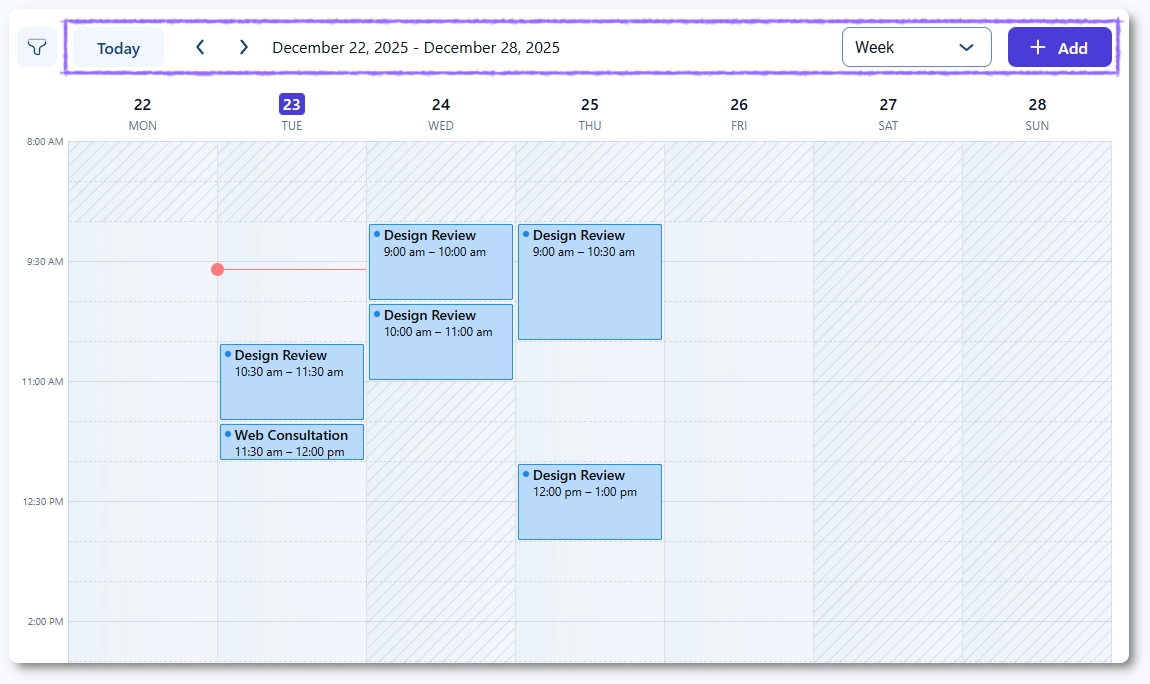
You can change how the schedule is displayed using the view selector in the top-right corner. Navigation depends on the selected view.
- Use the view selector to switch between Month, Week, and Day views (and any other views available in your version).
- Use the left and right arrows to move backward or forward.
- Click Today to return to the current date.
The arrows move by the active view:
- Month: moves one month backward or forward.
- Week: moves one week backward or forward.
- Day: moves one day backward or forward.
What happens when I click an appointment or event?
When you click an appointment or event in the Calendar, a details panel opens from the left side. From there, you can quickly review key information and manage the booking.
- Appointments open an Appointment details panel.
- Events open an Event details panel.
- You can view customers and their statuses, and access actions such as editing the booking.

How do I add a new appointment or event from the Calendar?
You can add new bookings directly from the Calendar in two ways:
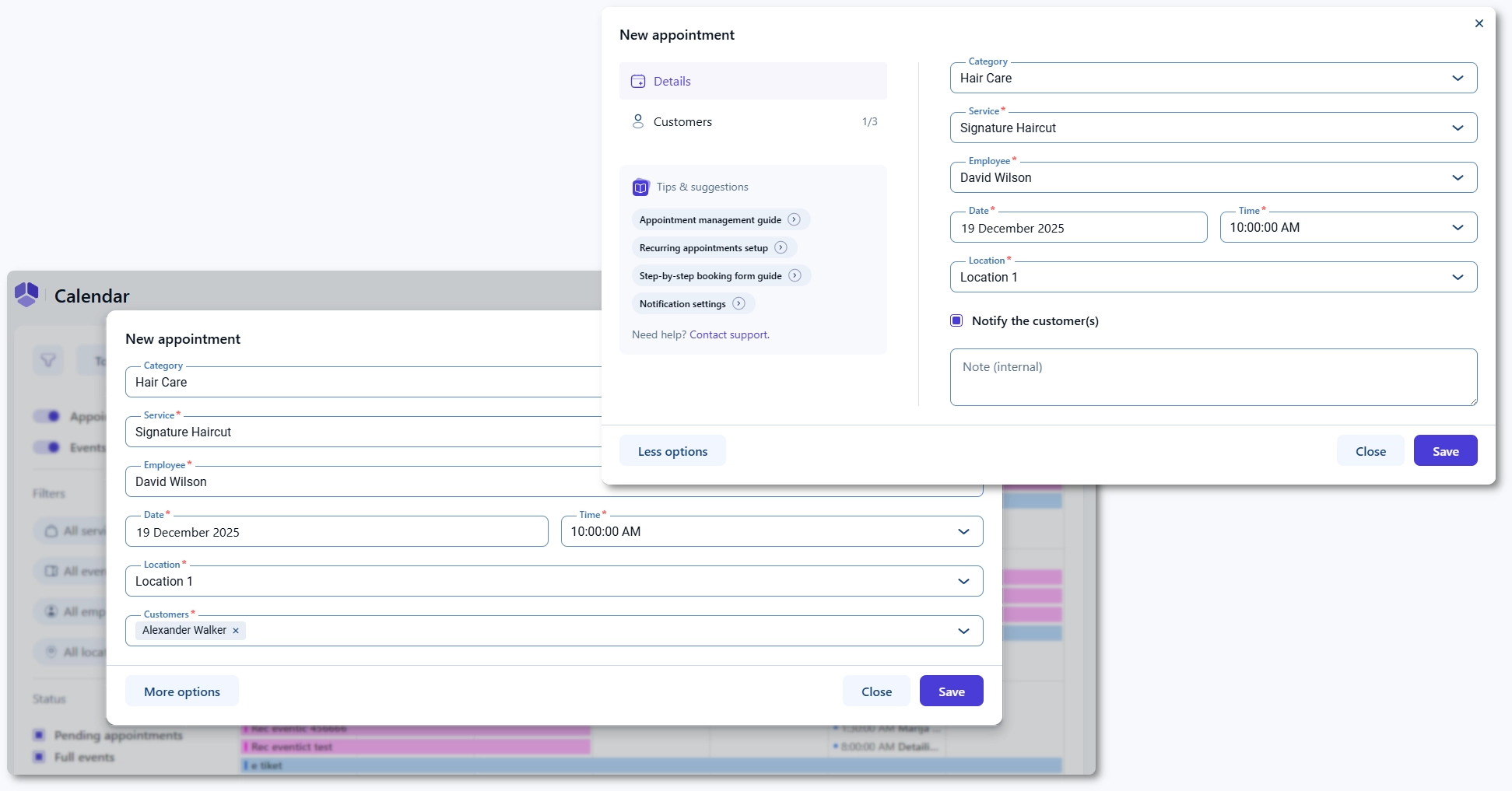
- Click + Add to choose whether you want to create an Appointment or an Event.
- Click an empty time slot to open a creation popup with Appointment and Event tabs.
After selecting the booking type, you can enter the required details and save.
What does “More options” do when creating a booking?
When creating an appointment or event from the Calendar, you can start with the basic fields and then expand the form by clicking More options.
- More options opens the same creation flow you would use in Bookings or Events, but inside the calendar popup.
- This helps you complete more advanced settings without leaving the Calendar page.
How do I reschedule an appointment using drag and drop?
You can reschedule appointments using a drag and drop action in the Calendar. Drag the appointment to a new time or date to update the schedule.
- Drag and drop is available for appointments.
- Events cannot be rescheduled with drag and drop.
Which date and time formats are used in the Calendar?
The Calendar uses the date and time formats configured in your WordPress settings. To adjust them, open your WordPress Date and Time settings and update the formats there. Amelia will then display those formats in the Calendar views and booking details.
What should I keep in mind when using the Calendar?
- Appointments can be rescheduled via drag and drop; events cannot.
- Filters are the fastest way to find bookings when you manage multiple employees, services, or locations.
- Clicking a booking opens the details panel, so you can review and manage it without leaving the Calendar.
- When you create a booking from the Calendar, More options expands the form to match the full creation flow.