How do I create and configure booking-related Custom Fields in Amelia
Booking-related Custom Fields let you collect additional details from customers for specific appointments or events, and all entered data is stored inside each individual booking.
For example, a gym can ask for a fitness level before the first session, or a design studio can collect a project URL during booking so the team can prepare in advance.
How do I access the booking-related Custom Fields settings?
You can manage all booking-related Custom Fields from Amelia → Custom Fields in your WordPress dashboard, where the Bookings tab is selected by default.
To create a new field, click the + Custom field button and select the desired field type from the list to open the creation modal.
What field types can I add for booking-related Custom Fields?
Amelia supports multiple field types that let you collect different kinds of customer input during booking.
- Text – For short, single-line responses.
- Text Area – For longer, multi-line messages.
- Text Content – A static text block that supports clickable links (for example,
"< a href >"), useful for instructions or legal notices. - Selectbox – A dropdown list with predefined options.
- Checkbox – Allows selecting one or multiple options (supports clickable links in
"< a href >"). - Radio Buttons – Allows selecting only one option from a list (supports clickable links in
"< a href >"). - Attachment – Allows customers to upload files.
Advanced users can extend supported attachment file types (for example, to allow .zip uploads) by modifying the database directly. This option is not available through the plugin interface.
- Date Picker – Allows selecting a specific date.
- Address – Automatically fills address details when Google Maps API is configured.
To use the Address field with Google Maps autocomplete, you must add a valid API key in Settings → General Settings and enable billing in your Google Cloud account, as Google applies usage limits and pricing independently from Amelia.
How do I configure a booking-related Custom Field?
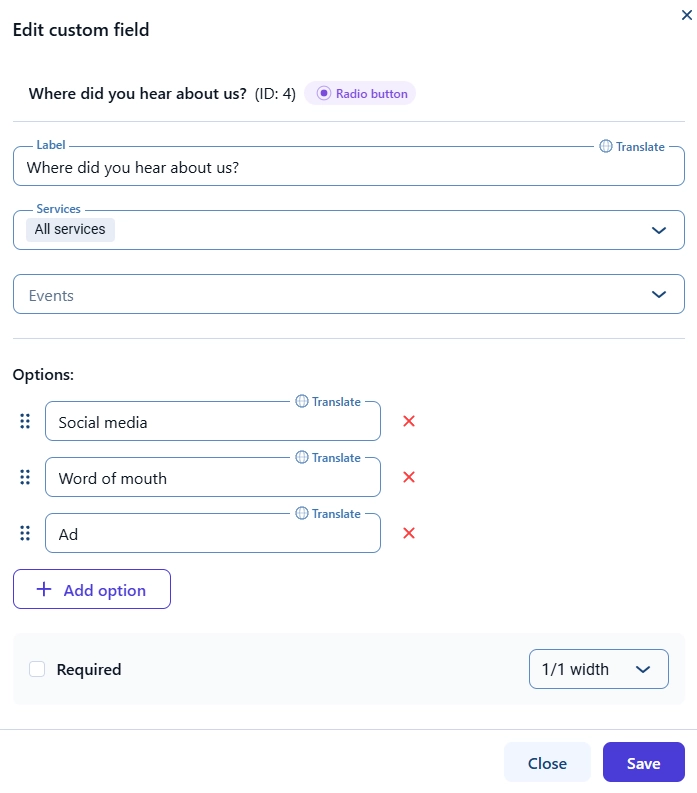
Each Custom Field is configured inside a modal that opens immediately after selecting the field type and is also used for editing existing fields.
- Label – Defines the name shown to customers.
- Services – Defines for which services the field appears.
- Events – Defines for which events the field appears.
- Options – Available for Selectbox, Checkbox, and Radio Buttons to define selectable values.
- Translate – Available for labels and options when multiple languages are enabled.
- Required – Defines whether the field must be filled before completing a booking.
- Width – Controls layout width using 1/1 (full width) or 1/2 (half width).
Once saved, the field type cannot be changed.
wp-content/uploads/bookings/. How do I edit, delete, duplicate, or reorder booking-related Custom Fields?
All field management actions are available directly in the Custom Fields list.
- Reorder – Drag fields using the handle icon to change display order.
- Edit – Click the pencil icon to reopen the configuration modal.
- Delete – Click the trash icon to permanently remove a field.
- Duplicate – Click the duplicate icon to create a copy of an existing field.
How do I preview booking-related Custom Fields on the front end?
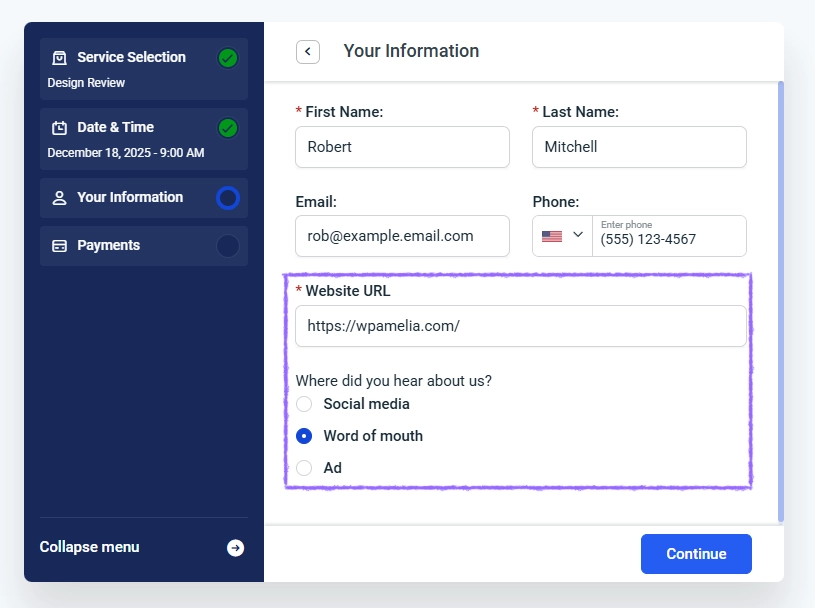
After saving your changes, refresh your booking page and complete the booking flow until you reach the step where customer information is entered, where Custom Fields will appear below the default customer details section.
Depending on your booking setup, you may first need to select the service, employee, location, date, and time before the Custom Fields become visible.
Where can I see booking-related Custom Field data in the backend?
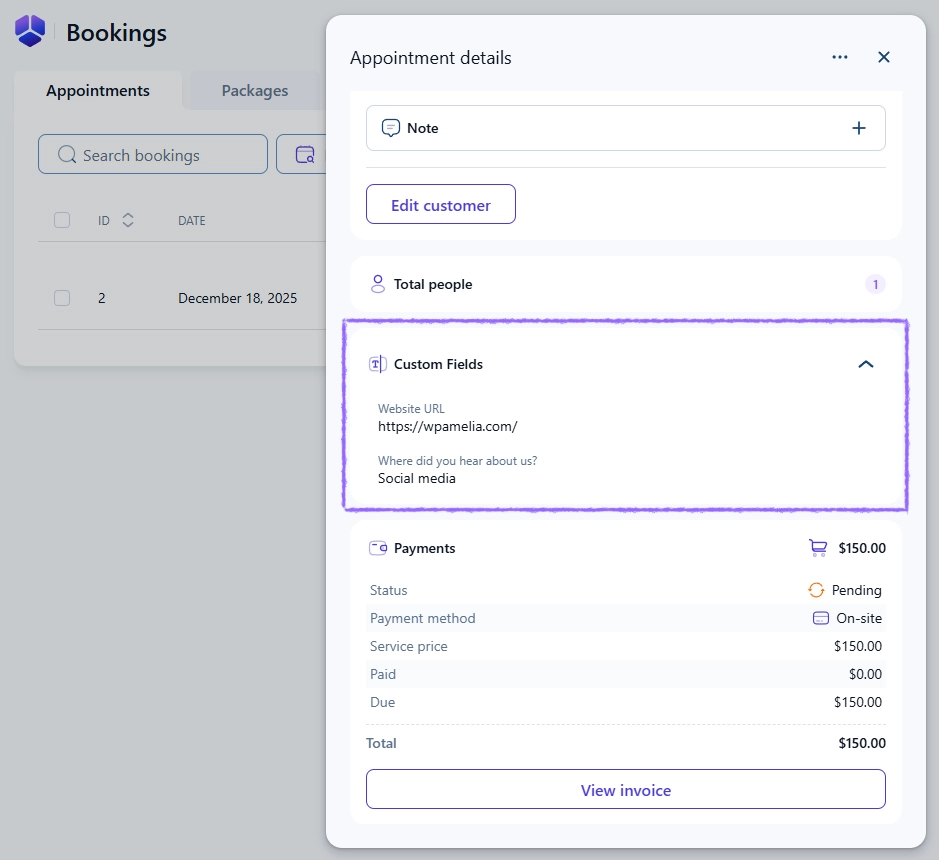
All submitted booking-related Custom Field data is stored inside each appointment or event and can be viewed from both the side appointment panel and the edit appointment dialog.
Where do I see Custom Fields in the appointment side panel?
Open Bookings → Appointments, click on any appointment row, and the appointment details side panel will open with a dedicated Custom fields section showing all values entered by the customer.
Where do I see Custom Fields in the Edit Appointment dialog?
Click Edit on any appointment to open the edit dialog and navigate to the Custom Fields section to manually view or modify the submitted values if necessary.
What should I know before using booking-related Custom Fields?
- Field type cannot be changed after creation, so select the correct type before saving.
- Changes apply only to new bookings and do not affect existing appointments.
- Deleted fields are permanently removed without recovery.
- Google Maps API is required for the Address field to function correctly.
- Translations are available only when multilingual support is enabled in Amelia.