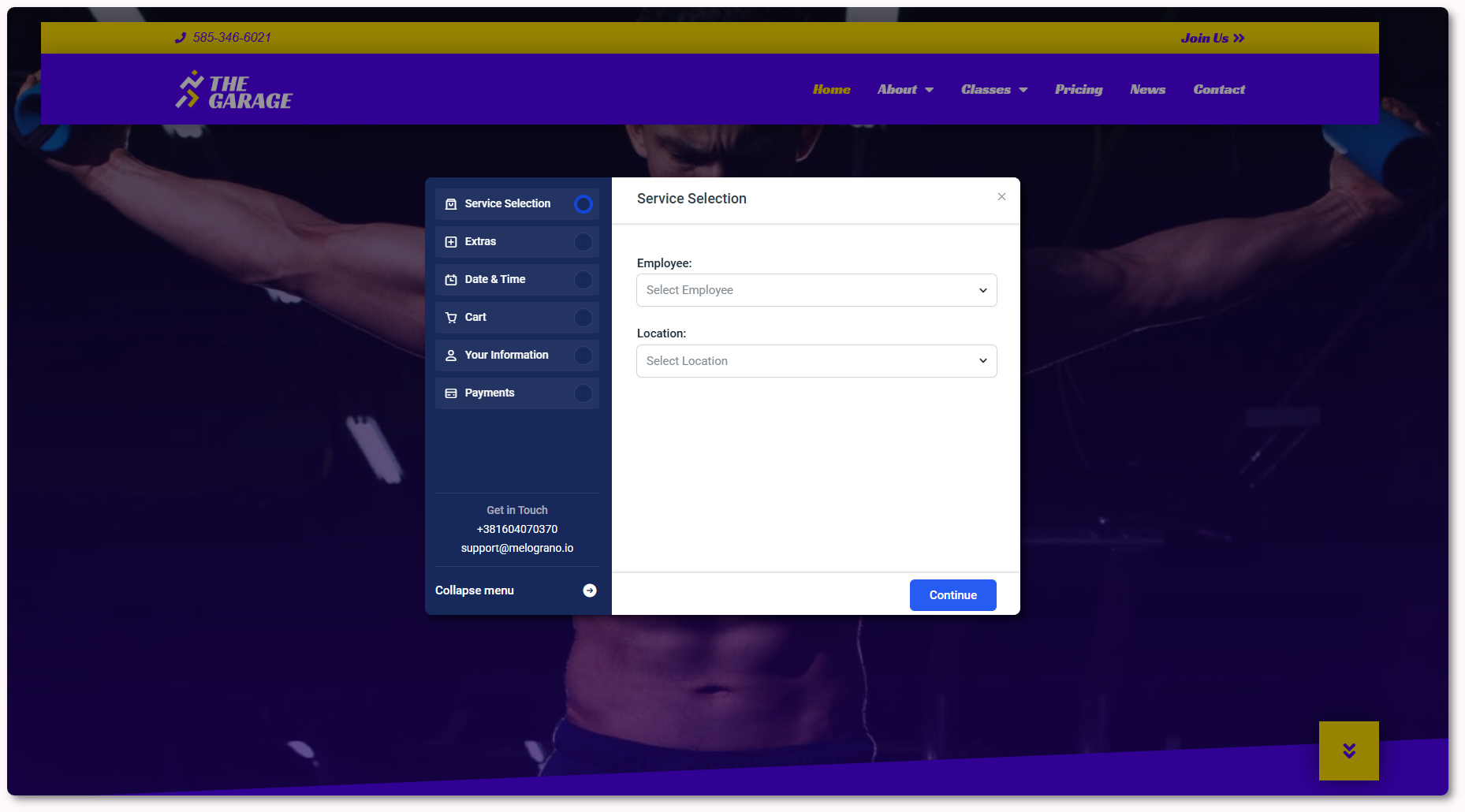
The Amelia popup lets you open any booking form in a modal window without redirecting customers to a separate booking page.
This is ideal when your page already contains service descriptions, pricing, or event details and you want bookings to happen instantly through a clean popup instead of navigating away from the content.
What does the Amelia popup do?
The popup works with all Amelia forms and can be triggered by buttons, textlinks, icons, or any element that supports adding a class name. The popup is built into Amelia, so it does not require external plugins or additional purchases.
Once the trigger is clicked, the booking form appears in a modal window and closes when the customer completes or exits the flow.
How do I create a popup trigger?
Add any clickable element to your page and assign a custom CSS class that Amelia will use as the trigger.
For example, in Gutenberg you can insert a Buttons block, edit its label, and then open the Advanced panel to set a custom class such as amelia-popup. This class name will later be referenced by the form.
How do I add a form that opens in a popup?
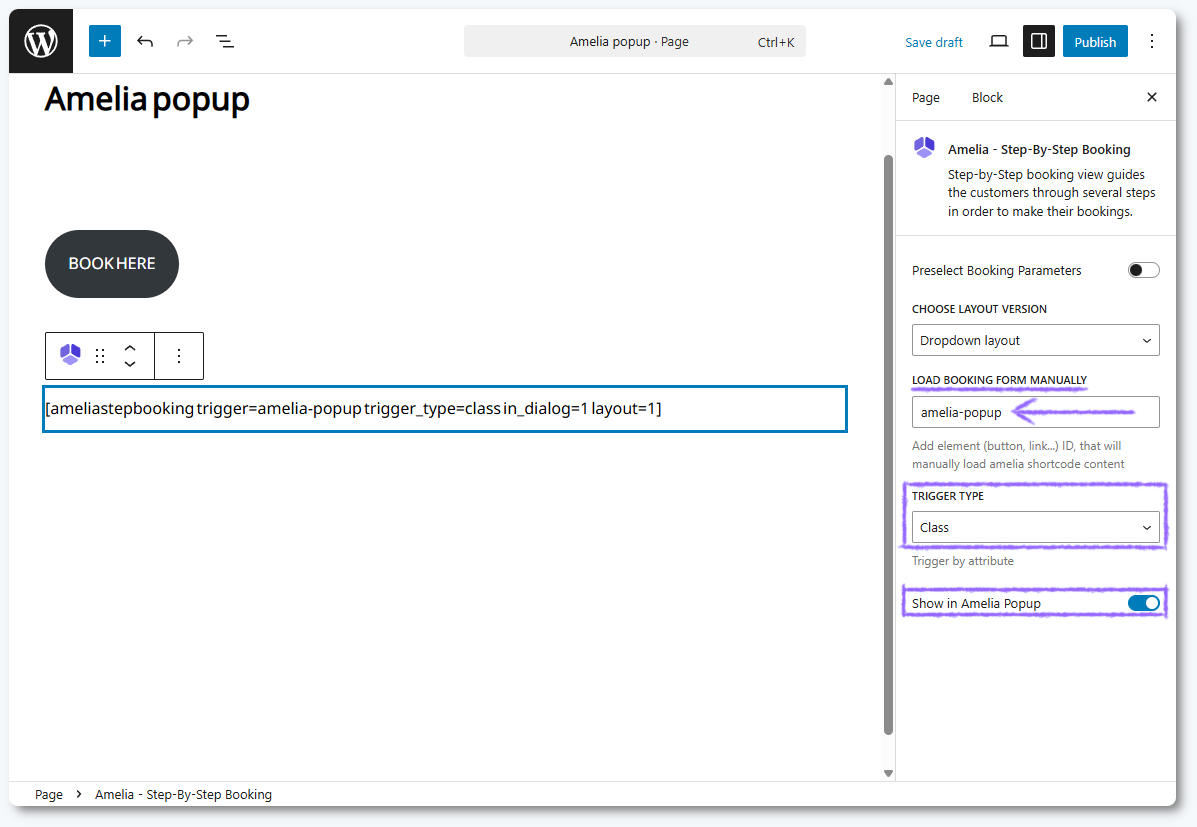
Place the booking form anywhere on the page by using Amelia’s builder widgets or by adding the shortcode manually. Amelia hides the form automatically when defined as a popup, and shows it only when the trigger is clicked. If you are typing the shortcode manually, add the following attributes:
If you are using a supported builder (Gutenberg, Elementor, or Divi), insert the form widget, enable Show in Amelia popup, and enter the trigger and trigger type in the side menu.
Can I trigger the popup with text links or icons?
Yes, any HTML element that can contain a class attribute can trigger the popup. For example, you can create a simple hyperlink and assign the same trigger class. The href value can be a placeholder, because the action comes from the class itself and not the link target.
Which page builders support Amelia popup?
The popup currently works with Amelia widgets in Gutenberg, Elementor, and Divi. Other builders can still use the popup by manually placing the shortcode and adding the trigger class to a button or link.
What should I keep in mind when using Amelia popup?
Triggers work with any element that supports adding a CSS class.
The booking form can be placed anywhere on the page, even at the top.
Always match the trigger class between the button/link and the form.
The in_dialog=”1″ shortcode attribute is required for manual setups.
Builder widgets have a dedicated Show in Amelia popup option for easier configuration.
 Spring Deals Are in Full Bloom