



How does Elementor’s Angie AI work with Amelia
Elementor’s Angie AI integration allows you to interact with your Amelia booking data using natural language. Once connected, Angie can list services, employees, customers, and events, and it can also create services, customers, appointments, and events directly in Amelia.
For example, instead of navigating through multiple back end pages, you can ask Angie to list available services, find an employee, and create an appointment for a specific customer at a specific time, all from one AI-powered interface.
 Note
Note
What do I need before using Angie AI with Amelia?
To use Angie AI with Amelia, you must have an active Elementor account. Angie cannot be used without logging into Elementor, and you will be prompted to sign in during plugin installation and activation.
Angie AI has its own pricing and licensing model, separate from Amelia. It is available with a free plan by default, which includes 900 daily AI credits. If you need higher limits or additional capabilities, upgrades are available for existing Elementor accounts only.
Pricing and plan details are managed entirely by Elementor and are visible only after logging into your Elementor account on the Angie AI pricing page. For further questions about plans or billing, contact Elementor support directly.
Do I need to enable Angie AI in Features & integrations?
No, Angie AI does not need to be enabled through Features & integrations. This is not a toggle-based integration inside Amelia.
As long as the Angie AI plugin is installed and activated on the same site where Amelia 9.1 or later is installed, Angie can automatically access Amelia data and actions. There are no additional settings to enable in the Amelia back end.
Once both plugins are active, Angie detects Amelia automatically and exposes the Amelia_Booking_System tools inside its interface.
Where do I access Angie AI after activation?
Once activated and logged in, Angie AI is always accessible from your WordPress dashboard. The Angie panel opens automatically as a side menu, where you can type prompts and interact with connected tools.
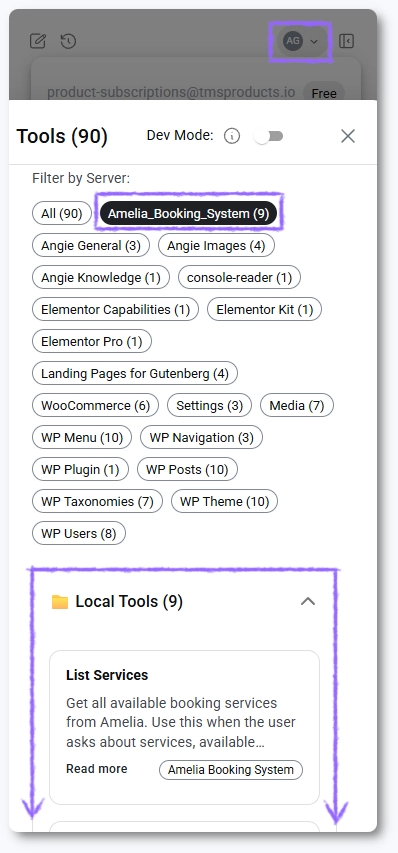
You can also access Angie’s tools overview by clicking your initials in the top right corner and navigating to Tools. This area shows exactly which systems and actions Angie can access.
What Amelia data and actions can Angie AI access?
When Amelia is connected, Angie AI can access a dedicated tool set labeled Amelia_Booking_System. These tools define what Angie can read and what actions it can perform inside Amelia.
Under Local tools, Angie has access to the following Amelia-related actions:
- List services – Retrieves all available booking services from Amelia.
- List employees – Retrieves all employees who can deliver services.
- List customers – Retrieves all customers stored in Amelia.
- List events – Retrieves all events created in Amelia.
- Add service – Creates a new service in Amelia.
- Add customer – Creates a new customer in Amelia.
- Create appointment – Schedules a new appointment.
- Create event – Creates a new event.
- Book event – Registers a customer for an event, finding or creating the event automatically if needed.
How can I use Angie AI to create bookings in Amelia?
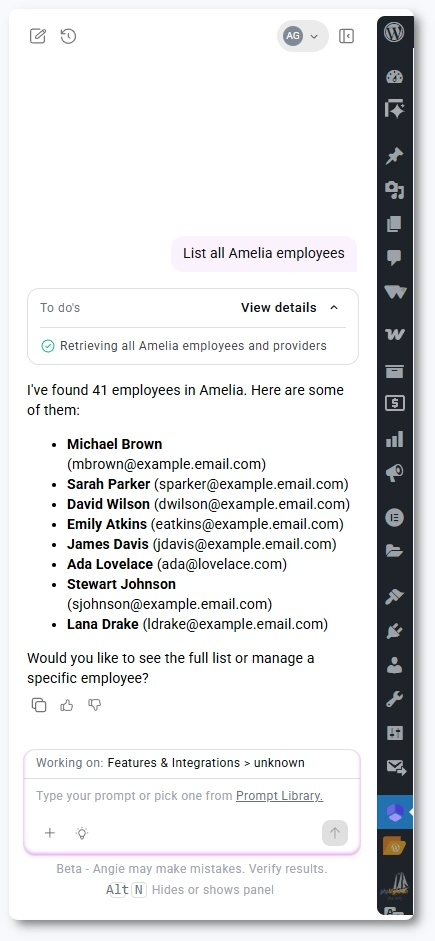
You can create bookings by describing what you want to achieve in plain language. Angie AI translates your request into the appropriate Amelia actions, using available services, employees, customers, and time slots.
For example, you can ask Angie to list employees, identify a specific provider, and then create an appointment for a customer at a specific date and time, without manually opening the Amelia booking pages.
Example workflow:
- Ask Angie to list all employees.
- Choose an employee, such as David Wilson.
- Ask Angie to list services assigned to that employee.
- Ask Angie to create an appointment for a specific customer on February 5th at 10:00 am.
Angie will automatically retrieve the required IDs and create the appointment using Amelia’s booking logic.
After the prompt is processed, the appointment is created in Amelia. You can see the new booking on the Amelia → Bookings page, scheduled for February 5th at 10:00 am, with the service Signature Haircut, assigned to David Wilson, and a newly created customer named Alex Wolf.

Do’s and don’ts when using Angie AI with Amelia
- Use clear and specific prompts, including dates, times, and names where possible.
- Verify created services, customers, and bookings in the Amelia back end after AI actions.
- Don’t assume Angie can bypass Amelia availability rules or working hours.
- Don’t rely on Angie for billing, payments, or license management tasks.