



How do I customize the Employee panel
The Employee panel gives employees a dedicated place to manage their appointments, events, and account access.
Its design can be customized the same way as other Amelia forms, using global settings in the Basic tab and detailed controls in the Advanced tab. Even though it contains fewer steps than the Customer panel, each view still has its own Options, Labels, and Colors, so you can style the sidebar, login flow, and schedule views independently.
For example, you can adjust the sidebar colors to match your brand or customize the appointment list so action buttons and time slots stand out clearly.
Where do I access the Employee panel customization?
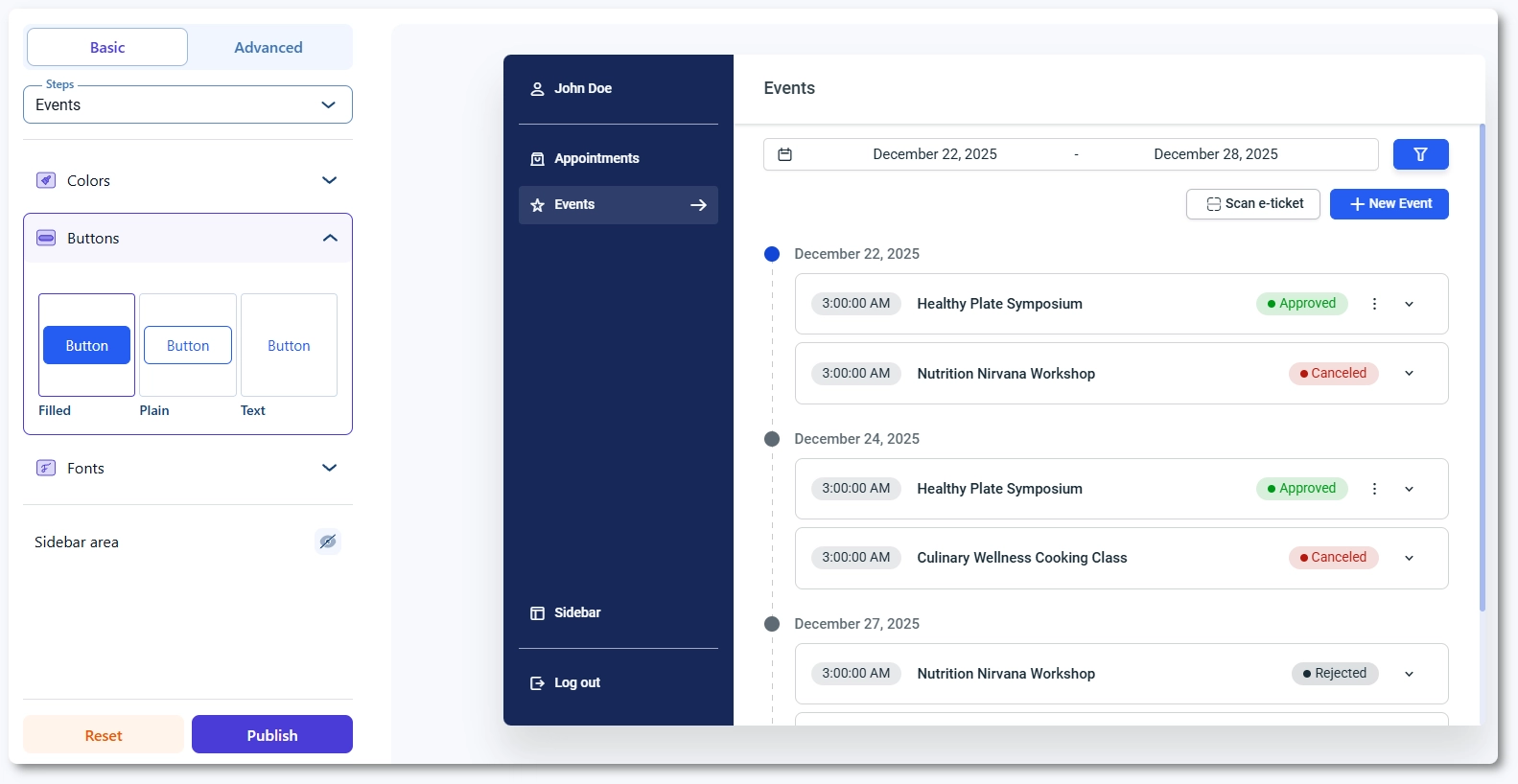
Open Amelia → Customize and select Employee panel from the list of form types. The preview on the right shows the panel as employees will see it, and the left side contains the Basic and Advanced tabs.
Use the Steps dropdown to switch between Sidebar area, Sign in, Access link, Access link success, Set new password, Appointments, and Events. Each step includes different elements and layout sections, so styling options depend on which step is selected.
What can I configure in the Basic tab?
The Basic tab defines the global appearance of the entire Employee panel, including primary colors, fonts, button styling, and general layout options.
These settings apply to all panel steps and popups, so setting up your global theme here helps create a consistent base before adjusting individual steps. You can control how buttons look, how the sidebar behaves, and how typography appears throughout the panel, making it easy to match the design of your booking forms and WordPress theme.
What can I configure in the Advanced tab?
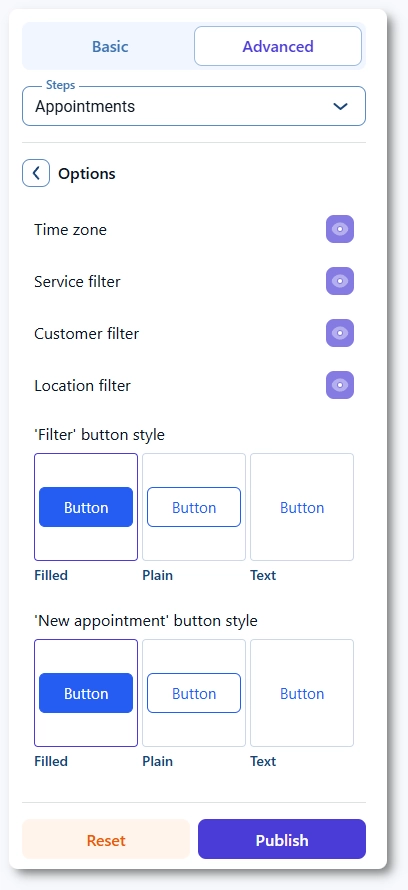
The Advanced tab includes Options, Labels, and Colors for each Employee panel step. Options control visibility and field behavior, Labels allow you to adjust the tone and clarity of text elements, and Colors let you fine tune areas such as the sidebar, content rows, appointment cards, and event lists.
Because the Employee panel has fewer views than the Customer panel, the Advanced options are simpler, but each view still offers detailed control over headers, buttons, messages, and interactive elements.
Which steps can I customize in the Employee panel?
The Employee panel includes the following customizable steps:
- Sidebar area – styles the section navigation, including icons, labels, hover states, and active elements.
- Sign in – layout and labels for the employee login form.
- Access link – screen where employees enter their email to receive an access link.
- Access link success – confirmation message shown after requesting an access link.
- Set new password – view used when an employee creates or resets a password.
- Appointments – main schedule view showing upcoming and past appointments with action buttons.
- Events – list of events assigned to the employee, styled similarly to the appointments view.
Each step can be styled independently, and changes apply instantly across all panel embeds once saved.
What should I keep in mind when customizing the Employee panel?
- Ensure sidebar colors and active states are clear so employees can easily navigate between appointments and events.
- Review the Sign in and Access link steps together so the login flow feels cohesive.
- Test the appointment and event lists on mobile since long service names or custom labels can affect layout.
- Align panel color choices with your booking forms to maintain a unified user experience across Amelia.
- Use Labels to clarify button text and action names, especially when employees manage multiple services or locations.
- Clear your site cache after saving design changes to ensure the updated panel displays correctly for all employees.