



How do I customize the Event list booking form
The Event list form shows your events in a vertical list instead of a calendar, which is useful when you want customers to scan through upcoming dates or filtered results more quickly.
Once a customer selects an event from the list, the booking flow continues through the same steps used in the Event calendar form, including the event details view, attendee popup, customer information, payment, and final confirmation.
Because the Event list uses the same design system as other forms, you can control the overall look through the Basic tab and refine each step with Advanced settings.
Where do I access the Event list customization?
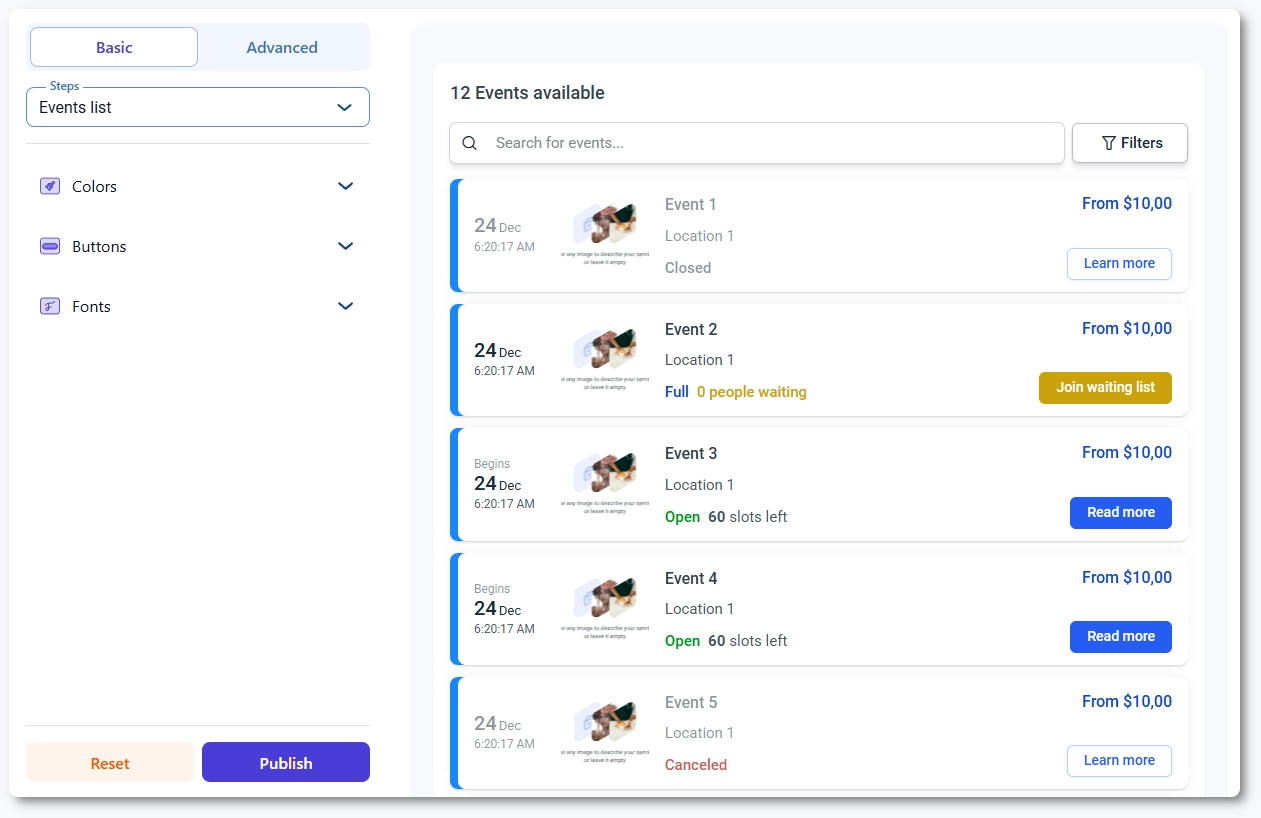
Open Amelia → Customize and select Event list from the available form types. The right side shows a live preview of the event list, while the left side contains the Basic and Advanced tabs.
Use the Steps dropdown to switch between Events list, Event info, Bringing anyone with you popup, Customer information, Payment, and Congratulations. The Event info view and subsequent steps work the same way as in the Event calendar form, so styling changes in those steps will feel familiar if you have already configured the calendar layout.
What can I configure in the Basic tab?
The Basic tab defines global styling across the Event list form, including colors, buttons, fonts, layout, and sidebar visibility. These settings apply to all steps in the Event list flow so you can quickly align the overall design with your website and with the Step-by-step form.
You can adjust primary and accent colors, button appearance, and typography, and decide whether the sidebar should be visible for extra navigation or hidden for a more compact layout. This tab is the best place to set the core look before working with step specific settings.

What can I configure in the Advanced tab?
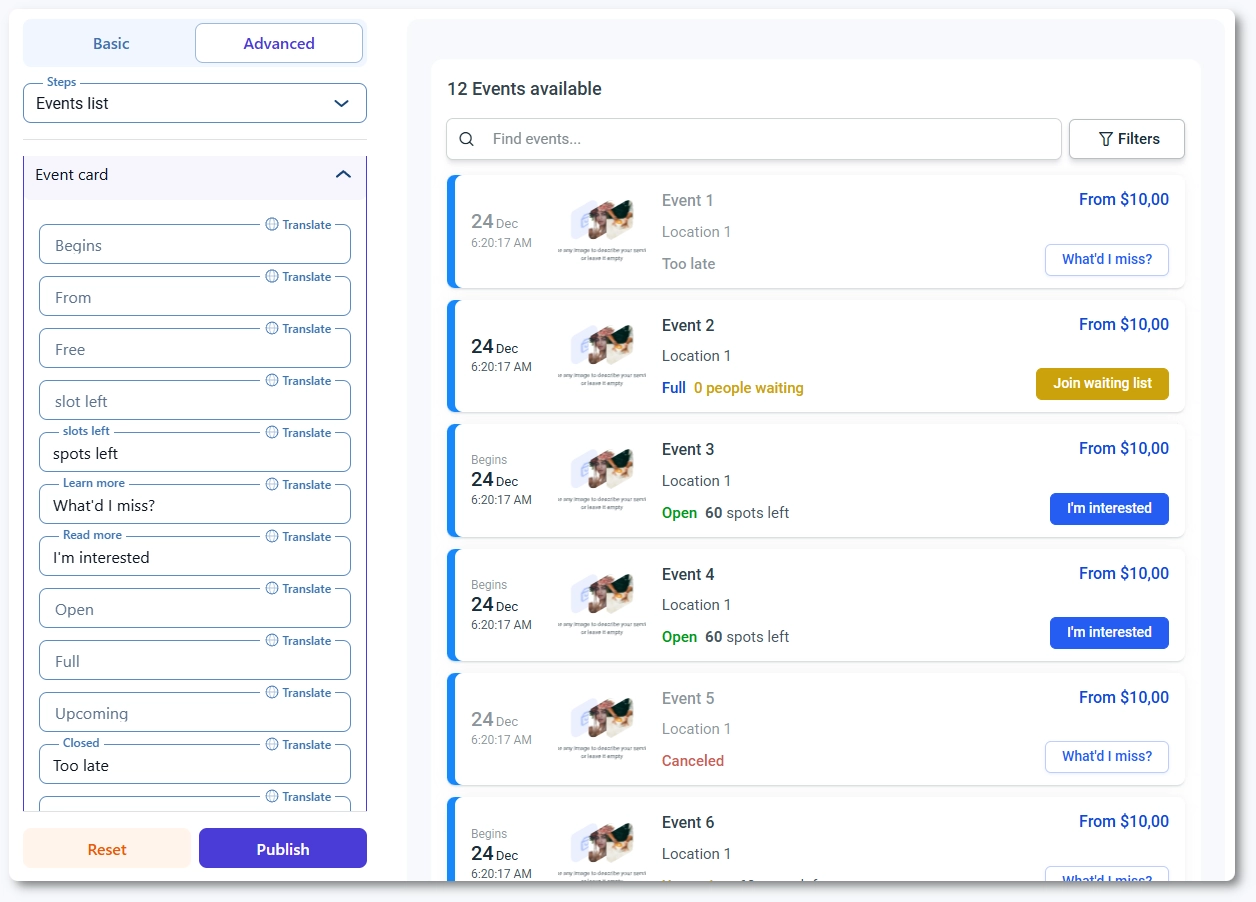
The Advanced tab lets you customize each step in the Event list flow in more detail. It provides Options, Labels, and Colors for the selected step.
Options control how fields behave and which elements are visible, Labels allow you to rename titles, subtitles, and button text, and Colors let you fine tune backgrounds, borders, text, and highlight colors.
The Events list step includes controls specific to list items, such as how event rows look, hover effects, and badges, while the Event info, Customer information, Payment, and Congratulations steps share a similar structure to the Event calendar and Step-by-step forms.
What steps are available in the Event list form?
- Events list – main list of events where each event appears as a row or card with date, time, title, and key details.
- Event info – event details view, identical in structure to the Event calendar form, showing full description, schedule, staff, and location.
- Bringing anyone with you popup – used when events support multiple attendees; includes quantity controls and attendee selection.
- Customer information – collects attendee details using the same fields and layout logic as the Step-by-step form.
- Payment – checkout step with payment methods, pricing breakdown, and confirmation elements.
- Congratulations – final confirmation step displayed once the booking is completed successfully.
The design of these steps can be adjusted per step in the Advanced tab without affecting how other forms behave.
What should I keep in mind when customizing the Event list form?
- Make sure event row colors and hover states clearly indicate which event is currently selected or clickable.
- Use Labels in the Advanced tab to clarify event titles, category labels, and call to action buttons in the list.
- Align global colors and fonts with the Event calendar and Step-by-step forms so the experience feels unified across all booking flows.
- Test the Events list and Event info steps on mobile, since long event titles or descriptions can affect spacing and wrapping.
- Review the “Bringing anyone with you” popup to confirm that quantity selectors are easy to use on both desktop and mobile devices.
- Clear your site cache after publishing design changes to ensure that updated list styles and labels appear correctly for visitors.