



How do I customize the Catalog booking form
The Catalog form lets customers browse services or packages in a card based layout before beginning the booking process.
It uses its own steps for browsing and filtering, and once a customer chooses a service or package, the booking continues through the Step-by-step form. Because of this, most design options follow the same logic as the main Step-by-step layout, but the Catalog form includes additional settings for cards, lists, thumbnails, and category displays.
For example, you can style your category cards in the Catalog form and then rely on the global Step-by-step design when the customer begins the booking flow.
Where do I access the Catalog booking form customization?
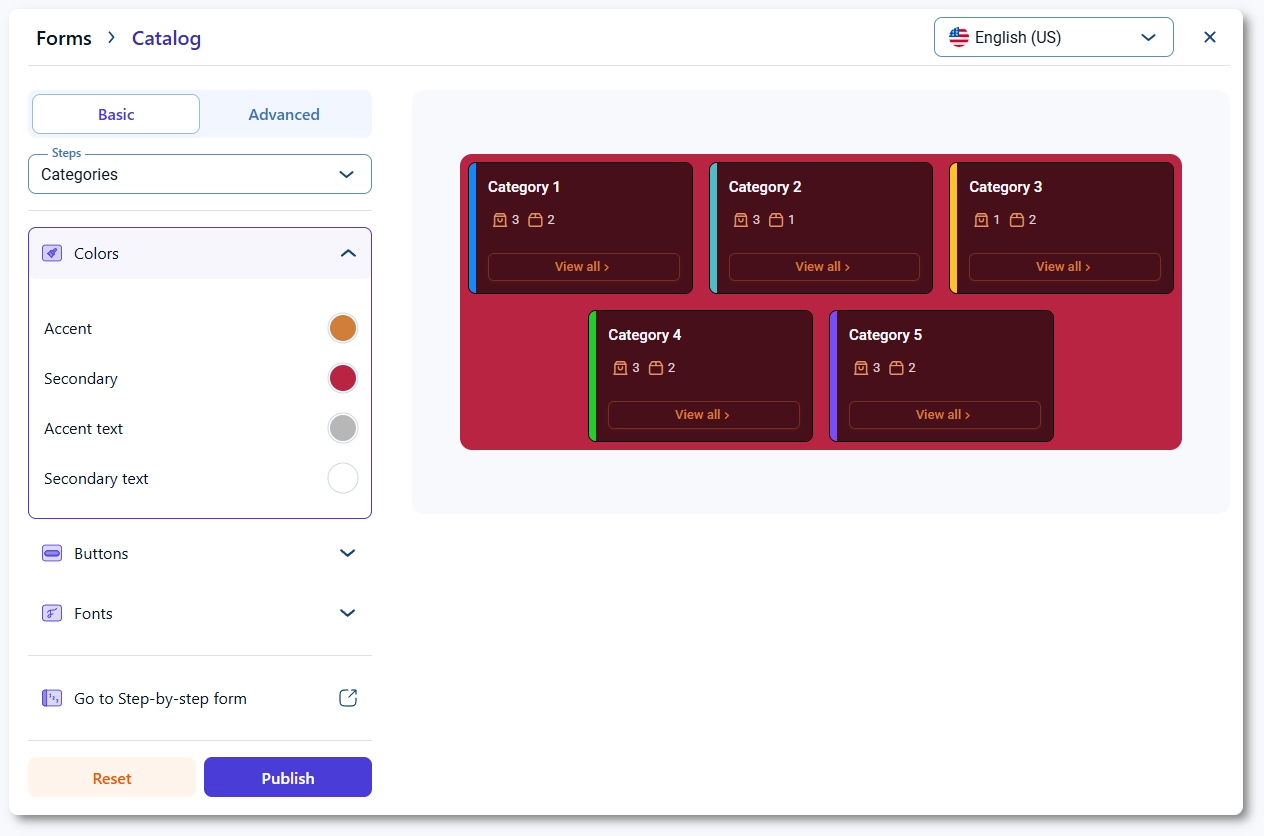
Open Amelia → Customize and select Catalog from the available form types. The customization screen includes a live preview on the right, and two editing tabs on the left:
Basic for global design choices and Advanced for step specific adjustments.
The Steps dropdown lets you switch between Categories, Services and packages overview, Service details, and Package details. Each step has its own visual structure, so design controls vary depending on which step is selected.
What can I configure in the Basic tab?
The Basic tab applies global styling to the entire Catalog form. You can adjust colors, buttons, and fonts, and these changes affect all steps within the Catalog layout.
Layout controls allow you to switch between list and grid styles when available, and you can enable or disable the sidebar depending on the visual density you prefer. Because the Catalog uses the Step-by-step form for the booking flow, global colors and button styles should align with the Step-by-step settings to maintain a consistent experience when the user transitions from browsing to booking.
What can I configure in the Advanced tab?
Each Catalog step includes its own Advanced settings grouped into Options, Labels, and Colors.
These controls let you configure elements unique to catalog browsing, such as category card labels, service card layouts, service description styling, and the appearance of thumbnails. Options define behavior and visibility, Labels allow you to rename headings and card elements, and Colors let you fine tune areas like card backgrounds, borders, hover states, and text colors.
When customers select a service or package, they move into the Step-by-step form, so only the browsing interface is managed here.

What steps are available in the Catalog form?
- Categories – displays category cards or tiles and can be styled to match your website’s structure and branding.
- Services and packages overview – shows all services or packages within the selected category and allows you to customize card appearance, labels, and interactive states.
- Service details – includes the service description, duration, price, and call to action buttons; controls here affect how detailed information is presented.
- Package details – similar to Service details but tailored to packages, with design controls for package descriptions, included services, and quantity information.
These steps cover the entire browsing experience before users enter the Step-by-step flow to complete their booking.
What should I keep in mind when customizing the Catalog form?
- Keep Catalog styles visually aligned with Step-by-step settings since customers transition between these layouts during booking.
- Test both grid and list layouts if your catalog contains services with long descriptions or custom thumbnails.
- Use Labels in the Advanced tab to adjust titles and card text so categories and services are clearer for customers.
- Review card hover states and contrast to ensure accessibility, especially when customizing background or border colors.
- Preview Service details and Package details separately because each layout contains different elements.
- Clear your website cache after publishing changes to make sure the updated card and category styles appear correctly.