 Keep Summer Fully Booked

How do I customize the Step-by-step booking form
The Step-by-step form is Amelia’s main booking layout and the foundation for all other booking designs. It guides customers through each stage of the booking flow and includes its own set of design tools so you can adjust colors, labels, layout, and field behavior.
Since this form controls the core user experience, changes you make here help you establish a consistent look that carries through Catalog booking, Event booking, and both customer and employee panels.
For example, choosing a bright primary color or updating button styling in the Basic tab instantly refreshes the overall look of the booking flow.
Where do I access the Step-by-step form customization?
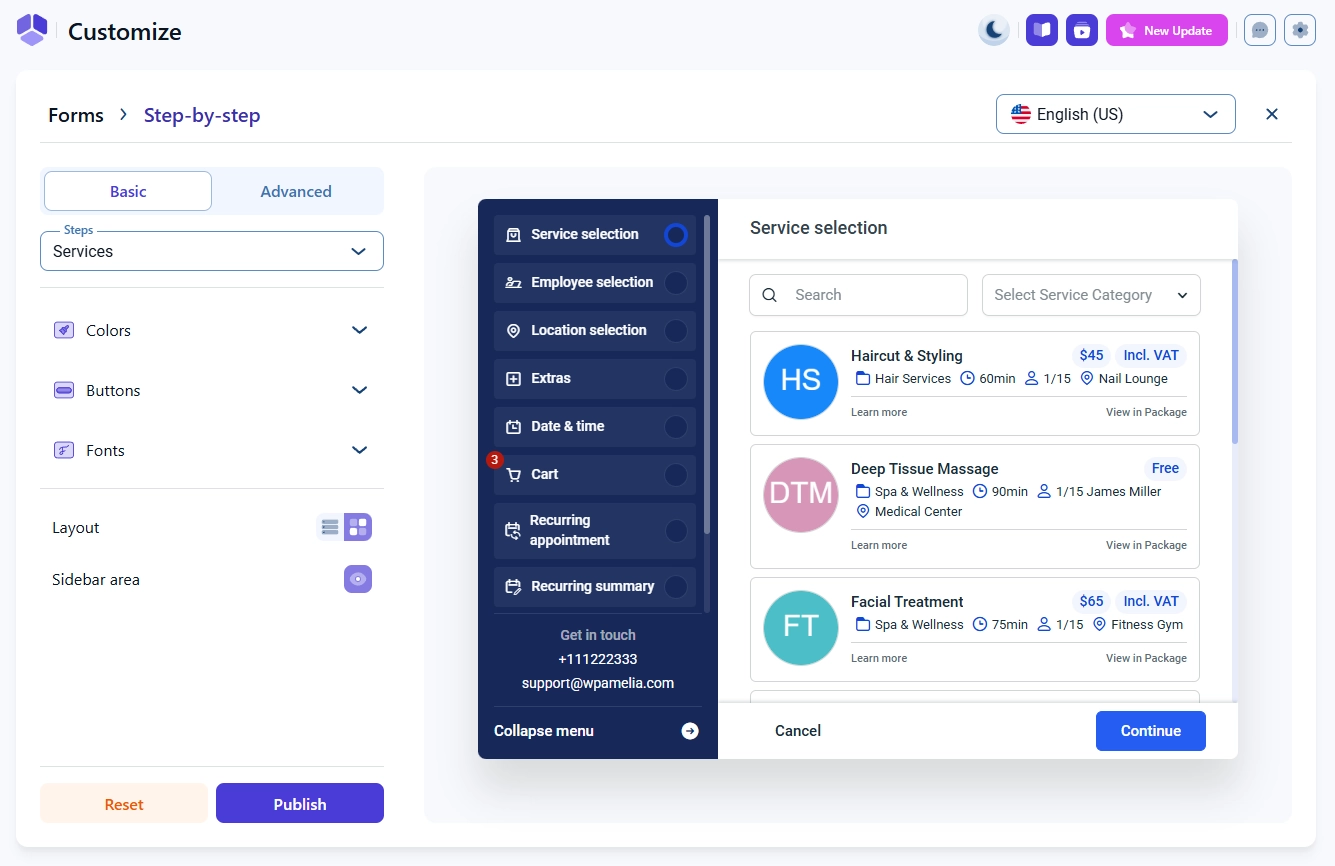
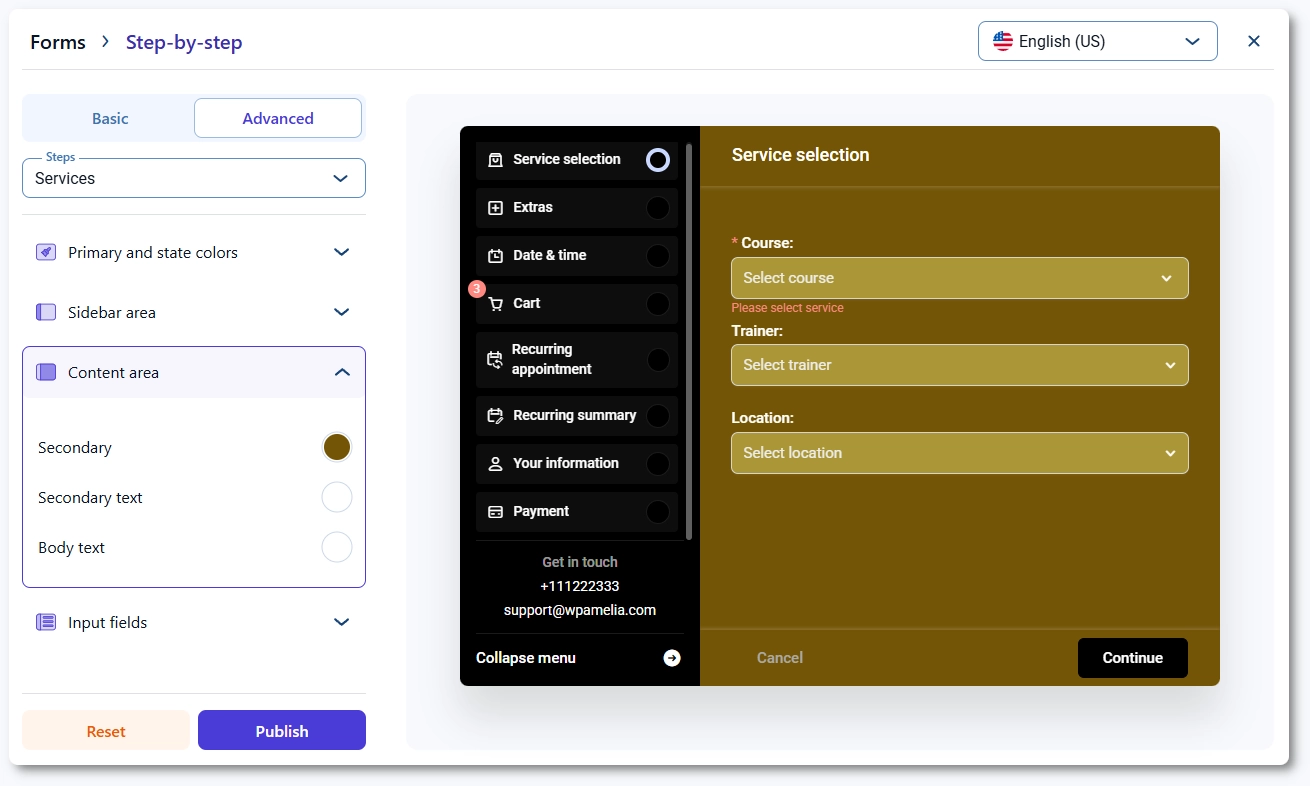
Open Amelia → Customize and select Step-by-step from the list of available form types. The customization screen includes a preview on the right and two editing tabs on the left, Basic and Advanced.
Use the Steps dropdown to switch between different booking stages, such as Services, Extras, Date & time, Cart, Your information, and Payment. Saving your changes updates the design instantly, but clearing your website cache ensures the new styles load correctly on the front end.
What can I configure in the Basic tab?
The Basic tab contains global design settings that apply to the entire form, regardless of which step is currently selected. You can adjust global colors, buttons, and fonts, and these changes automatically apply across all booking steps so the flow stays visually consistent.
The layout can be switched between list and grid, and the sidebar can be shown or hidden depending on the layout you prefer. These settings are the best place to define the general look of the form before moving into per-step customization.
What can I configure in the Advanced tab?
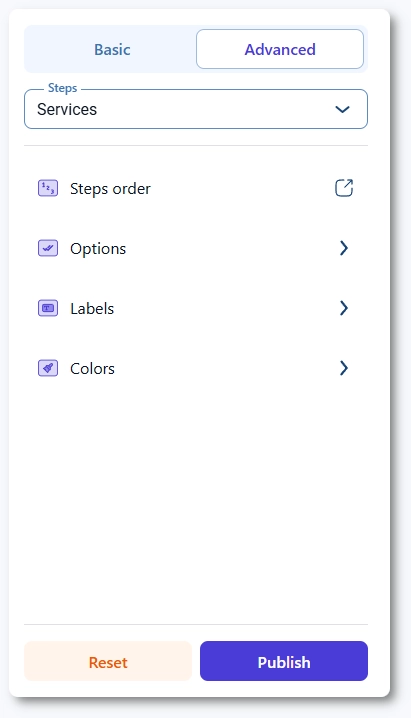
The Advanced tab provides detailed controls for each individual step in the booking flow. While Basic defines the global look, Advanced lets you adjust how a specific step behaves or appears.
Each step includes three configuration groups: Options, Labels, and Colors. Options let you reorder fields, toggle visibility elements, and define field behavior. Labels let you rename or reword the text used within the step.
Colors offer deeper control, including sidebar area colors, content area colors, input field colors, and calendar styling for steps that include a date selector.
What do Options allow me to change on each step?
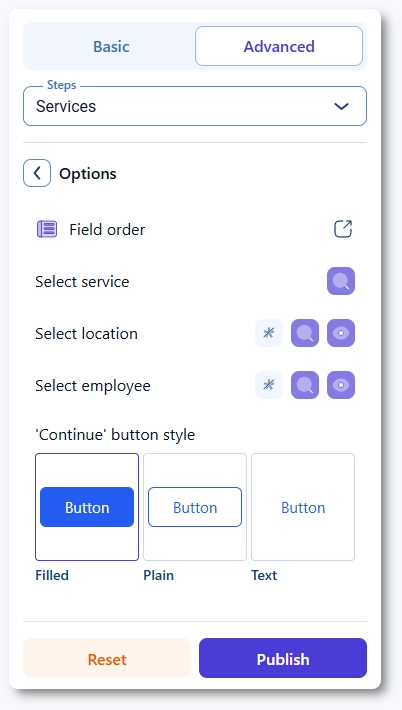
Options control the functional behavior of fields on the selected step.
For example, in the Services step you can reorder fields, choose if certain fields allow searching, mark them as required, or hide them. Icons next to each field indicate whether the field supports search, whether it is mandatory, or whether it is visible on the form.
The Continue button style can also be selected per step, which is useful if you want different emphasis levels on different stages of the booking journey.
What do Labels allow me to edit?
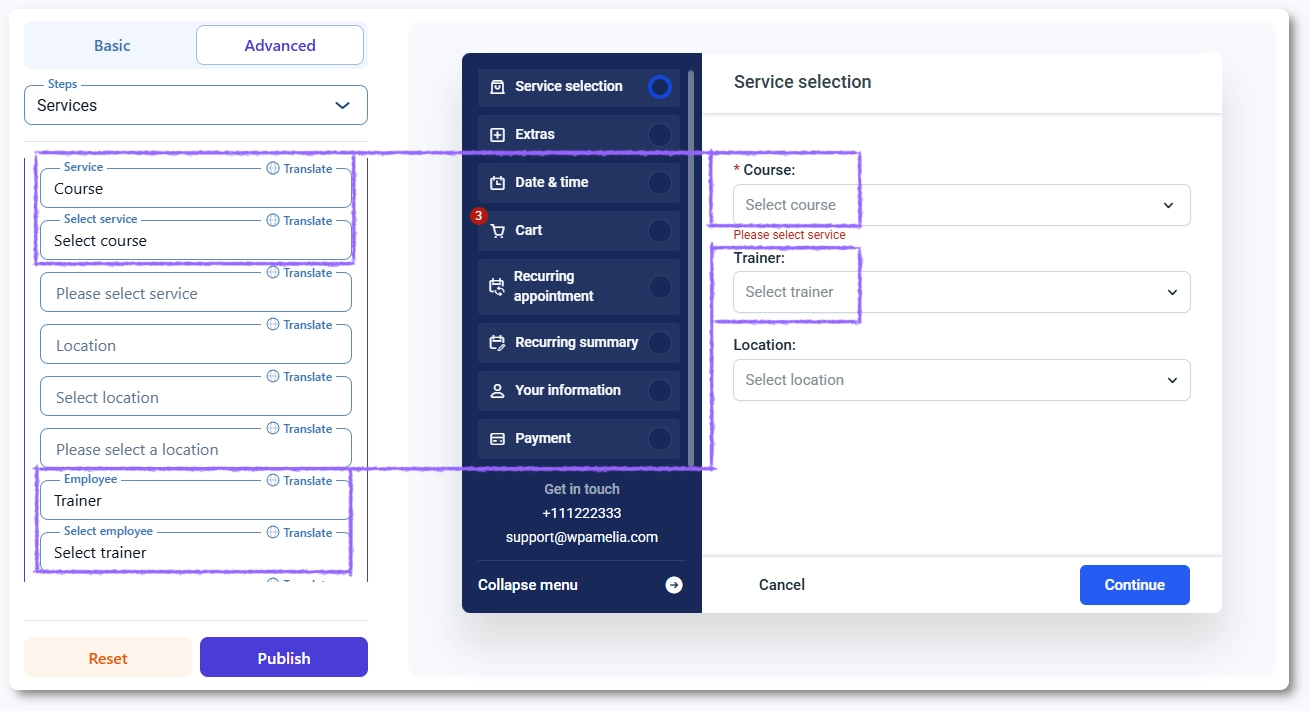
Labels let you rename any text element that appears on the current step, including titles, input field labels, dropdown labels, button text, and informational messages.
This helps you shape the tone and clarity of your booking flow so it aligns with your audience. You can also adjust labels used inside popups, such as the employee description popup, without affecting other steps.
What do Colors allow me to adjust?
Colors in the Advanced tab expand on the global colors set in the Basic tab. While Basic colors define the primary look of the entire form, Advanced colors let you fine tune specific areas of the selected step.
You can adjust sidebar colors, content area colors, input field colors, dropdown colors, calendar colors, and button colors. These step specific adjustments allow you to highlight important steps or improve usability for forms that include multiple interactive components.
What should I keep in mind when customizing the Step-by-step form?
- Use the Basic tab first to define the overall visual style before moving into detailed per-step adjustments.
- Reduce the window size to check mobile and tablet views because button sizes and spacing appear differently on smaller screens.
- Use Advanced options when you need full control of a specific step, especially for field behavior and label editing.
- Remember that icons on fields show if a field supports searching, whether it is required, or whether it is visible.
- Clear your website cache after saving changes to ensure the new design loads correctly on all pages.
- Review calendar-related steps separately because they include additional color settings that other steps do not use.