


How do notifications work in Amelia
Notifications in Amelia are sent when specific actions happen on appointments or events, using email, SMS, or WhatsApp to inform customers and employees about bookings, changes, and reminders, so once you set up the channels and templates the system automatically delivers the right message to the right person at the right time.
Imagine a customer booking an appointment on the front end, Amelia immediately sends a confirmation email to the customer and to the assigned employee, then a scheduled reminder a day before the appointment, and finally a follow up after the service, all based on the templates and schedules you configured in the back end without any manual work from your side.
Some notification channels and advanced placeholder sets are available only on specific Amelia features or integrations, so always check the feature overview and integrations overview before planning your notification strategy.
What types of notifications can Amelia send?
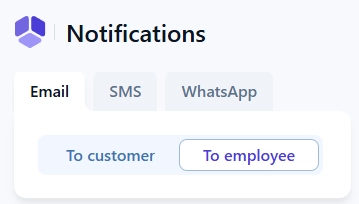
Amelia supports three notification channels that you can combine depending on how urgent and visible you want each message to be, so you can rely on email for detailed communication, SMS for time sensitive alerts, and WhatsApp for conversational reminders where available. The available channels are:
- Email notifications – the primary channel that sends booking confirmations, updates, cancellations, reminders, and follow ups to customers and employees once you configure sending under Settings → Notifications and set up a mailer in Amelia.
- SMS notifications – text messages that are best for short confirmations and reminders; they require creating an SMS account, topping up credits, and then enabling and configuring the SMS templates that will be sent to customers and employees.
- WhatsApp notifications – messages delivered through WhatsApp after you enable the integration and connect Amelia with Meta through your Facebook Business assets; the detailed setup is covered in a separate WhatsApp notifications documentation page.
All three channels support notifications for both appointments and events, so you can keep customers and employees informed regardless of whether they are booking a service or registering for an event.
How are notifications triggered in Amelia?
Notifications in Amelia are sent either as action based messages triggered immediately when something happens or as scheduled messages that are sent before or after an appointment or event according to a timing rule you define.
Action triggered notifications are sent right after a specific event, for example when a customer creates a new booking on the front end, when an employee edits the time or date of an appointment in the back end, when a booking is cancelled, or when the status or payment status changes in Amelia, and the system checks which templates are enabled for that combination of channel, recipient, and booking type and sends them automatically.
Scheduled notifications use the Scheduled notifications system which relies on your site cron to regularly check upcoming or past appointments and events and then send reminders or follow ups based on rules like “send 1 day before” or “send 2 hours after”, and for these you configure both the template content and the timing in the notifications settings.
Both mechanisms use the same pool of templates, so the main difference is whether the notification is sent immediately after an action or at a controlled time relative to the start or end of the booking, which is why it is important to decide which information must be sent right away and which can wait for a reminder or recap.
Who can receive notifications and for which bookings?
Amelia sends notifications to two main recipient groups, customers and employees, and each recipient can receive different templates depending on whether the booking is an appointment or an event and which channel you have enabled.
Customer notifications include confirmations, updates, cancellations, reminders, and follow ups for appointments and events, and these are sent to the email address or phone number saved in the customer profile or entered during booking, while employee notifications inform staff members about new bookings, changes, cancellations, and schedule related reminders using the contact details stored in the employee profile.
For each channel you will see separate templates for appointment customer, appointment employee, event customer, and event employee, and you can enable or disable templates per channel, but you cannot select individual customers or employees for a specific notification, because delivery is controlled by whether the template itself is active and whether the booking matches its conditions.
If you need to fine tune what information is included for each recipient, you can adjust the subject, message body, and placeholders in each template so that customers get user friendly explanations while employees receive more operational details.
Where do you manage notification channels and templates?
All notification channels and templates are managed in the Amelia back end under Settings → Notifications, where you can switch between email, SMS, and WhatsApp.
In the email section you define the sender details and mailer method in the general email settings; in the SMS section you connect your SMS account and manage your credits; and in the WhatsApp section you enable the channel and link it with your Meta configuration once you have completed the setup described in the dedicated WhatsApp documentation.
The Scheduled notifications let you enable reminders and follow ups with specific timing rules.
Please feel free to explore the Notification placeholders page, which shows all dynamic tags you can use to insert booking, customer, and employee data into your messages.Â
For email notifications to be delivered reliably you need to configure a proper mailer under the email settings, for SMS you must maintain a positive credit balance, and for WhatsApp the Meta integration has to remain active, so always test each channel after configuration and whenever you change hosting, domain, or integration settings.
What should you keep in mind when working with notifications?
When planning and configuring notifications in Amelia it helps to think in terms of a few simple do’s and don’ts so you avoid common pitfalls and keep communication clear for both customers and employees.
Do’s
- Do decide which messages must be action based and which should be scheduled reminders or follow ups before enabling templates, so you avoid sending duplicates.
- Do keep the content of customer notifications simple and focused on what they need to know (date, time, location, access link, cancellation rules), while using employee templates for operational details.
- Do use notification placeholders instead of hard coded details so your templates automatically adapt to different services, employees, and locations.
- Do test each channel after setup by creating test bookings for appointments and events and confirming that the right templates are triggered for the right recipients.
Don’ts
- Do not rely on SMS or WhatsApp without monitoring credits and integration status, because messages will stop once credits run out or the Meta connection is broken.
- Do not copy the same long message to every channel, since SMS and WhatsApp work best with shorter and more focused text than email.
- Do not forget that some advanced placeholders and channels may be limited to specific features or integrations, so verify availability before promising a notification flow to a client.
- Do not leave unused templates enabled, because customers and employees may receive overlapping or confusing messages when multiple templates are triggered by the same action.