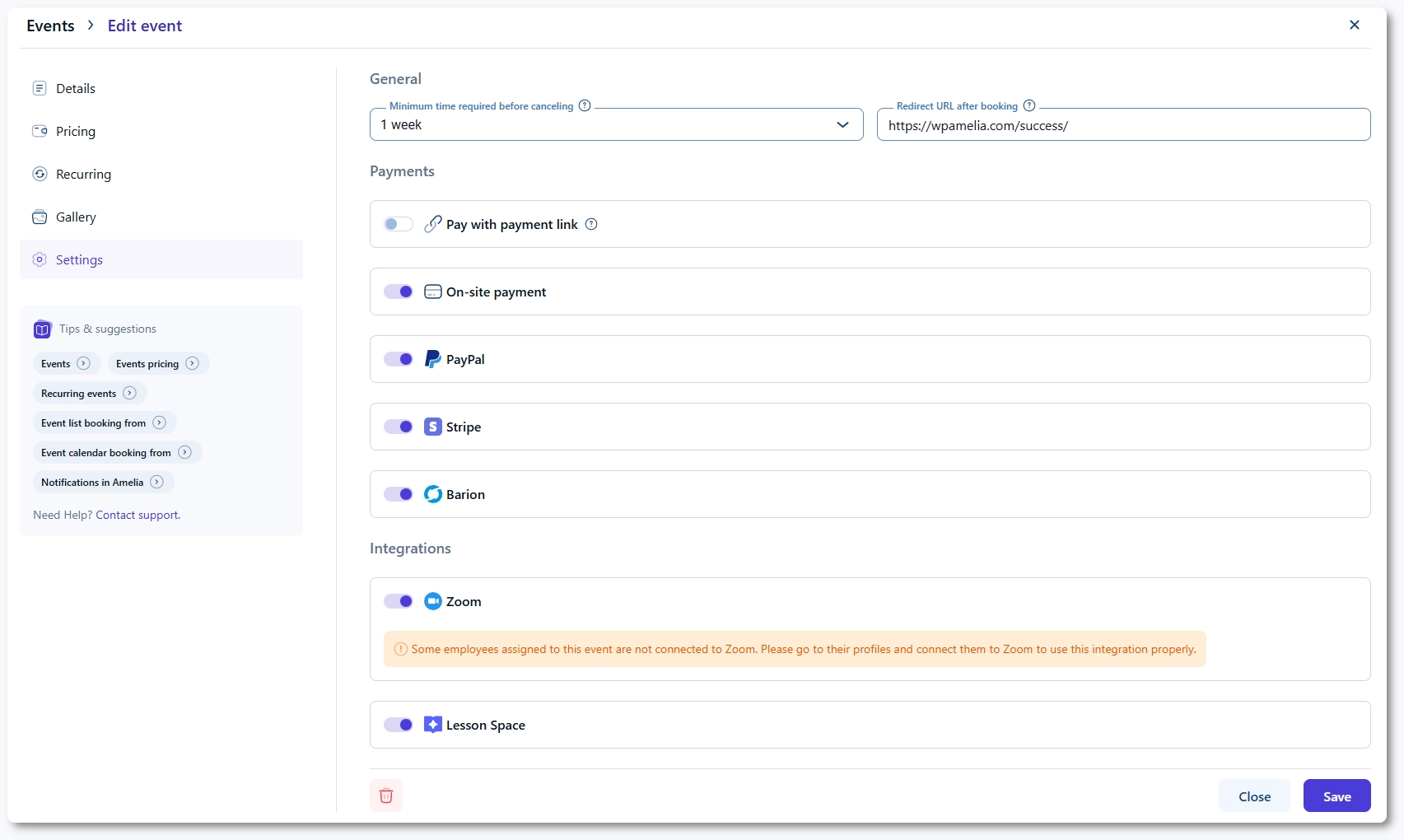
After defining the event details, pricing, and any recurring schedules, open the Settings tab inside the event creation window. This tab controls cancellation rules, booking redirects, payment behavior, and integrations such as Zoom and Lessonspace.
How does the cancellation rule work for events?
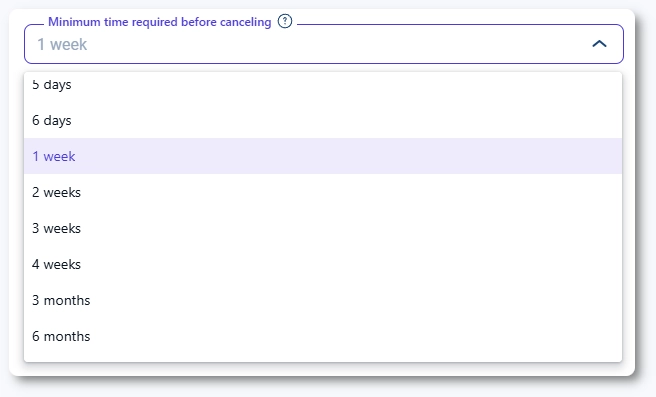
The Minimum time required before canceling option lets you define how long before the event customers are allowed to cancel their booking. When enabled, customers cannot cancel once this threshold has passed. The setting is disabled by default, and when turned on, you can choose from a wide range of preset intervals such as minutes, hours, days, weeks, and months.
If your policy requires strict control over cancellations, enabling this option ensures that last-minute cancellations are prevented.
How does the redirect after booking work?
The Redirect URL after booking field allows you to send customers to a specific page immediately after they complete their event booking. This is useful for thank-you pages, onboarding instructions, or pages containing event-related resources.
How do payment options work for events?
If you want customers to pay after booking, enable Pay with payment link. When enabled, customers receive a payment link in their notification emails (as long as the correct placeholders are included) or they can pay from the Customer Panel. This applies when:
only the deposit was paid during booking
the event uses on-site payment
the event was booked on the customer’s behalf from Amelia → Bookings → Events
Below this option are all available payment methods. These include:
On-site payment – allows booking without paying online
any online payment integrations enabled in Features & integrations and configured in Settings → Payments
If your Amelia installation includes Zoom or Lessonspace, their settings also appear here. When applicable, enabling these integrations generates online meeting links for the event.
What should I keep in mind when configuring event settings?
Cancellation rules apply to all attendees and block last-minute cancellations.
Redirection after booking is optional but useful for providing follow-up instructions.
Payment link functionality depends on using the correct placeholders inside event notifications.
On-site payment allows event bookings without upfront payments.
Online payment methods must be enabled in Features & integrations and configured in Settings → Payments.
Zoom and Lessonspace options appear only if those integrations are enabled.