How do event bookings work in Amelia
Event bookings are created whenever someone reserves a spot for an event. Each booking tracks attendee details, event information, capacity usage, payment status, and ticket validity. You can manage all event bookings in Amelia → Bookings → Events.
What does the event bookings list show?
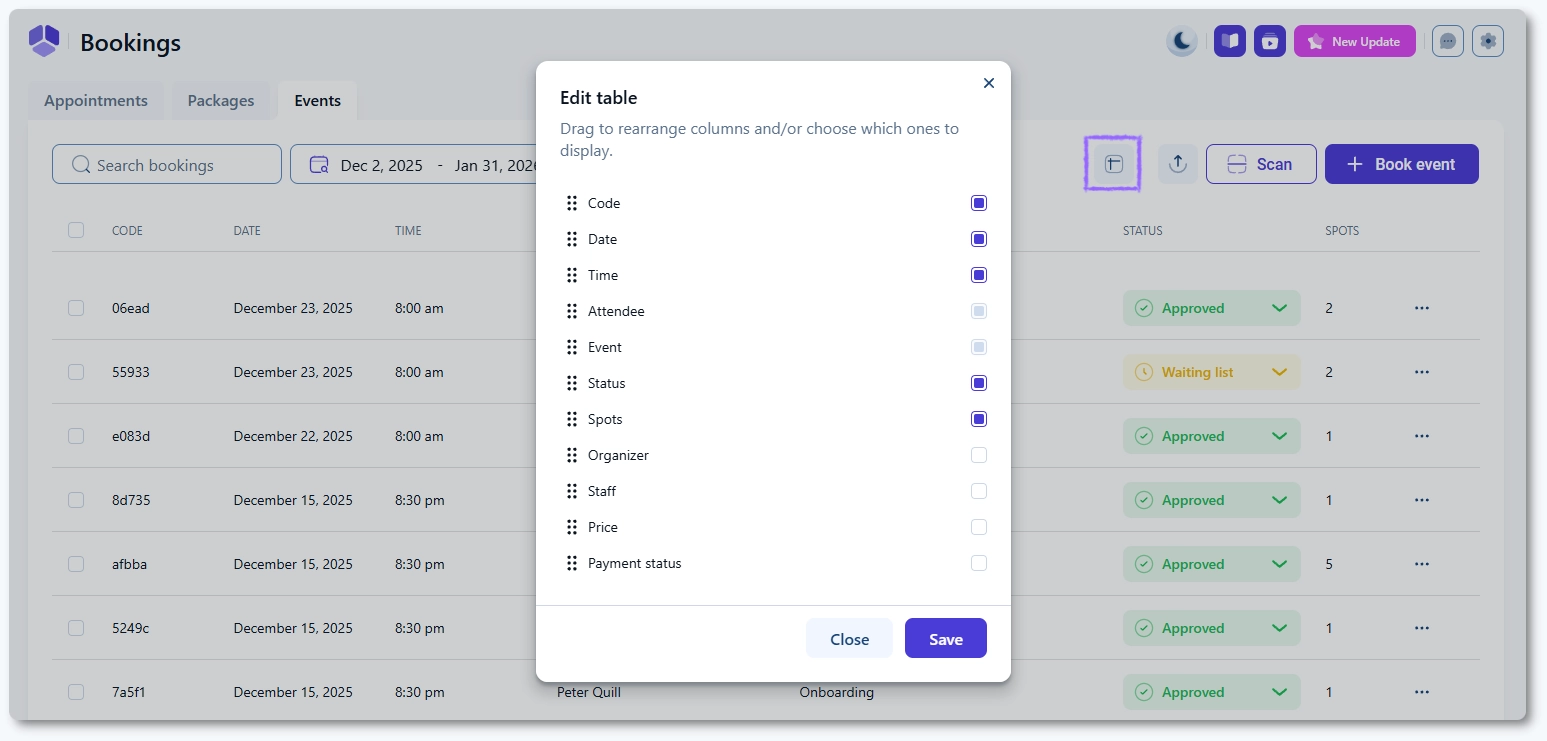
Open Amelia → Bookings and switch to the Events tab. The table displays event attendee bookings and can be customized through the Edit table button. Available columns include:
- Code (randomly generated alphanumeric booking code)
- Date
- Time
- Attendee (cannot be hidden)
- Event (cannot be hidden)
- Status
- Spots (number of people included in the booking)
- Organizer (calendar organizer for Google, Outlook, or Apple Calendar)
- Staff (employees assigned as event staff)
- Price
- Payment status
Use the Edit table button to rearrange or hide columns. Attendee and Event are always displayed.
How does ticket scanning work?
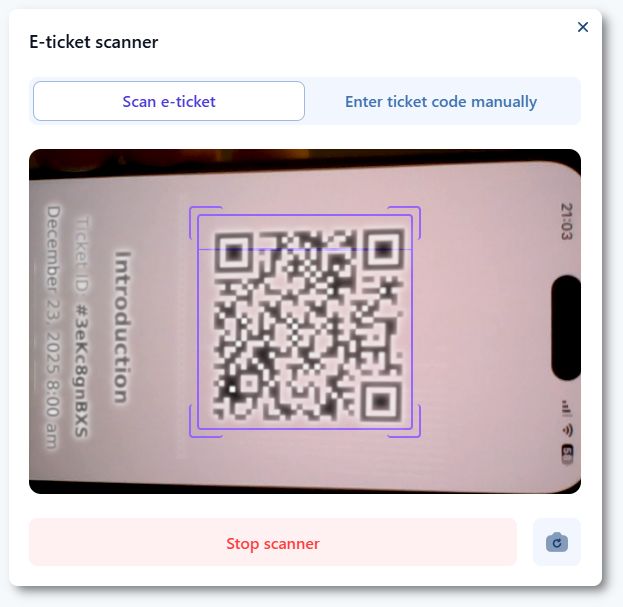
A Scan button is located in the top right corner of the Events tab. It is part of the E-ticket QR code feature and opens the device camera to validate attendee tickets at the event entrance. Browser camera permissions must be allowed.
If camera scanning is not available, attendees can be validated through the Enter ticket code manually tab by typing the ticket code shown below the QR code in the attendee’s PDF ticket. Click Validate ticket to complete the check-in.
Tickets can only be validated on the exact date of the event. For multi-day events, each day requires validation on that specific date.
How do I book an attendee from the back end?
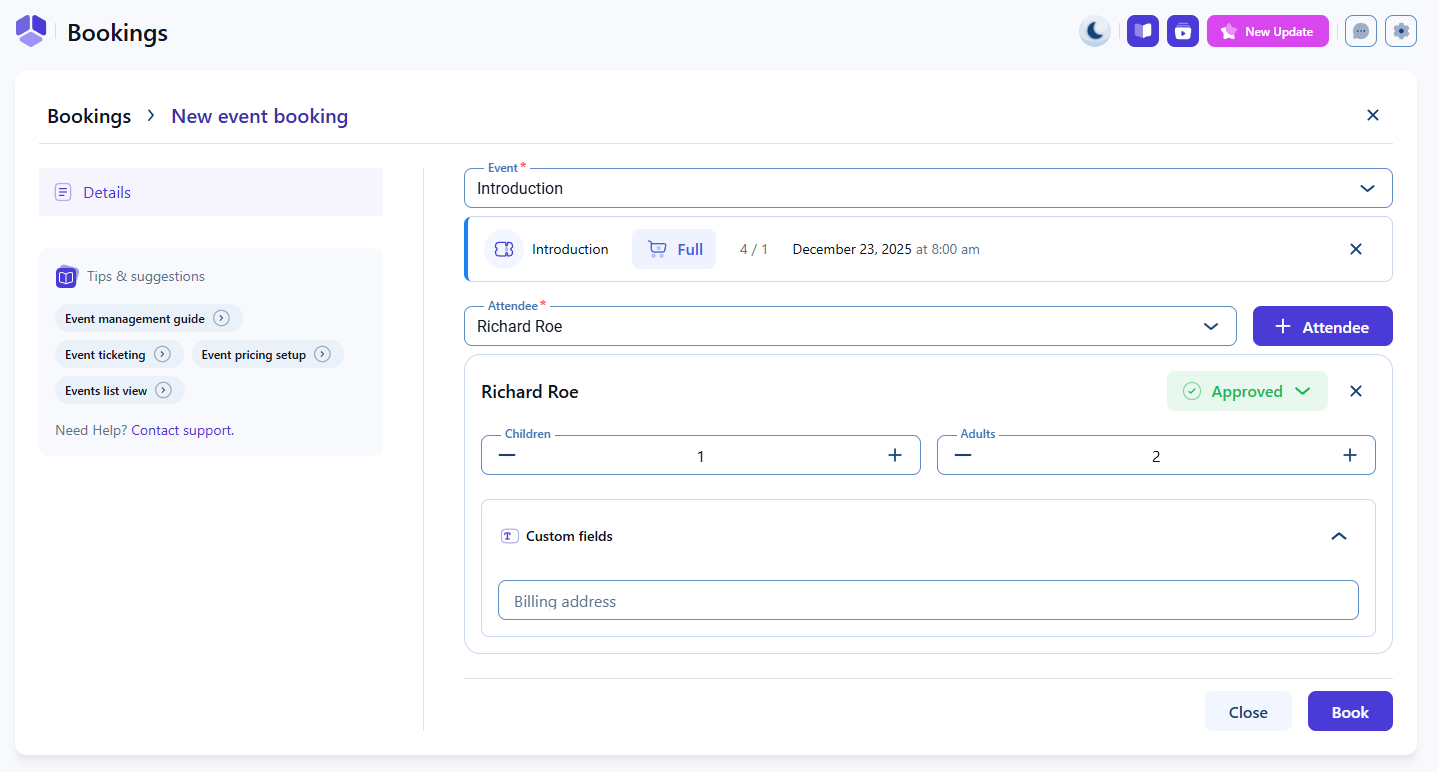
Click the + Book event button in the top right corner. The booking screen allows you to:
- Select an Event from the dropdown.
- Select an existing Customer or create a new one.
- Fill in any booking-related custom fields if enabled (see Booking custom fields).
- Define the total number of people included in this booking if the event allows group bookings.
Click Book to confirm the booking.
How do I avoid accidental overbooking as an admin?
Admins can create overbookings if they save attendees with the default Approved status when the event is already full. To prevent this, check the event capacity displayed below the event dropdown.
If the event is full and the Events waiting list feature is enabled, change the attendee status to Waiting list before clicking Book.
What should I keep in mind when working with event bookings?
- Every attendee receives a unique booking code for ticket verification.
- Scan supports both QR validation and manual ticket code entry.
- Organizer and staff fields reflect event staff assignments and calendar syncing.
- Back-end bookings follow the event’s capacity rules unless modified by administrators.
- Use the Waiting list status for full events to avoid overbooking.
- Spots represent how many people were added in a single booking session.