How do multiple locations work for employees in Amelia
Amelia allows each employee to provide their services across multiple locations, whether on different days, different time periods, or even at the same time when the locations represent rooms or offices within the same building. These settings are configured inside the employee profile, not in the Locations page.
How do I set an employee’s default location?
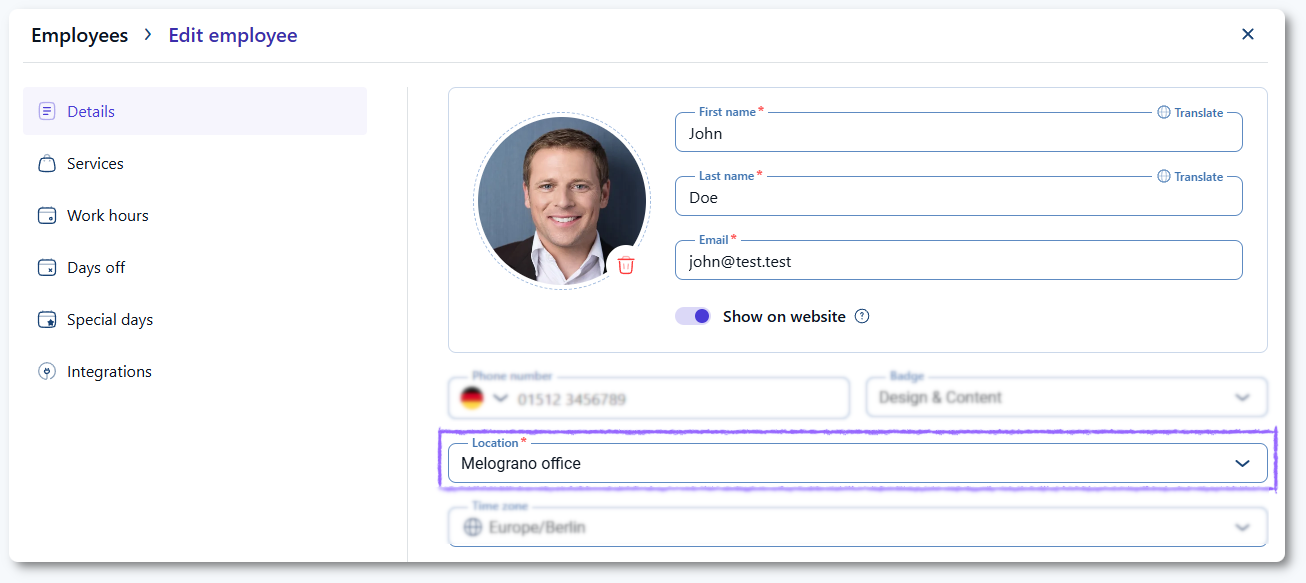
Open Amelia → Employees, edit the employee, and choose the default location in their profile. This default is applied whenever no additional location rules are defined. After setting the default location, you can configure multiple locations for the employee through their working hours or special days.
How do I assign multiple locations using work hours?
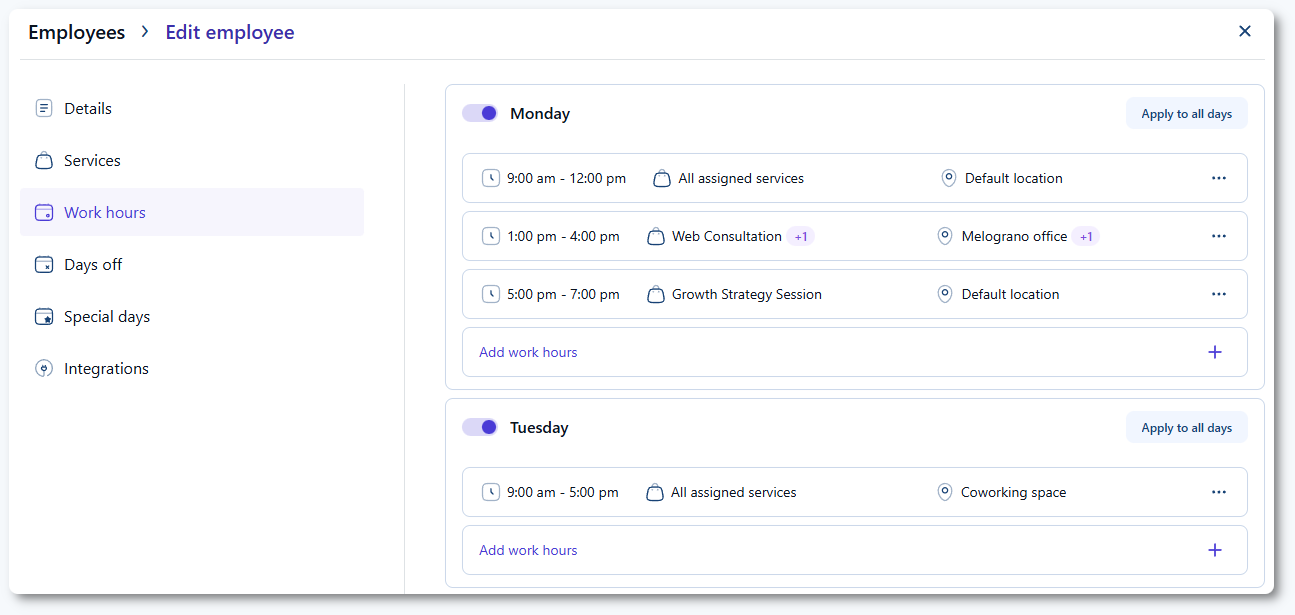
In the Work hours tab of the employee profile, each day can contain one or more time periods, and each period can have its own location. This allows flexible scheduling based on weekly patterns. For example:
Assign Location 1 on Monday, Wednesday, and Friday, and Location 2 on Tuesday, Thursday, and Saturday.
Assign multiple locations to the same time period if they represent rooms or offices within one building.
Create split schedules, such as working at Location 1 from 09:00 to 12:00, Location 2 from 13:00 to 15:00, and Location 3 from 16:00 to 18:00.
These rules apply every week unless overridden by special days.
How do special days affect multiple locations?
Special days let you define custom schedules for specific dates or date ranges. Each special day setup allows you to assign one or more locations in the same way as working hours. This is useful for temporary changes, holidays, workshops, or onsite visits that differ from the employee’s weekly pattern.
What happens if an employee is booked at one location?
When an employee is booked at a specific location, the same time slot becomes unavailable for all other locations that are assigned for that period. This prevents overlapping bookings while still allowing flexible multi-location scheduling.
What should I keep in mind when managing multiple locations?
Multiple locations are configured inside employee profiles, not in the Locations page.
Each employee can operate in different locations by day, by time period, or simultaneously if locations represent rooms.
Special days override weekly working hours for their date range.
A booking at one location blocks that time at all other assigned locations for that employee.
Always check employee working hours to ensure service duration and location availability align.