


How to use Square payments in Amelia
Square payments in Amelia let your customers pay for appointments, events, and packages using a secure checkout powered by Square. Once connected, you can accept card payments, use digital wallets like Google Pay and Apple Pay through Square, and manage everything from your existing Amelia payment workflow.
Square payments are available in all Amelia license plans, including Amelia Lite.
Where are Square payments available and which cards are supported?
Square supports payments only in specific countries, and each country has its own list of supported card brands. Below is an example table with some of the most commonly used countries and their supported cards. For the full and always up to date list, please refer to Square’s official documentation in your Square Dashboard.
| Country | Payment cards |
|---|---|
| Australia | Visa, Mastercard, American Express, JCB, EFTPOS |
| Canada | Visa, Mastercard, American Express, Discover, Discover Diners, Interac, JCB, UnionPay International |
| France | Visa, Mastercard, American Express |
| Ireland | Visa, Mastercard, American Express |
| Japan | Visa, Mastercard, American Express, Discover, Discover Diners, JCB, Transportation IC, QUICPay, iD |
| Spain | Visa, Mastercard, American Express |
| United Kingdom | Visa, Mastercard, American Express |
| United States | Visa, Mastercard, American Express, Discover, Discover Diners, JCB, UnionPay International |
If your country is not listed here, check Square’s documentation inside your Square Dashboard to confirm availability and supported methods.
How do I enable Square integration in Amelia?
To enable Square in Amelia, first go to Features & integrations → Integrations and turn on Square. Click Set up to open Amelia → Settings → Payments, then scroll down to the Square section and expand it.
Click Log in to start the OAuth flow and sign in with your Square account. After authorizing access, you will be redirected back to the same Payments page, where you will see your Square account connected.
Square can be used together with other payment methods, such as On-site and PayPal, so you can offer multiple options at checkout.
Once Square is enabled, it should automatically be available for your existing services, events, and packages, but we strongly recommend that you edit the items you want to use Square for and double check that the Square payment option is enabled in their Settings tab.
How do I connect a Square location for payments?
After connecting your Square account, Amelia will display the list of locations associated with that account in the expanded Square section of the Payments settings.
Select one default location that will be used for all Square payments. Since each location in Square can use a different currency and Amelia supports only one active currency at a time, you can choose only one location in Amelia. Once you select the location, click Save in the dialog to confirm your choice.
How do Google Pay and Apple Pay work with Square in Amelia?
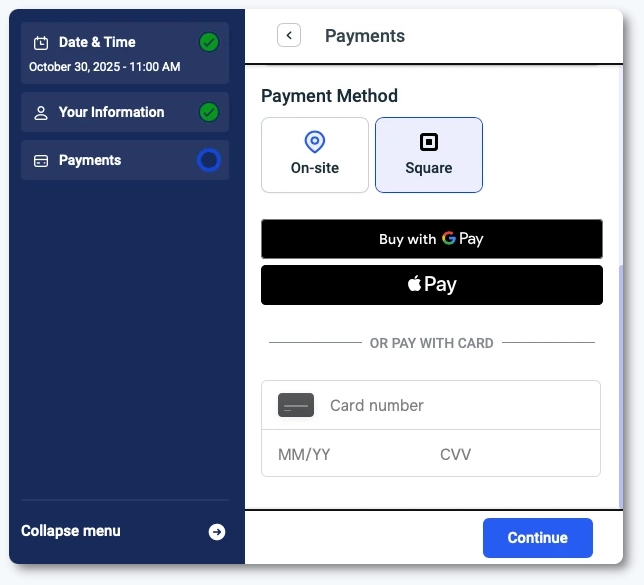
When Square is enabled, Amelia can show Google Pay and Apple Pay buttons during checkout if the wallet is supported on the customer’s device and enabled in your Square Dashboard.
There are no additional settings inside Amelia for these payment methods. Wallet compatibility, availability, and display rules are handled entirely by Square.
Wallet buttons will appear only if:
- Their device and browser support the wallet.
- They are signed in to the wallet.
- The wallet is enabled for your Square account and domain.
- If these conditions are not met, Square simply falls back to the standard card payment form.
For the Google Pay or Apple Pay button to appear, the customer must use a supported device and browser and be logged into their wallet. Otherwise, the wallet option may not be displayed at all during payment.
How do I register my domain for Apple Pay when using Square?
Apple Pay requires domain verification before the wallet button can appear. Square provides an Apple verification file that must be uploaded to your website so that Apple can confirm ownership.
Download the ZIP file below, extract it, and locate the file named apple-developer-merchantid-domain-association inside the extracted folder.
Open your website’s public directory and create a folder named .well-known. Upload the extracted apple-developer-merchantid-domain-association file directly into this folder.
Your verification file must be available at the following URL:
https://example.website.com/.well-known/apple-developer-merchantid-domain-association
After uploading the file, return to Amelia → Settings → Payments, click Log out under the Square section, click Save, then log in again. This forces Square to recheck and verify your domain.
Apple Pay will appear only on supported Apple devices using Safari, with Apple Pay enabled in Wallet and the user signed in to their Apple ID.
How do I refund a Square payment in Amelia?
To refund a payment, open the Finance page as an admin. Select the payment, open its transaction details, and click the Refund button. Confirm the refund in the popup.
The status will switch to refunded in Amelia, and the refund will also appear in your Square Dashboard. Since the refund webhook is implemented, refunds made directly in Square will automatically update the payment status in Amelia as well.
How can I test Square payments using payment links and the customer panel?
Square also works with Amelia’s payment links and the customer panel, allowing you and your customers to complete payments after the initial booking.
To test payment links:
- Enable Allow payment via payment link in Amelia → Settings → Payments.
- Make sure On-site and Square are enabled.
- Add the
%payment_link_square%placeholder to a notification such as Appointment approved. - Make a booking using On-site, then use the received Square payment link to complete the checkout.
After a successful test payment, the Finance page will show the payment as paid, and the transaction will appear in your Square Dashboard.
Customers can also pay from the Customer panel. After booking with On-site selected, they can log in, view their booking, and click Pay now, which opens the same Square checkout flow. After payment, the panel will show the booking as paid.
What should I keep in mind when using Square payments?
- Square supports different card brands depending on the selected country.
- You must connect your Square account and select a default location for payments.
- Square can be combined with On-site and PayPal to provide multiple payment choices.
- Google Pay and Apple Pay availability depends on device, browser, and Square settings.
- Refunds done in Square or Amelia stay synchronized via webhooks.
- Payment links and the customer panel allow customers to complete or retry payments using Square.