Limited time discount Book Smarter This Christmas
Up to 50%Off

How to use Stripe Connect in Amelia

Stripe Connect in Amelia allows you to route online payments between your main Stripe account and your employees’ Stripe accounts. Instead of all funds going into a single Stripe account and being distributed manually, Stripe Connect automates payouts so each employee can receive their share directly after a booking is paid.

For example, if you run a salon with several stylists, you can charge customers through your main Stripe account while automatically sending a percentage of each payment to the stylist who provided the service.

Info Note

The Stripe Connect integration is available only in the Pro and Elite license plans.

What definitions will be mentioned in this article?

  • The Platform – your primary Stripe account connected in Amelia → Settings → Payments. This is the main Stripe integration in Amelia.
  • Standard account – a regular Stripe account owned by the employee. When linked to Amelia, Stripe treats them as a standard user with their own dashboard.
  • Express account – a simplified Stripe account created through Stripe Connect onboarding. If selected, the employee creates their Stripe account during the connection process and it is linked to your Platform.

How do I enable Stripe Connect in Stripe?

Before you turn on Stripe Connect in Amelia, you need to enable and configure Stripe Connect in your Stripe Dashboard.

Log in to your Stripe account and navigate to the Connect section of the dashboard. Follow Stripe’s onboarding flow to enable Connect, choose how funds should move between your platform and your sellers or employees, and complete the required business details.

During this process, Stripe will ask whether charges are created on your platform and then transferred to connected accounts, or if connected accounts charge customers directly and pay an application fee back to you.

If you are unsure which options to choose, Stripe’s official documentation explains each model in detail:

Stripe Dashboard showing the Connect flow overview for a platform account

How do I enable Stripe Connect in Amelia?

Once Stripe Connect is enabled in Stripe, you can turn it on in Amelia and choose how payouts are handled.

First, make sure Stripe itself is enabled in Features & integrations → Integrations, then go to Amelia → Settings → Payments and expand the Stripe section. If your platform Stripe account is not connected yet, link it there using your Stripe keys. After that, enable the Stripe Connect option.

Below the Stripe Connect toggle you will see:

  • Charge type – choose Transfer or Direct charge
  • Transfer amount (%) – define how much of each booking amount is sent to the employee, or how much is kept as an application fee
  • Express account capabilities – capabilities like Card payment and Transfers that must be enabled for employee accounts
Stripe Connect settings in Amelia showing charge type, transfer amount, and capabilities

What is the difference between Transfer and Direct charge types?

Stripe Connect supports two main charge types in Amelia, and the choice defines how money flows between your platform and employees.

  • Transfer – the full booking amount is charged on your Platform account first, then a percentage of that amount is sent to the employee’s connected Stripe account as a transfer.
  • Direct charge – the booking is charged directly on the employee’s connected Stripe account, and an application fee (defined in Amelia) is automatically paid to your Platform.

For example:

  • A barbershop charges 30 for a haircut and wants each barber to receive 80%. With Transfer, the 30 is charged on the Platform, and 24 is transferred to the barber’s account while 6 stays on the Platform.
  • A gym works with external trainers who set their own prices but pay a 10% fee to use your booking site. With Direct charge, the trainer charges the full amount on their account, and 10% is sent back to your Platform as an application fee.

You can adjust the Transfer amount (%) in Amelia to reflect how much each side should receive for every successful Stripe payment.

How do I connect employees to Stripe from the Amelia back end?

If your employees already have connected accounts in Stripe, you can link them directly from the Amelia back end.

Open Amelia → Employees and edit an employee profile. In Integrations tab, access the Stripe Connect card and select the available account from the dropdown. Amelia will list eligible connected accounts so you can pick the correct one for each employee.

After connecting an employee’s Stripe account, you can also set their individual Transfer amount or Application fee amount, depending on the charge type configured in Amelia → Settings → Payments → Stripe. This allows you to pay different percentages to different employees, for example:

  • John receives 50% of each booking
  • Jane receives 70% of each booking

If employee accounts were created directly in Stripe, make sure the card_payments and transfers capabilities are enabled for those accounts, as described in Stripe’s account capabilities documentation.

Employee profile in Amelia with Stripe Connect account linked

How can employees connect their Stripe accounts from the employee panel?

Employees can also connect their own Stripe accounts from the front end, without admin intervention.

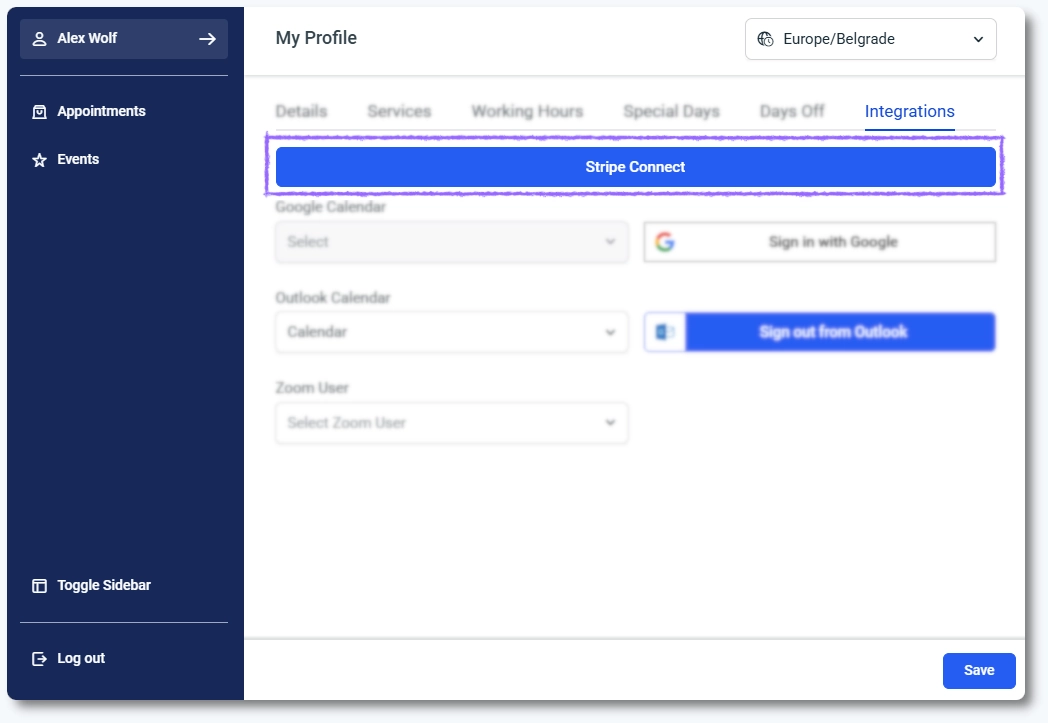
When an employee logs into the Employee panel, they can click their name in the top left corner and select My profile. In the profile view, they should open the Integrations tab, where they will see the Stripe Connect button.

If the employee has not connected their account yet, the button will start the Stripe Connect onboarding so they can create or link a Stripe account. If a Stripe account is already connected, the same area will show connection details and an option to unlink the account if needed.

All payout percentages and fee amounts are still controlled by the admin in the back end, so employees cannot change how much they receive on their own.

Employee panel Integrations tab with Stripe Connect button highlighted

What should I keep in mind when using Stripe Connect in Amelia?

Alert Please note

Stripe Connect requires your platform to be properly branded in Stripe. Make sure you configure your platform’s logo and colors in the Stripe Dashboard before inviting employees. Without branding, employees may not be able to complete onboarding for their connected accounts.

  • Confirm that Stripe and Stripe Connect are fully configured in your Stripe Dashboard before enabling them in Amelia.
  • Use Transfer when you want to receive customer payments on your Platform and then send a share to employees.
  • Use Direct charge when employees or contractors should charge customers directly and pay you a fee.
  • Always verify that each employee’s connected account has the required card_payments and transfers capabilities.
  • Review your percentages regularly to ensure they match your agreements with employees and contractors.