


How do I use WooCommerce payments in Amelia
The WooCommerce integration allows Amelia to use WooCommerce payment gateways, taxes, and order management for bookings.
When enabled, bookings created in Amelia are redirected to WooCommerce checkout, and booking statuses in Amelia can be synchronized with WooCommerce order statuses.
The WooCommerce integration is available in the Standard, Pro, and Elite license plans.
How do I enable WooCommerce integration in Amelia?
Open Features & Integrations → Integrations, locate WooCommerce, enable the integration, and click Set up.
Clicking Set up opens Settings → Payments, where WooCommerce payments are configured.
How does “Set metadata and description” work?
The Set metadata and description option controls what booking information is sent to the payment provider and shown in the checkout or transaction details.
If these fields are left blank, the checkout will display information exactly as WooCommerce defines it by default.
If you want to display different booking details, or control the order in which they appear, you can use placeholders from the dropdown menus below the editing fields. These placeholders allow you to insert dynamic information such as service name, customer name, event title, or booking date, and arrange them in a way that best fits your workflow.
What happens when WooCommerce is enabled?
When WooCommerce is enabled, Amelia automatically creates a WooCommerce product that acts as a connection between bookings and WooCommerce orders.
This product is not visible to customers and exists only to pass booking data to WooCommerce. The default product name is Appointment, but you can rename it if needed by editing the product in WooCommerce.
How do WooCommerce payment settings work?
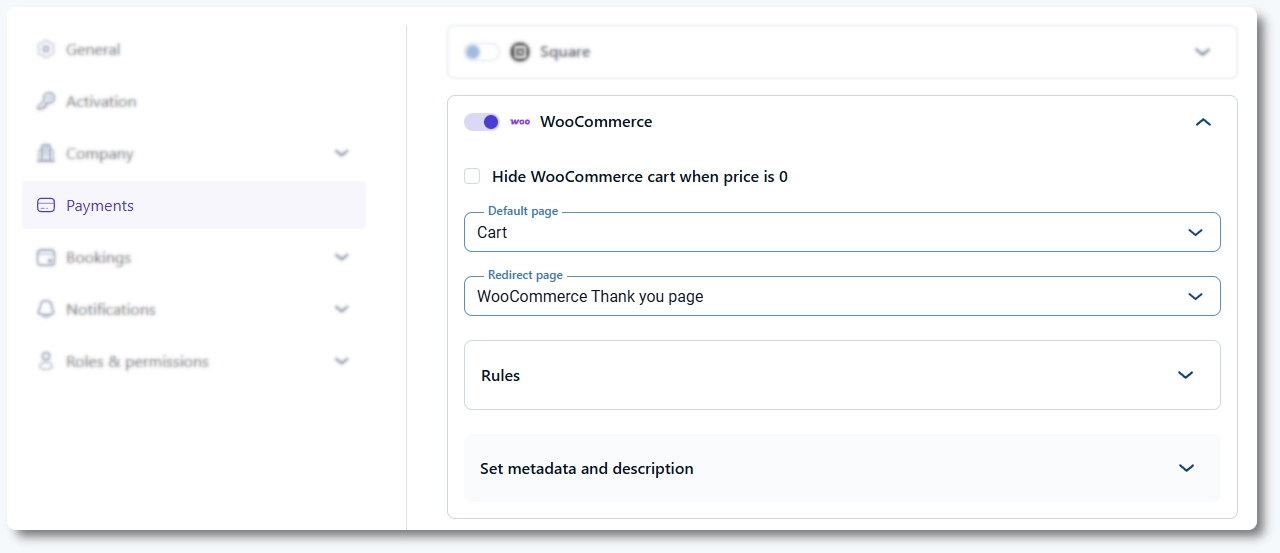
In Settings → Payments, enable WooCommerce as a payment method.
From here, you can define whether customers are redirected to the WooCommerce Cart or directly to the Checkout page, and where they are redirected after a successful booking.
You can choose to keep customers on the WooCommerce Thank You page after payment, or redirect them back to Amelia’s Add to Calendar page, where they can save the appointment or event to their calendar.
There is also an option to hide the WooCommerce cart when the booking price is 0. This option is disabled by default and can be useful for free services where redirecting to WooCommerce would be unnecessary.
Can I use different WooCommerce products for services and events?
Yes. By default, all services and events are connected to the same WooCommerce product, but you can create additional WooCommerce products or choose existing ones and assign them individually.
To assign a product, open a service or event, go to the Settings tab, and select the WooCommerce product that should be used for that booking type.
Using separate products allows you to apply different WooCommerce taxes, pricing rules, invoice settings, or simply link your existing WooCommerce products with Amelia per service or event.
How does booking status synchronization work?
WooCommerce order statuses can be mapped to booking statuses in Amelia.
These rules define how changes in WooCommerce orders affect appointments, events, and packages in Amelia.
By default, Amelia creates rules for common WooCommerce order statuses such as:
- Pending payment
- On hold
- Processing
- Completed
- Cancelled
- Failed
All these default rules apply on order creation. They work in many cases, but WooCommerce behavior can vary depending on payment methods and plugins.
How should I configure WooCommerce status rules correctly?
You can define how appointment, event, and package statuses in Amelia correspond to WooCommerce order statuses. When an order status changes in WooCommerce, the related booking status in Amelia is updated automatically based on these rules.
By default, Amelia includes three predefined status rules: On-hold, Processing, and Completed. If your payment flow requires additional mappings, you can create more rules by clicking Add rule.
Each rule consists of the following settings:
- Order – select the WooCommerce order status that should trigger the rule.
- Apply on – choose whether the rule is applied when the order is created or when an existing order is updated.
- Booking – select the target status in Amelia for appointments, events, or packages.
- Payment – define the payment status that will be set in Amelia when the rule is triggered.
What's the best practice for creating rules?
Because WooCommerce payment flows differ between gateways, it’s important to understand how order statuses change on your site.
The best approach is to run a few test bookings with WooCommerce enabled and then review the order notes in WooCommerce → Orders. These notes show exactly when and how the order status changes.
For example, if an order is created with one status and later updated to another, you may need two separate rules: one that applies on order creation and another that applies on order update.
By aligning Amelia’s rules with the actual WooCommerce order flow on your site, you ensure that booking statuses stay accurate and consistent.
WooCommerce is responsible for generating and updating order statuses, while Amelia applies those status changes to bookings based on the rules you define.
Because this behavior is controlled by WooCommerce and its payment gateways, Amelia cannot automatically determine the correct rule setup for every site. Defining the rules based on your actual order flow ensures both systems stay aligned.
How are taxes and invoices handled with WooCommerce?
Amelia has its own Taxes and Invoices, but you can use WooCommerce taxes and invoices if you prefer.
In that case, Amelia does not configure WooCommerce tax rates or invoice emails. Instead, it passes booking data to WooCommerce, which then applies its own tax rules and invoice logic.
If you already use WooCommerce for taxes or invoicing, these settings will automatically apply to Amelia bookings that go through WooCommerce checkout.
What should I keep in mind when using WooCommerce?
When using WooCommerce with Amelia, bookings are created before payment is fully confirmed. This prevents double bookings while the payment is being processed.
If a payment is not completed and the WooCommerce order expires or fails, the corresponding booking in Amelia is automatically rejected.
Most WooCommerce payment gateways work well with Amelia, but because gateways and extensions behave differently, occasional adjustments to status rules may be needed.