Limited time discount Book Smarter This Christmas
Up to 50%Off

How do I use Mollie payments in Amelia

The Mollie integration allows you to accept online payments for bookings in Amelia using popular European payment methods such as credit cards, Apple Pay, PayPal, Klarna, iDEAL, and more.

Mollie payments can be used for appointments, cart bookings, packages, and events, and are processed securely through Mollie’s checkout.

Info Note

The Mollie payment integration is available in the StandardPro, and Elite license plans.

Mollie is available only within the SEPA area and supports EUR as the payment currency. Learn more about SEPA support in Mollie
How do I enable Mollie in Amelia?

Open Features & Integrations → Integrations, locate Mollie, enable the integration, and click Set up.

Clicking Set up opens the Settings → Payments section, where Mollie payments are configured.

Mollie integration enabled in Amelia and redirected to payment settings

How do I configure Mollie API keys?

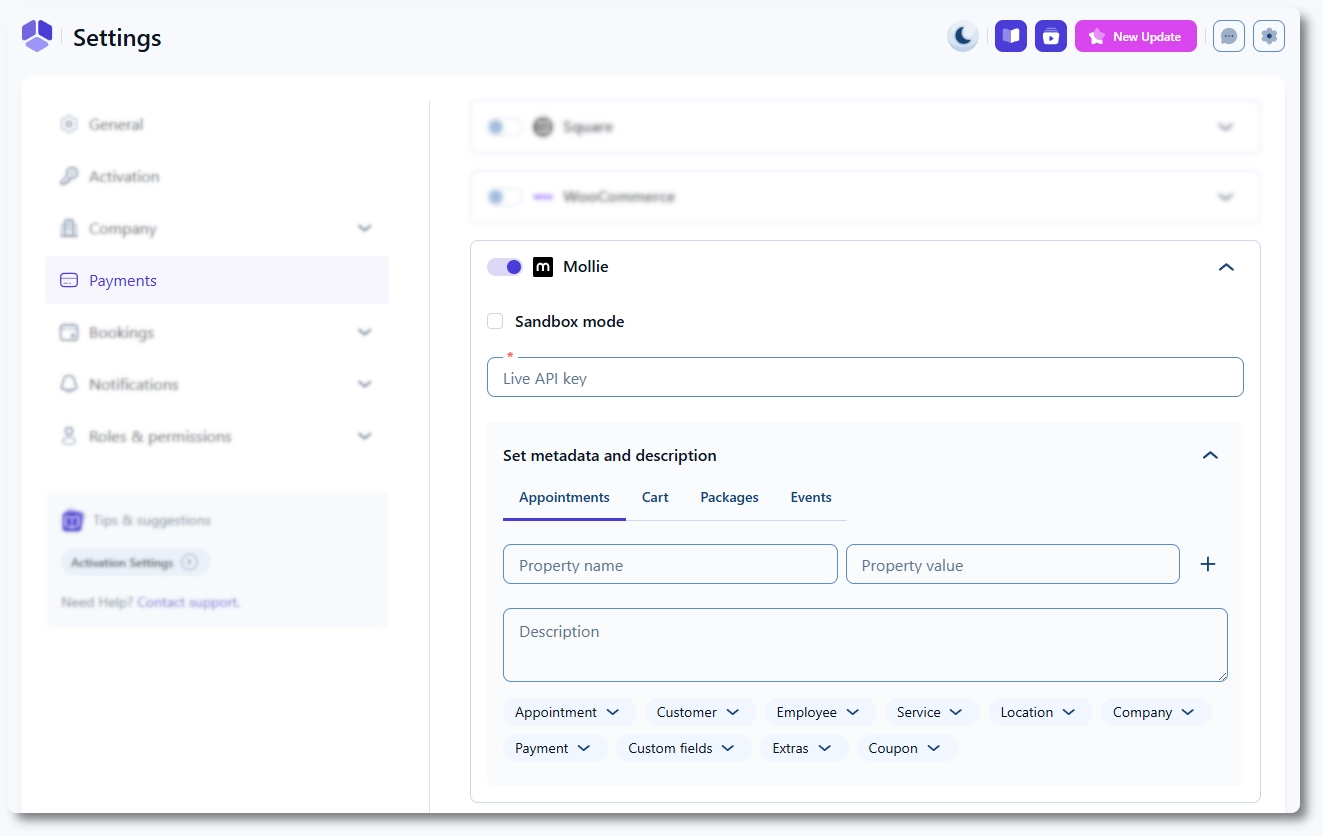
In Settings → Payments, enable the Mollie payment method.

You will see the following options:

  • Sandbox mode
  • Live API key or Test API key

When Sandbox mode is enabled, Amelia expects a Test API key.
When Sandbox mode is disabled, Amelia expects a Live API key.

Copy the appropriate API key from your Mollie dashboard and paste it into the corresponding field, then click Save.

How do I get Mollie API keys?

Create or sign in to your Mollie account at mollie.com and open the Mollie dashboard.

From the dashboard, open the API keys section and copy:

  • Test API key for sandbox mode
  • Live API key for live payments

To receive a Live API key, your Mollie account must be verified. This requires submitting company details and waiting for Mollie’s approval.

Alert Please note

Pay-after-delivery methods (such as Klarna Pay later or Klarna Slice it) and voucher-based payments require the Orders API and cannot be used with the Payments API.

What is “Set metadata and description” used for?

The Set metadata and description section allows you to add booking-related information to Mollie transactions.

This information appears in the Mollie dashboard and helps you identify payments.

Metadata and descriptions can be configured separately for:

  • Appointments
  • Cart
  • Packages
  • Events

For each tab, you can define:

  • Property name
  • Property value (supports placeholders)
  • Description (supports placeholders)

You can add multiple properties by clicking the + icon.

How do placeholders work in Mollie metadata?

Both Property value and Description fields support placeholders.

Placeholders allow you to dynamically insert booking details such as service name, customer name, event name, or appointment date into Mollie transactions.

Available placeholders depend on whether you are configuring appointments, cart bookings, packages, or events.

Do I need to enable Mollie for services and events?

Yes. Mollie must be enabled per service or per event.

To enable Mollie for a service:

  • Open Catalog → Services
  • Edit a service
  • Open the Settings tab
  • Enable Mollie
Service settings in Amelia where Mollie integration is highlighted

To enable Mollie for an event:

  • Create or edit an event
  • Open the Settings tab
  • Enable Mollie
Event settings in Amelia where Mollie integration is highlighted
Info Note

Mollie is enabled for all services by default after activation, but it is recommended to double-check service and event settings.

What should I keep in mind when using Mollie?

Keep the following in mind:

  • Only EUR currency is supported
  • On-site payment can be used together with Mollie
  • Online payments may remain pending until Mollie confirms the payment
  • If a Mollie payment expires, the booking in Amelia is automatically rejected
