


How does the reCAPTCHA integration work in Amelia
The Google reCAPTCHA integration helps protect Amelia booking forms from spam and automated submissions.
When enabled, reCAPTCHA verifies users during the booking process and prevents bots from creating fake appointments or events.
The reCAPTCHA integration is available in all paid license plans.
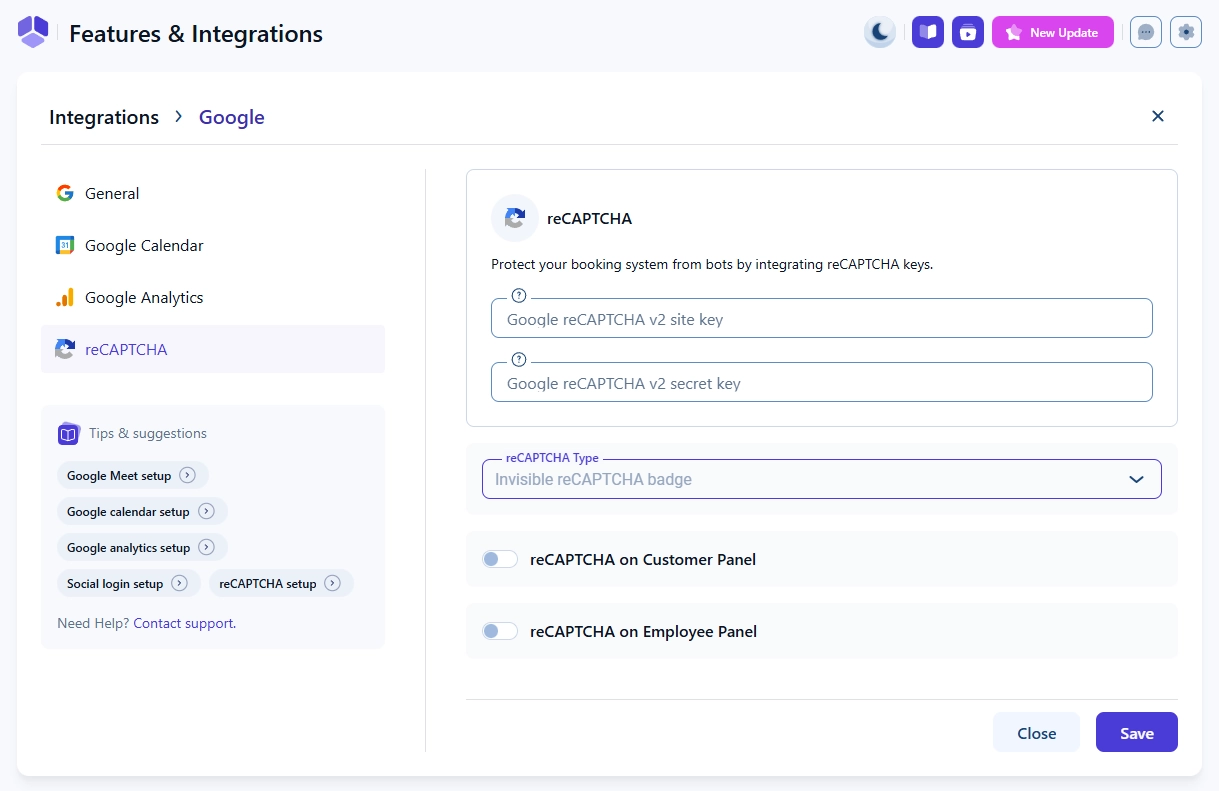
How do I enable Google reCAPTCHA in Amelia?
Open Features & Integrations → Integrations, locate reCAPTCHA, enable the integration, and click Set up.
Where do I get Google reCAPTCHA keys?
To use reCAPTCHA, you must create a Site Key and Secret Key in Google’s reCAPTCHA Admin Console.
Open the Google reCAPTCHA Admin Console and create a reCAPTCHA key pair for your domain:
Google reCAPTCHA Admin Console
After creating the keys, copy:
- Site Key
- Secret Key
Paste them into the corresponding fields in Amelia.
Which reCAPTCHA types are supported?
Amelia supports two reCAPTCHA display types:
Invisible reCAPTCHA badge
- Runs verification automatically in the background
- Displays a small badge in the corner of the booking form
- Does not require user interaction
- Recommended for booking forms with many custom fields
“I’m not a robot” checkbox
- Displays a visible checkbox that users must confirm
- Requires manual interaction
- Provides clear confirmation for users
Can reCAPTCHA be enabled for customer and employee panels?
You can control where reCAPTCHA is applied by enabling it separately for:
- Customer Panel
- Employee Panel
These options allow you to protect login and interaction points in both panels.
What should I keep in mind when using reCAPTCHA?
Keep the following in mind:
- reCAPTCHA protects booking forms, not individual services
- Both customers and employees can be verified
- Invisible reCAPTCHA improves user experience by removing extra steps
- Keys must match the domain where Amelia is installed