Limited time discount Book Smarter This Christmas
Up to 50%Off

How does the Lessonspace integration work in Amelia

The Lessonspace integration allows Amelia to automatically create virtual classrooms for appointments and events.

When enabled, Amelia creates Lessonspace rooms based on your booking data and links them directly to appointments or events, making it easy for employees and customers to join online sessions.

Info Note

The Lessonspace integration is available in all paid license plans.
How do I enable Lessonspace integration in Amelia?

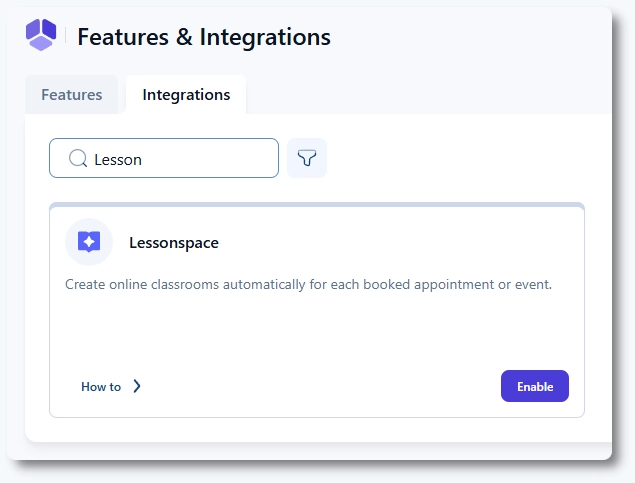
Open Features & Integrations → Integrations, locate Lessonspace, enable the integration, and click Set up.

Lessonspace integration Enable button in Amelia

Where do I find the Lessonspace API key?

To connect Amelia with Lessonspace, you need an active Lessonspace account.

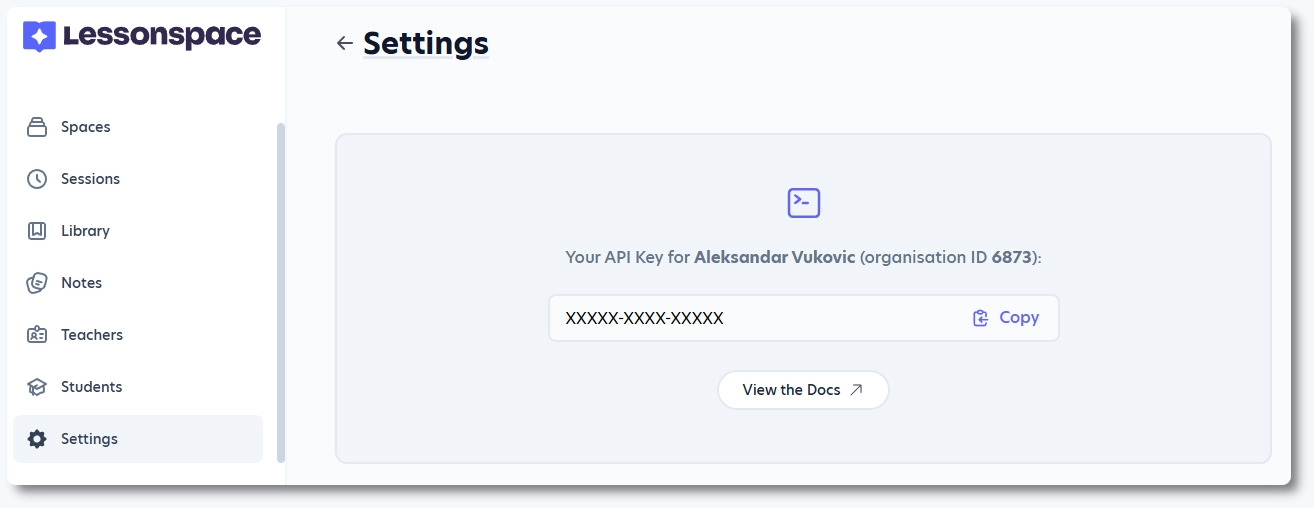
Log in to your Lessonspace dashboard, open Settings, and navigate to the Developer tab. There you will find your API key.

Lessonspace API key in Developer settings

Copy the API key and return to Amelia.

How do I configure Lessonspace in Amelia?

In Amelia, paste the API key into the Lessonspace API key field and save the settings.

Lessonspace API key field in Amelia

Below the API key, configuration is split into two tabs:

  • Appointments
  • Events

How do space names work for appointments and events?

Each tab contains a field for defining the space name:

  • Appointment space name
  • Event space name

These fields support placeholders, allowing you to dynamically include information such as service name, employee name, or event name.

Should spaces be created for pending appointments?

Enable Create spaces for pending appointments if you want Lessonspace rooms to be created before appointments are approved.

If disabled, spaces are created only for appointments with the Approved status.

How do I enable Lessonspace for services?

Lessonspace must be enabled per service.

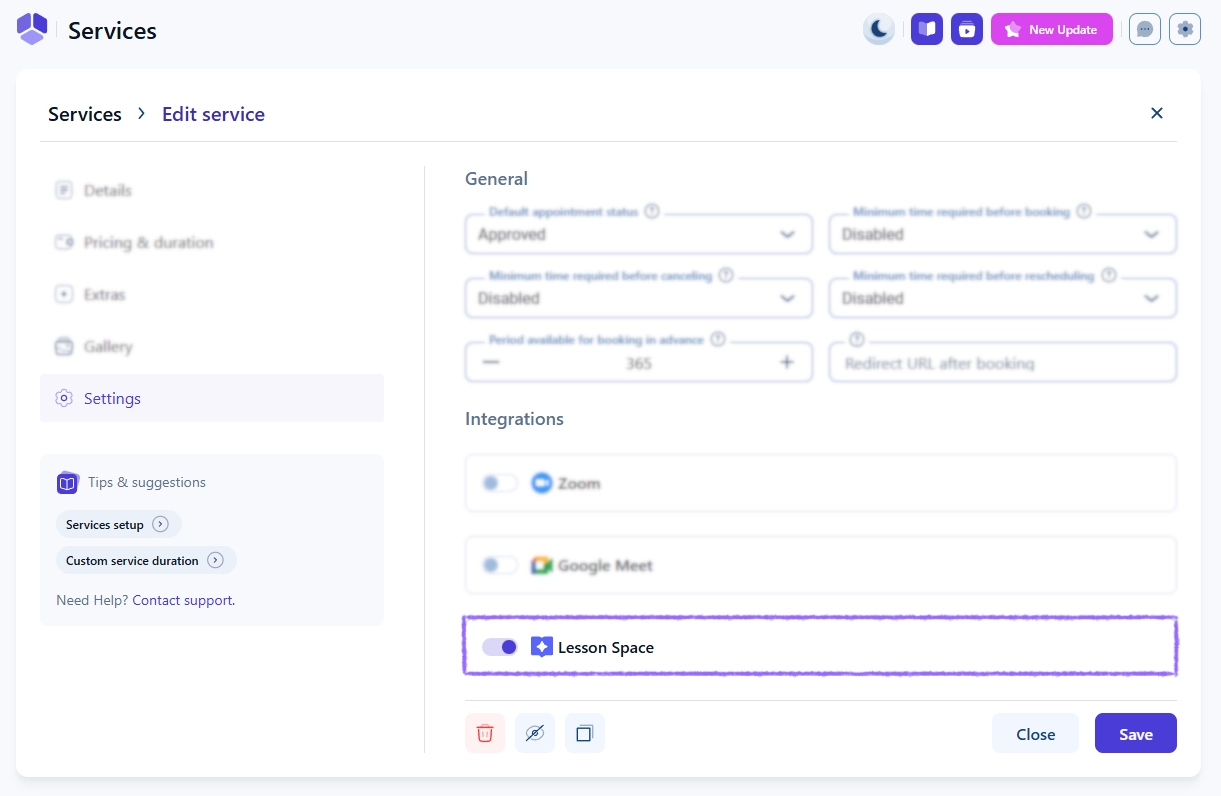
Open Catalog → Services, edit a service, go to the Settings tab, and enable Lessonspace under Integrations.

Lessonspace enabled in Amelia service settings

How does Lessonspace behave for repeated bookings?

For front end bookings, Amelia creates a Lessonspace room the first time a customer books a specific service with a specific employee.

If the same customer later books the same service with the same employee, the new appointment is linked to the existing Lessonspace room instead of creating a new one.

How do I use Lessonspace with events?

Lessonspace can also be used for events.

When creating or editing an event, open the Settings tab and enable Lessonspace. A space is created for the event and linked automatically.

Lessonspace enabled in event settings

Can I change the Lessonspace room for an appointment?

Yes. When creating or editing an appointment in the back end or Employee panel, you can:

  • Create a new Lessonspace room
  • Select an existing Lessonspace room

Admins and employees can change the assigned room at any time by editing the appointment.

How do I share Lessonspace links with customers and employees?

Amelia provides a dedicated placeholder for Lessonspace links:

  • %lesson_space_url%

Add this placeholder to email notifications for appointments or events so customers and employees can access the Lessonspace room directly.

What should I keep in mind when using Lessonspace?

Keep the following in mind:

  • Lessonspace must be enabled both globally and per service or event
  • Spaces are created only for services or events with Lessonspace enabled
  • Appointments may reuse existing spaces depending on customer, service, and employee
  • Lessonspace links can be shared via notifications or accessed from appointments and events