How Meta Pixel integration works in Amelia
The Meta Pixel integration allows you to track visitor activity and booking-related conversions directly from Amelia.
By connecting a Meta Pixel, you can send events to Meta (Facebook) whenever customers interact with booking forms or complete bookings for appointments, packages, or events.
The Meta Pixel integration is available in all paid license plans.
How do I enable Meta Pixel integration in Amelia?
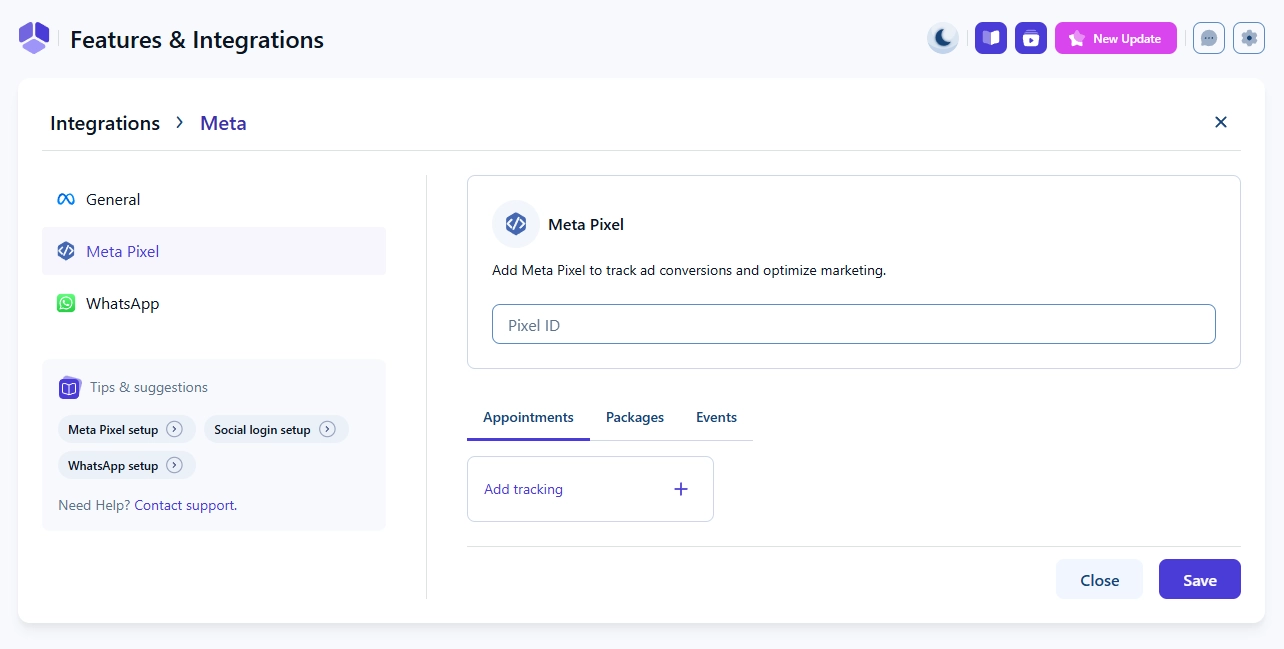
Open Features & Integrations → Integrations, locate Meta Pixel, enable the integration, and click Set up.
On the configuration page, enter your Pixel ID. This is the ID of the Meta Pixel where Amelia events will be sent.
How is Meta Pixel tracking organized?
Meta Pixel tracking in Amelia is organized into separate tabs:
- Appointments
- Packages
- Events
Each tab allows you to define tracking events specific to that booking type.
How do I create a new tracking event?
To create a new tracking event, open the desired tab and click + Add tracking.
In the tracking modal, select the Type of action that should trigger the event. The available actions depend on whether you are configuring Appointments, Packages, or Events.
Which tracking actions are available?
The following tracking actions are available for Appointments, Packages, and Events:
- Load page – triggered on every page load where the Amelia booking form is displayed
- Show customer information form – triggered when the customer information step is shown
- Show checkout form – triggered when the final booking step is accessed
- Complete booking without payment – triggered after a successful booking using on-site payment
- Complete booking with payment – triggered after a successful booking paid using online payment methods
Additional actions available by booking type:
- Appointments: Select Category, Select Service, Select Employee, Select Location
- Packages: Select Package
- Events: Select Event
WooCommerce payments cannot be tracked using Meta Pixel events because the booking process redirects to WooCommerce pages where the Amelia form is no longer available.
How do I define the Meta Pixel event?
Each tracking requires an Event Name. This can be either:
- A standard Meta event
- A custom event
Standard events follow Meta’s predefined naming conventions. Custom events can be named freely.
The Property Name and Property Value fields are optional.
For all tracking types except Load page, you can use placeholders in the Property Value field to send dynamic information such as service name, event name, or employee name.
How do placeholders work in Meta Pixel tracking?
When selecting a tracking type, a list of available placeholders is displayed.
Click a placeholder to copy it, then paste it into the Property Value field. Only placeholders relevant to the selected tracking action are available.
You can add multiple properties to the same tracking by clicking the + button next to the property fields.
What should I keep in mind when using Meta Pixel integration?
Keep the following in mind:
- Meta Pixel events are triggered only on pages where the Amelia booking form is loaded
- WooCommerce-based payments cannot be tracked
- Each booking type (appointments, packages, events) must be configured separately
- Only tracking actions enabled in Meta Pixel settings will send events
