


How do I use Zoom with employees, services, and events in Amelia
After configuring Zoom integration in Amelia, additional setup is required to define who hosts Zoom meetings and where Zoom is used.
Zoom meetings are created only when employees are connected to Zoom users and Zoom is enabled for the corresponding services or events.
How do I connect employees to Zoom?
To assign Zoom meeting hosts, each employee must be connected to a Zoom user.
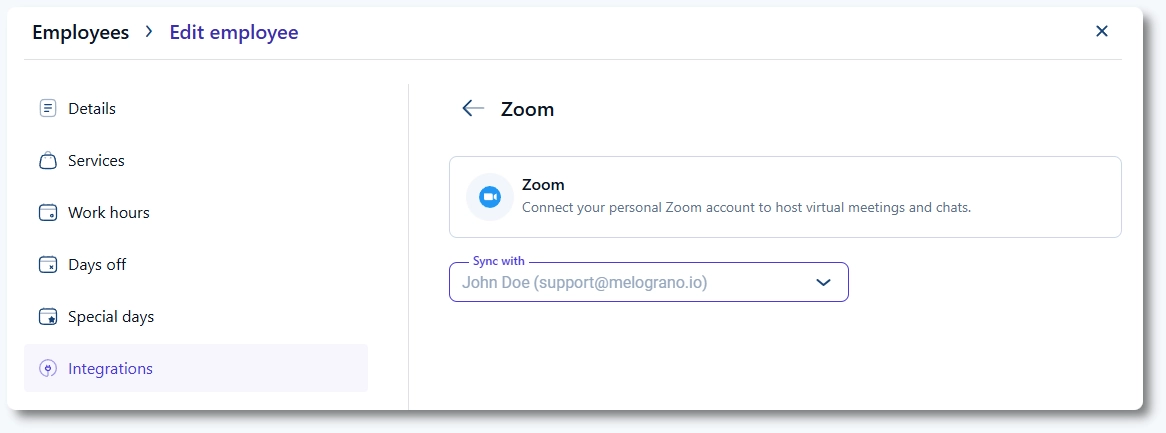
Open Amelia → Employees, edit an employee, and open the Integrations tab. In the Zoom section, select a Zoom user from the dropdown.
Only employees connected to a Zoom user can host Zoom meetings created by Amelia.
Can different employees use different Zoom accounts?
Yes. Each employee can be connected to a different Zoom user.
To add more Zoom users, open your Zoom account and navigate to Admin → User Management → Users. Click + Add Users and invite additional users.
Multiple users are covered only in paid Zoom accounts.
After the new user is added in Zoom, return to Amelia and select the new Zoom user in the employee’s integration settings.
Can employees connect their Zoom accounts through the Employee panel?
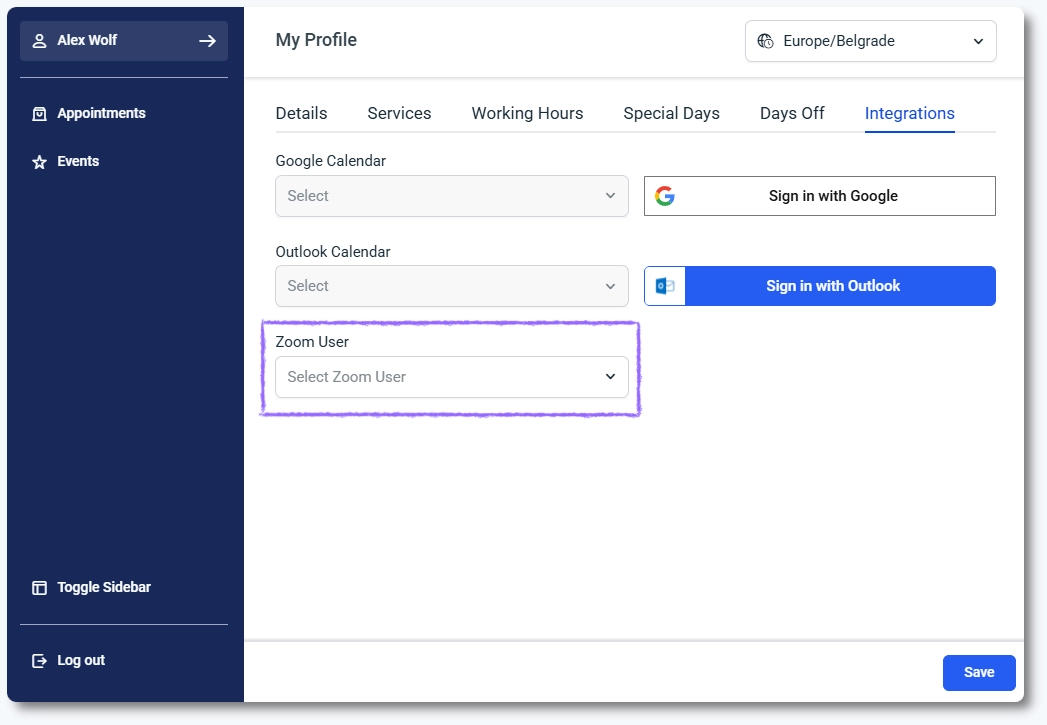
Employees can connect their Outlook account from the My Profile page in their Employee panel.
In the profile settings, access the Integrations tab and select the Zoom user from the dropdown.
How do I enable Zoom for services?
Zoom must be enabled per service.
Open Catalog → Services, edit a service, go to the Settings tab, and enable Zoom under Integrations.
Amelia will warn you if there are employees who are covering the service, but are not linked with a Zoom account.
Only services with Zoom enabled will generate Zoom meetings when appointments are booked.
How do I use Zoom with events?
Zoom can also be used for events.
When creating or editing an event, open the Settings tab and enable Zoom. The employee assigned to the event must be connected to a Zoom user.
For events, the employee assigned as the Organizer acts as the Zoom meeting host.
How do I send Zoom meeting links in notifications?
To share Zoom meeting links with employees and customers, use Zoom placeholders in notification templates.
Available placeholders for appointments:
- %zoom_host_url% – for employee notifications
- %zoom_join_url% – for customer notifications
Available placeholders for events:
- %zoom_host_url_date%
- %zoom_host_url_date_time%
- %zoom_join_url_date%
- %zoom_join_url_date_time%
Zoom placeholders are already formatted as hyperlinks. Do not place them behind custom text, as this will prevent the links from working correctly.
What should I keep in mind when using Zoom in Amelia?
Keep the following in mind:
- Zoom meetings are created only for new appointments and events
- Employees must be connected to Zoom users for meetings to be created
- Zoom must be enabled per service or per event
- Meeting creation depends on the appointment or event status and integration settings