How does Apple Calendar integration work in Amelia
Apple Calendar integration in Amelia allows you to sync your bookings and block busy times based on your Apple Calendar availability. This helps prevent conflicts between appointments created in Amelia and events already scheduled in your Apple Calendar.
When the integration is enabled, Amelia sends booking data to Apple Calendar and marks those time slots as busy, ensuring that new reservations are not accepted during unavailable periods.
The Apple Calendar integration is available in the Standard, Pro, and Elite license plans.
The Apple Calendar app (iCal), which you may use on macOS or iOS, is not a calendar service itself but a calendar viewer. Direct integration with the iCal app is not possible. If your primary calendar is Google Calendar or Outlook but you view it in Apple Calendar, you should integrate that calendar service instead.
What should I know before setting up Apple Calendar?
Before enabling Apple Calendar integration, it’s important to understand a few key limitations and requirements.
Apple Calendar integration in Amelia is a one-way synchronization. This means that changes made in Apple Calendar, such as rescheduling or deleting events, are not reflected back in Amelia. Only bookings created or managed in Amelia are sent to Apple Calendar.
On iOS and iPadOS 18 and later, events created or edited in the Apple Calendar app can no longer be marked as Busy. As a result, Amelia cannot detect those events or block those times. If busy-time blocking is required, use Google Calendar or Outlook Calendar, or manage availability directly in Amelia.
During setup, we recommend opening two browser tabs:
- Amelia → Settings → Integrations → Apple Calendar in your WordPress dashboard
- Your Apple account page at appleid.apple.com
How do I prepare my Apple account for integration?
To connect Apple Calendar to Amelia, your Apple account must have two-factor authentication enabled and an app-specific password generated.
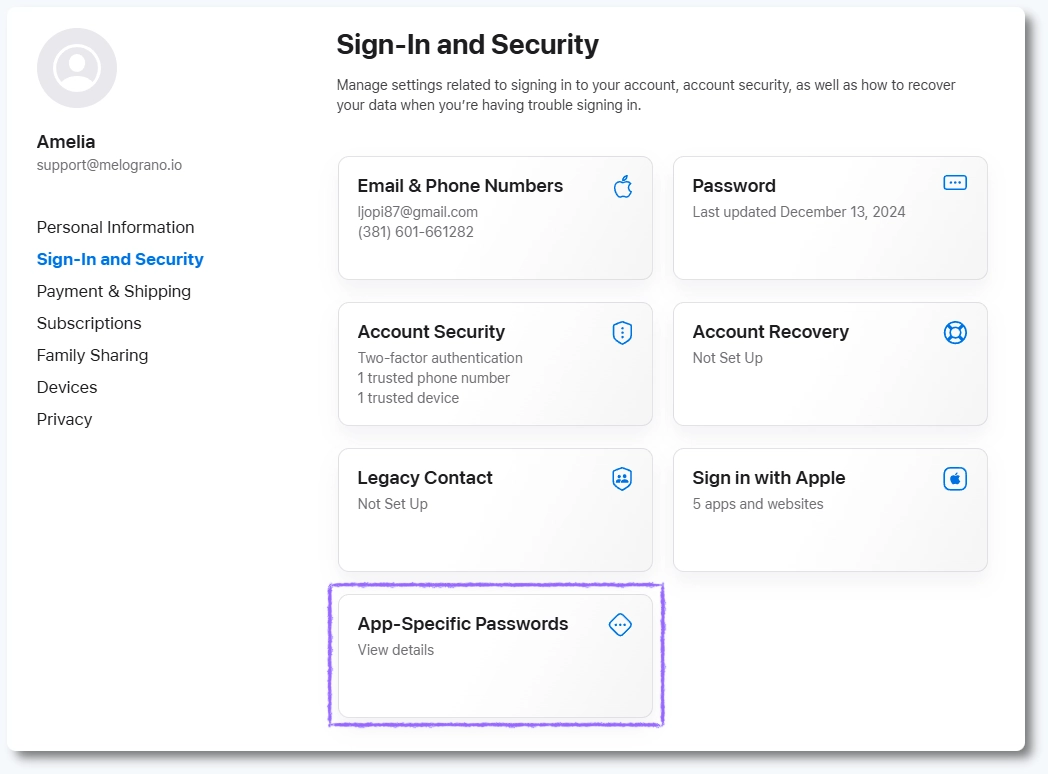
Log in to your Apple account and access Sign-In and Security → Account Security section. Enable two-factor authentication if it is not already active. Then go back to Sign-In and Security and click App-Specific Passwords and choose Generate Password.
Â
Enter a name such as Amelia and confirm. Apple will generate a password in the following format:
xxxx-xxxx-xxxx-xxxx
Copy this password, including the hyphens, and store it securely. The password will not be shown again after closing the dialog.
If you revoke the app-specific password, Amelia will be disconnected from Apple Calendar. You will need to generate a new app-specific password and repeat the setup process.
Some users experience issues generating app-specific passwords in Safari. If this happens, try using a different web browser.
How do I connect Apple Calendar to Amelia?
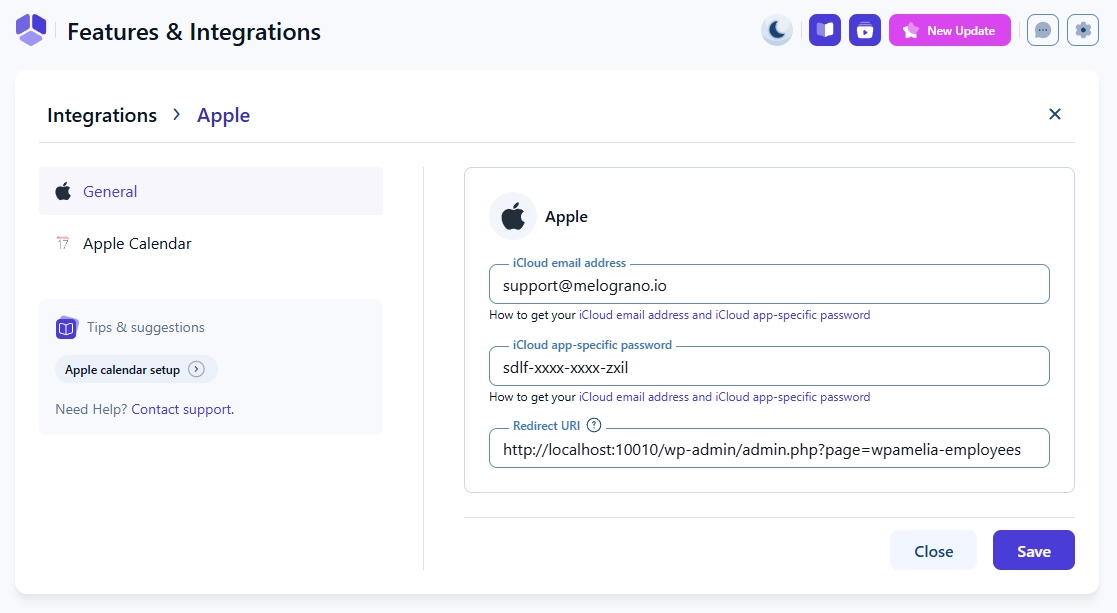
After preparing your Apple account, open Features & Integrations → Integrations and click Set up on the Apple Calendar card.
In the General tab, enter your iCloud email address and the app-specific password you generated earlier. If required, add the Redirect URI to your Apple project credentials under Redirect URIs.
Once the credentials are saved, Apple Calendar will be connected at the system level.
How can employees connect Apple Calendar in Amelia?
After the main Apple Calendar integration is established, employees can manage how their calendars are used for synchronization. Employees can either use calendars from the admin’s Apple account or connect their own personal Apple Calendar.
How do employees select a calendar from the admin account?
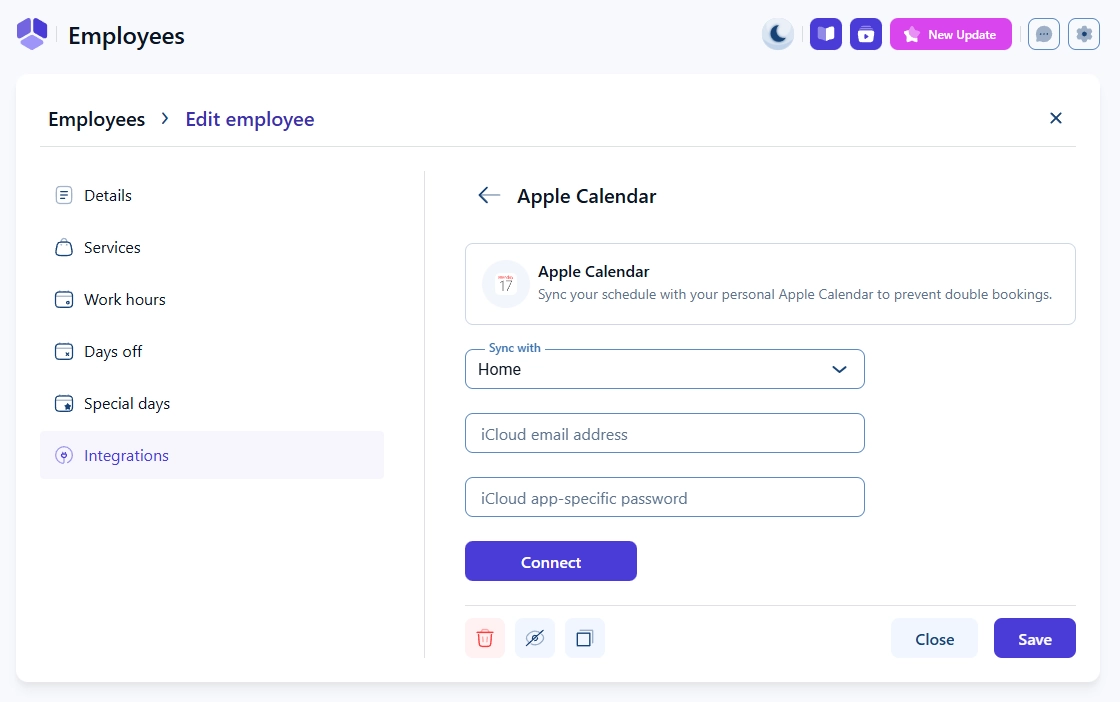
Admins and employees can open Amelia → Employees, edit an employee profile, and navigate to the Integrations tab.
In the Sync with dropdown, the employee can select one calendar from the calendars pulled from the admin’s connected Apple account. Only one calendar can be selected per employee.
How do employees connect their personal Apple Calendar?
Employees can also connect their own Apple Calendar from the same Integrations tab in their employee profile.
To do this, they need to enter their personal iCloud email address and generate an app-specific password for their Apple account. Once these details are saved, the employee’s personal Apple Calendar will be used for synchronization.
Employee-level Apple Calendar connections are optional. Each employee can connect only one Apple Calendar, and synchronization remains one-way.
How do employees connect Apple Calendar through the Employee Panel?
Employees can connect Apple Calendar themselves through the Employee Panel.
After logging in to the Employee Panel, they should open My Profile → Integrations, where the same Apple Calendar options are available. This requires an Employee Panel page to be created and its URL added under Settings → Roles & permissions → Employee in the Panel & access permissions section.
What are the limitations of Apple Calendar for employees?
Apple Calendar integration has several important limitations for employee availability.
Events created or edited directly in Apple Calendar on iOS or iPadOS 18 and later cannot be marked as Busy, so Amelia cannot block those times. In such cases, availability should be managed directly in Amelia or through a calendar service that supports Busy status.
How do Apple Calendar settings affect availability?
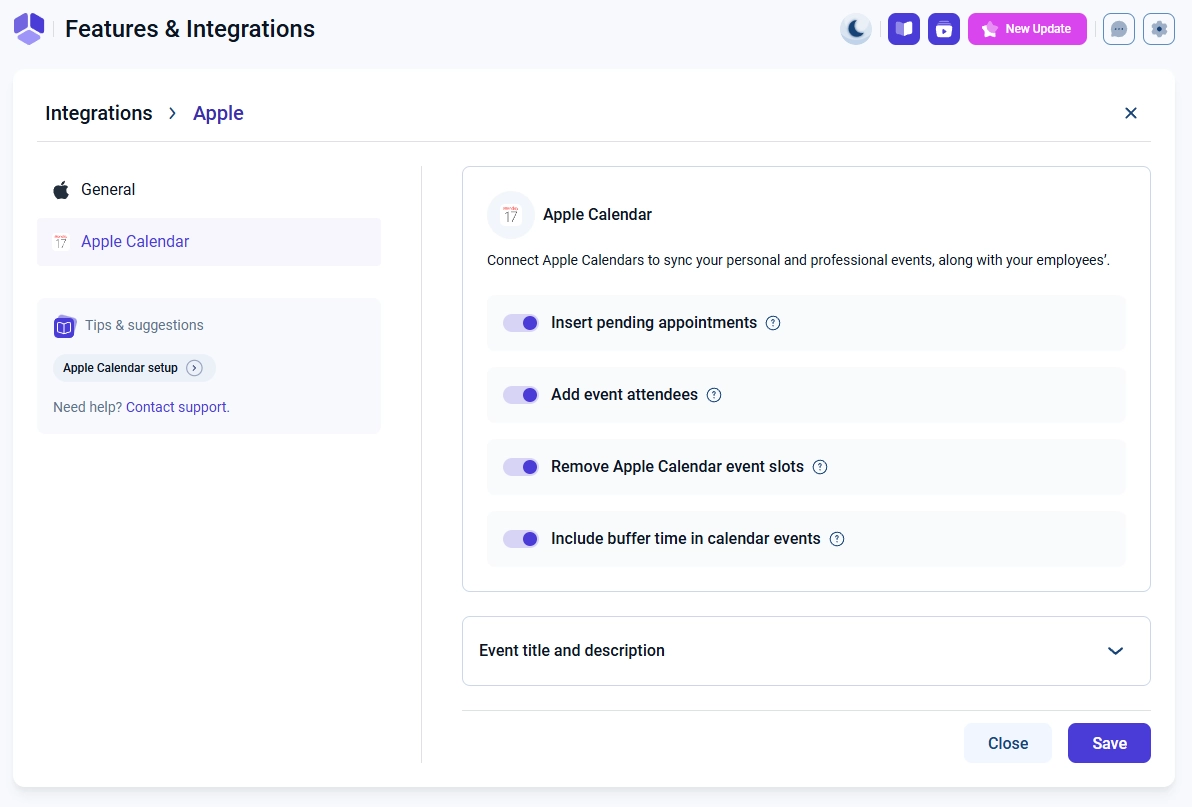
The Apple Calendar tab in the integration settings includes options that control how bookings are synced and how availability is calculated.
- Insert pending appointments: Sends pending bookings to Apple Calendar before they are confirmed
- Add event attendees: Adds customers as attendees to Apple Calendar events
- Remove Apple Calendar busy slots: Blocks time slots in Amelia based on busy events in Apple Calendar
- Include buffer time in calendar events: Controls whether buffer time is included in Apple Calendar events
On iOS and iPadOS 18 and later, removing busy slots will have no effect because events cannot be marked as Busy.
How do time zones affect Apple Calendar events?
Apple Calendar automatically detects the time zone when an event is created, which can sometimes cause confusion when traveling.
For example, if you schedule a meeting while traveling in a different time zone, the event may appear at an unexpected time when you return home. To avoid this, enable Time Zone Support in Apple Calendar preferences and select the correct time zone or use a Floating time option when creating events.