


How do Google Calendar settings work in Amelia
The Google Calendar tab defines how Amelia synchronizes appointments with Google Calendar, how availability is calculated, and how events are shared with customers. These settings apply regardless of how the Google account was connected and control how bookings, attendees, buffer times, and availability are handled.
How are appointments added to Google Calendar?
Amelia automatically creates Google Calendar events for new bookings once the integration is active. You can control which bookings are pushed to Google Calendar using the following option:
- Insert pending appointments – when enabled, appointments with the Pending status are also added to the employee’s Google Calendar.
This allows employees to see tentative bookings in advance and plan their schedule accordingly.
How do attendees work in Google Calendar events?
Amelia can add customers as attendees to Google Calendar events, allowing event details to be shared directly through Google Calendar.
- Add event attendees – adds customers as attendees to the Google Calendar event.
- Allow customers to see other attendees – when enabled, customers can see other participants for group appointments or events.
- Send event invitation email – sends Google Calendar invitation emails to customers. This option requires Add event attendees to be enabled.
By default, customers only see their own name unless attendee visibility is enabled.
How does Amelia block availability using Google Calendar?
The Remove Google Calendar busy slots option controls how Amelia uses Google Calendar to block availability.
When enabled, any Google Calendar event marked as Busy will block the corresponding time slot in Amelia.
Google Calendar events themselves do not appear inside Amelia, but their busy status prevents customers from booking during those times.
Only events marked as Busy in Google Calendar block availability. Events marked as Free are ignored.
How many Google Calendar events does Amelia check?
The Maximum number of events returned option defines how many Google Calendar events Amelia will fetch when checking availability.
These events are not shown in Amelia, but are used to determine which time slots should be blocked.
If this number is set too low, Amelia may not detect all busy events, which can lead to overlapping bookings.
Example:
If this value is set to 50 and an employee has a recurring busy event that repeats 10 times per day, Amelia will only check availability for the next 5 days. Busy events beyond that range will be ignored.
Recommendation:
For reliable availability checks, set this value to at least 1000 or higher, especially if employees use recurring Google Calendar events.
How are buffer times handled in Google Calendar?
When Include buffer time in calendar events is enabled, Amelia adds buffer times before and after appointments directly into Google Calendar events.
This prevents employees from accidentally scheduling overlapping events during buffer periods.
How does Google Meet relate to these settings?
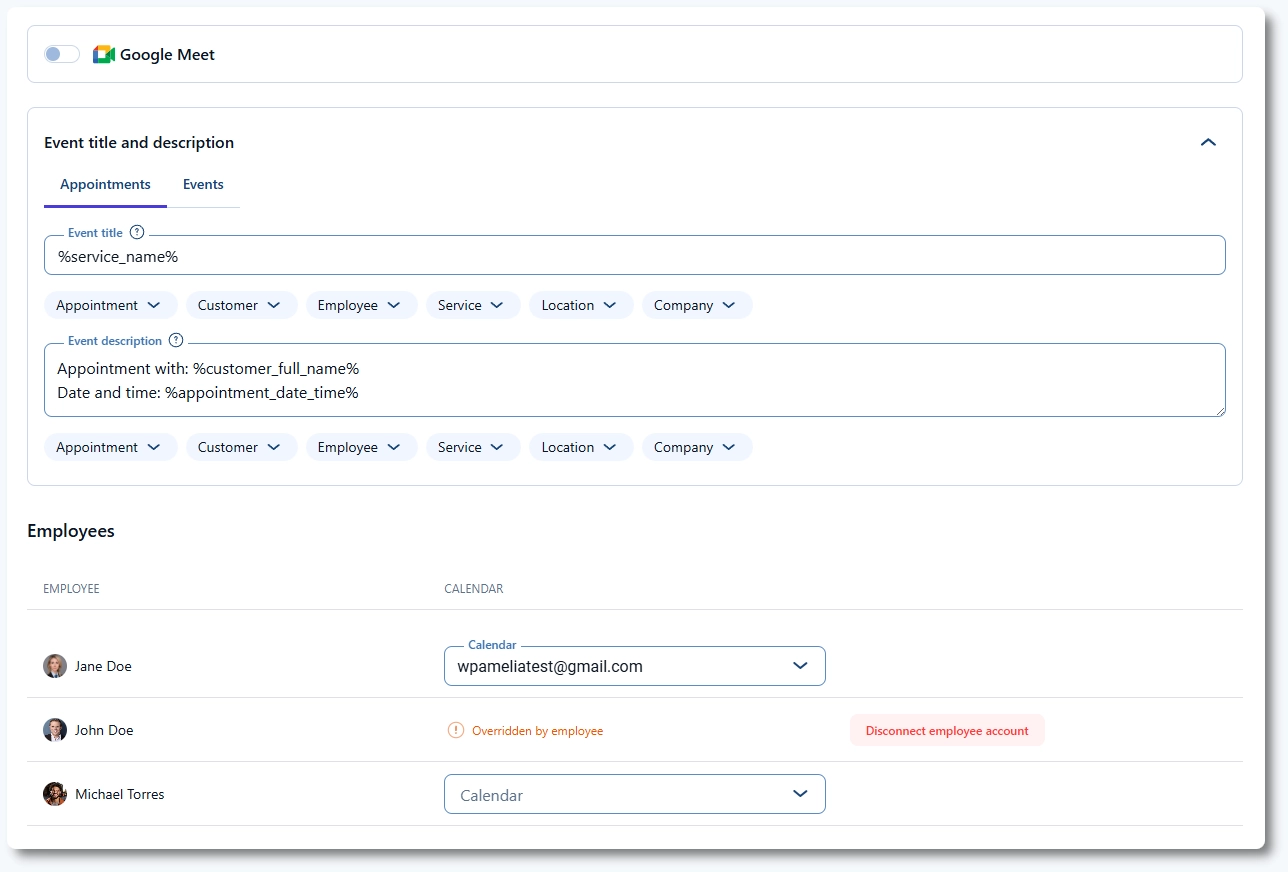
The Google Meet option appears in this section and controls whether online meeting links are generated for appointments.
While the toggle is located here, Google Meet behavior and configuration are explained in a dedicated article.
How are event titles and descriptions defined?
You can customize how Amelia events appear in Google Calendar using the Event title and Event description fields.
These fields support notification placeholders, allowing dynamic values such as customer name, service name, location, or employee to be included automatically.
How are employees linked to Google calendars?
At the bottom of the Google Calendar settings, administrators can assign calendars to individual employees.
Only calendars that exist in the connected Google account are available for selection. If calendars are managed centrally, a separate calendar must exist for each employee in that account.
If an employee connects their own Google Calendar through their Employee Panel or linked WordPress account, Amelia will display an Overridden by employee label.
In this case, the employee’s personal calendar takes precedence over the admin-assigned one.
Administrators can disconnect employee connections, while employees cannot override calendars assigned by admins.