


Limited time discount Book Smarter This Christmas
Up to 50%Off

How the no-show tag works in Amelia

The no-show tag helps you quickly identify customers who previously missed their bookings. This makes it easier for you and your team to spot attendance risks, adjust scheduling decisions, and maintain accurate booking records.

Info Note

The No-show tag feature is available in all paid Amelia licenses.
Where do I enable the no-show tag?

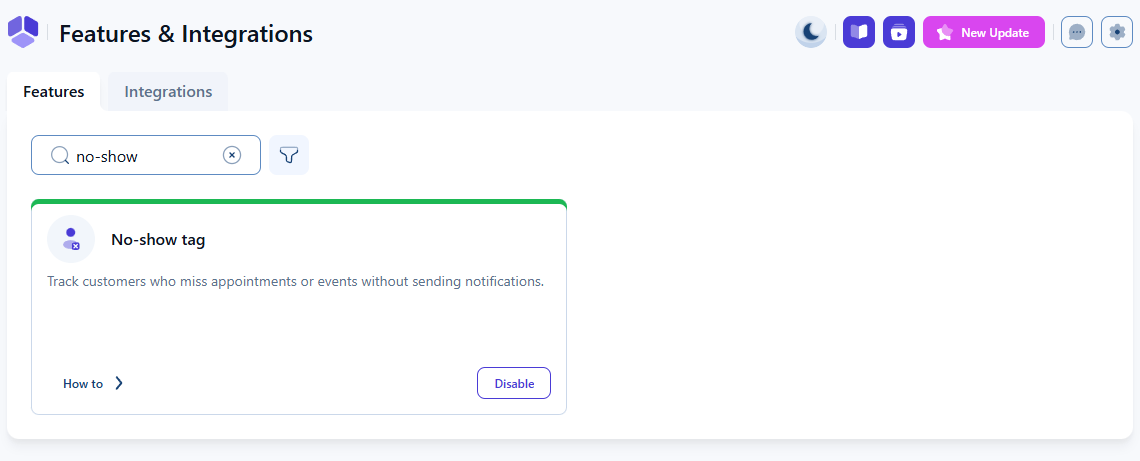
You can enable the No-show tag in Features & Integrations under the Features section.

Once enabled, Amelia automatically checks historical appointment data and marks any customer who has been flagged as No-show in the past.

No-show tag enabled in Amelia’s Features & integrations settings

What happens after the feature is enabled?

When the feature is active, customers who previously had bookings marked as No-show will display a red No-show icon next to their name.

This icon appears in:

  • Amelia → Bookings, next to the customer name in Appointment, Event, and Package bookings.
  • The Customers page, inside the customer list.

This helps staff instantly recognize customers with a history of missed bookings.

Customer flagged with the red No-show icon in Amelia
Info Info

The no-show icon is not shown next to customers in group bookings.

Why is the no-show tag useful?

The no-show tag allows you to make informed decisions about scheduling and customer management. It is especially helpful when:

  • Assigning bookings to employees who need reliable attendance.
  • Checking which customers may require upfront deposits or stricter cancellation rules.
  • Reviewing customer history during busy hours when quick decisions are needed.

This small visual marker improves workflow efficiency by giving your team more context at a glance.

What should I keep in mind when using the no-show tag?

  • The tag appears only for customers who were previously marked as No-show in past bookings.
  • The icon is informational and cannot be edited directly; it updates automatically based on booking status history.
  • Removing a no-show status from all bookings also removes the icon after the system rechecks customer history.