How to use time zones in Amelia
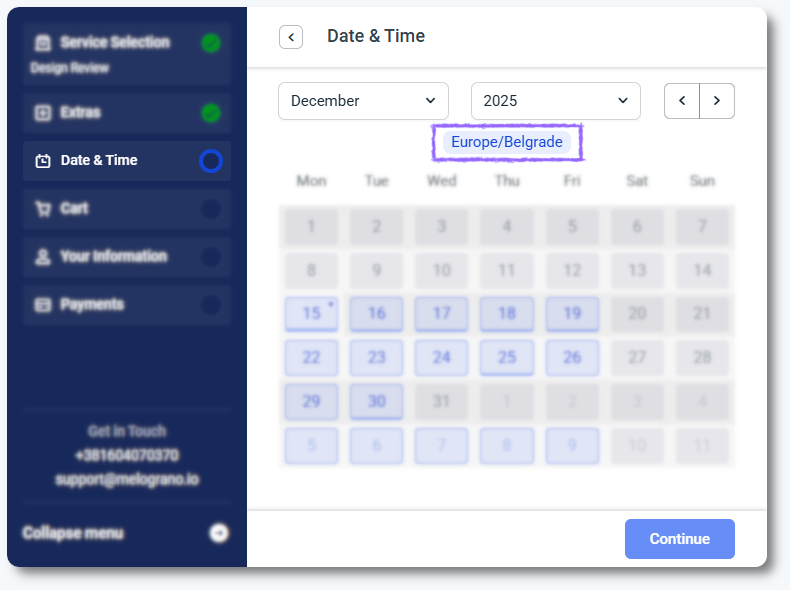
The time zones feature helps global businesses manage employee schedules accurately by allowing each employee to set their own time zone. This ensures that working hours are defined in the employee’s local time, while customers still see appointment availability adjusted to their own time zone.
The Time zones feature is included in the Standard, Pro, and Elite licenses.
How does the time zones feature work?
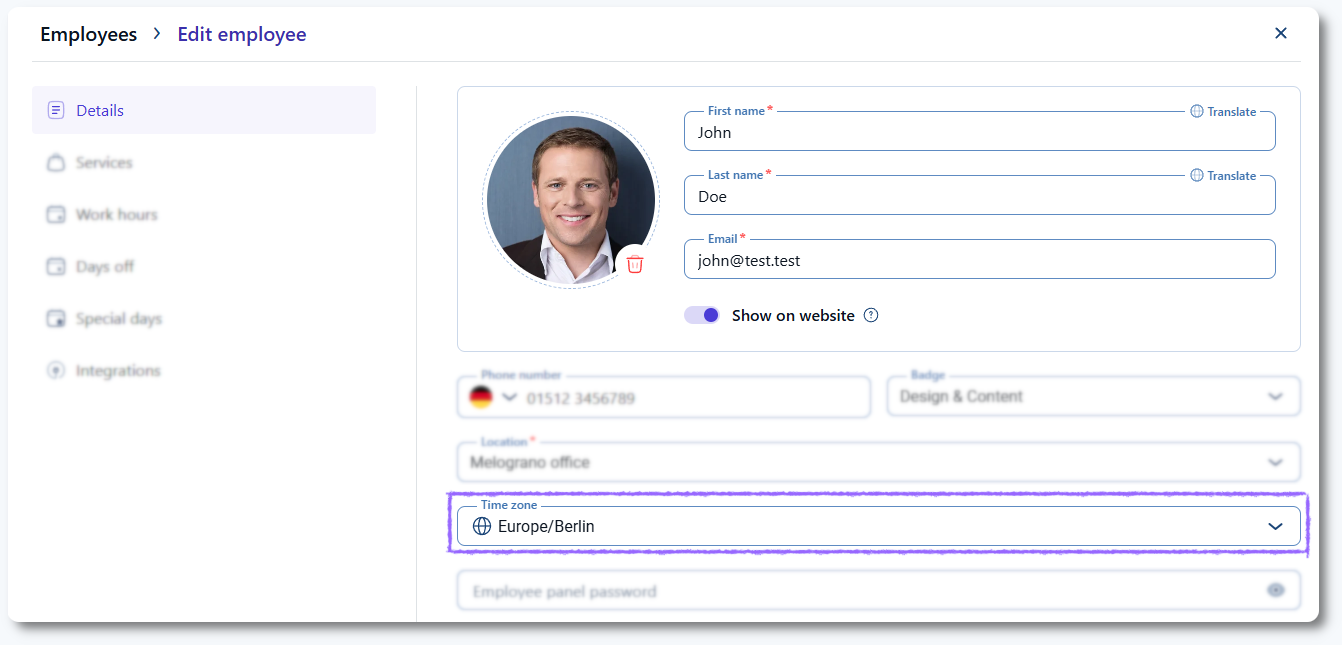
When the Time zones feature is enabled in Features & Integrations, each employee profile displays a Time zone dropdown. Employees can select their local time zone so their working hours reflect the correct local time for their region.
This feature works independently of the Show booking slots in client’s time zone option located in Settings → General settings. That option ensures that customers always see available time slots adjusted to their local time.
If the time zones feature is disabled, Amelia relies entirely on the WordPress time zone. For example, if WordPress is set to Europe/Berlin, a customer in New York will see 14:00 (2:00 pm) Berlin time as 08:00 (am) in their local time.
How do employee and customer time zones interact?
If the time zones feature is enabled, both the WordPress time zone and the employee’s selected time zone affect how time slots appear to customers.
For example, if WordPress is set to Europe/Berlin and an employee has selected New York as their time zone, working hours defined as 08:00 – 16:00 (New York) will display as 14:00 – 22:00 in Amelia’s Bookings → Appointments.
A customer in a different time zone, such as Los Angeles, will see these same hours adjusted to their location, for example 05:00 – 13:00. This ensures that each customer sees availability displayed correctly in their local time.
Amelia reads the customer’s device’s physical location settings rather than their IP address, so using a VPN does not affect how appointment times are displayed.
How do I configure the WordPress time zone for Amelia?
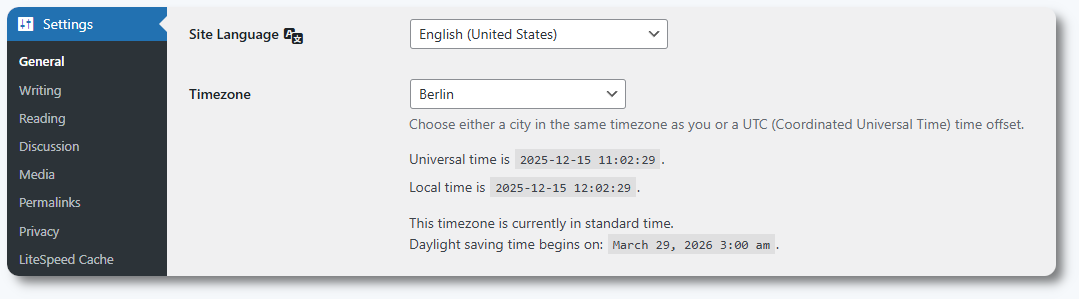
Amelia follows WordPress date and time settings. It does not contain its own separate configuration. To adjust these settings, open Settings → General in the WordPress admin area and scroll to the Timezone section.
From there, you can define the Timezone, Date Format, Time Format, and Week Starts On. After saving changes, Amelia automatically uses the updated WordPress settings for all booking logic.
Amelia does not have its own time zone settings. It fully depends on the configuration set in WordPress’ General settings.
Why should I avoid using UTC offsets in WordPress?
To correctly store appointment times in the database, WordPress must use a city-based time zone instead of a fixed UTC offset.
UTC+/- offsets do not adjust for Daylight Savings Time. This causes mismatches between what customers see in the front end and what admins see in the back end.
For example, if WordPress is set to UTC+1 during summer, and a city like Belgrade is actually in UTC+2, customers will see working hours shifted by one hour. A shift like this can lead to incorrect bookings and misaligned appointment times.
What happens when switching from UTC offsets to a city-based time zone?
Appointment times in Amelia are stored in UTC in the database. When switching WordPress from a fixed UTC offset to a city-based time zone, the system recalculates appointment times based on the new offset.
For example, an appointment set for 09:00 in UTC+1 is stored as 08:00 in the database. If WordPress is switched to a city currently in UTC+2, the displayed appointment time becomes 10:00.
If your time zone was previously misconfigured, existing appointment times may need to be adjusted manually, but this ensures that all future bookings display correctly and consistently across the system.
Amelia is not responsible for issues caused by incorrect WordPress time zone configuration. Make sure your time zone settings are correct to avoid booking errors.
What are the best practices for time zones?
- Always use a city-based time zone in WordPress to ensure Daylight Savings Time is applied correctly.
- Enable employee time zones when working with distributed or remote teams.
- Use the Show booking slots in client’s time zone option so customers see availability in their own time zone.
- If appointment times differ between the front end and back end, verify your WordPress time zone first.
- Avoid UTC+/- offsets unless your region does not observe Daylight Savings Time.