 Keep Summer Fully Booked

How recurring appointments work in Amelia
Recurring appointments let customers book a repeating sequence of appointments in a single flow. They select the first date and time, choose how often the appointment repeats, and set how long the sequence lasts. Amelia then generates all future appointments according to the service configuration.
 Note
Note
Recurring appointments are available in the Standard, Pro, and Elite license plans.
How do I enable recurring appointments?
To enable recurring appointments, open Features & Integrations in Amelia’s menu and activate the Recurring appointments feature. There is no additional setup here.
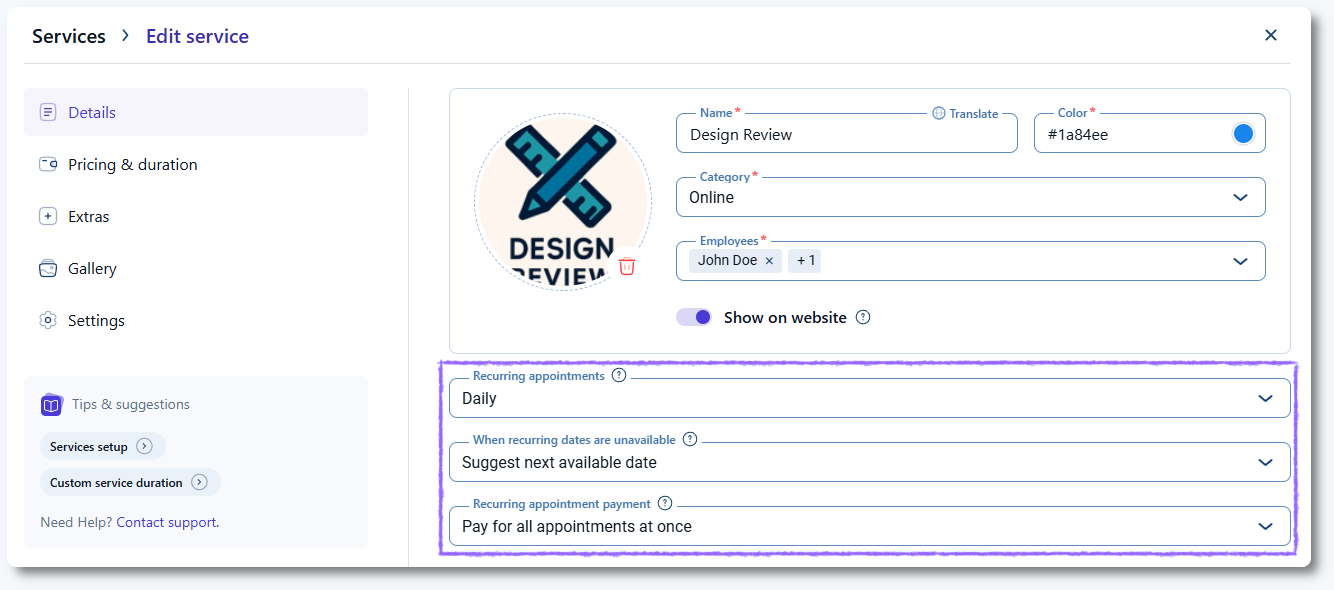
Once activated, every service you create or edit in Catalog → Services gains a Recurring appointments dropdown in the service’s Details tab. This dropdown is disabled by default, and your available options are:
- Disabled
- All
- Daily
- Weekly
- Monthly
When a selection is made, two more fields appear:
- When recurring dates are unavailable
- Recurring appointment payment
What do the recurring appointment options mean?
These options define which recurrence patterns your customers can use when setting up a repeating appointment and how flexible the repetition rules are for each service.
How does the daily recurrence option work?
Allows customers to repeat the appointment every X days. They can choose:
- Repeat every 1, 2, 3 or more days
- End on a specific date
- End after a certain number of occurrences
How does the weekly recurrence option work?
Allows customers to set a weekly recurrence. They can:
- Repeat every X weeks
- Pick multiple weekdays
- Choose an end date or set a number of occurrences
How does the monthly recurrence option work?
Allows customers to repeat the appointment monthly. Customers may choose:
- Repeat on the same calendar date each month
- Repeat on the same weekday of the month (for example, first Monday, second Friday)
- Choose an end date or number of occurrences
How does the all recurrence option work?
Allows customers to choose between daily, weekly, or monthly recurrence in the front-end booking form.
What happens when recurring dates are unavailable?
If any appointment in the recurring sequence cannot be scheduled, Amelia automatically adjusts that specific occurrence based on the option selected in the service settings. Unavailable dates can occur because of booked time slots, calendar integration busy slots, working hours, or full capacity.
Employee days off are always skipped automatically and will not appear in the generated recurring list.
The available adjustment options are:
- Suggest next available date – the appointment is moved to the closest available date after the original one.
- Suggest previous available date – the appointment is moved to the closest available date before the original one.
- Suggest closest available date – Amelia selects the nearest available date, whether before or after the original date.
Adjusted dates are highlighted in the recurring summary so the customer can review each occurrence before finalizing the booking.
What payment options can I use for recurring appointments?
The Recurring appointment payment dropdown determines how customers are charged when booking a recurring appointment:
- Pay only for the first appointment – the booking summary displays the total cost for all appointments in the series, but the customer is charged only for the first one.
- Pay for all appointments at once – the customer pays the full amount for every appointment in the recurring sequence during checkout.
How do I include recurring appointment details in notifications?
You can send customers a complete list of their recurring appointments by adding the %recurring_appointments_details% placeholder to any Approved or Pending notification template. Each template includes a purple note with a Configure button that opens the recurring appointment details editor. The default configuration contains only:
DateTime: %appointment_date_time%
You can customize this block using the supported placeholders available in the Appointment section of the placeholders menu. These placeholders define how each appointment in the recurring list will appear in the notification.

How do recurring appointments work on the front end?
Once a customer selects a date and time in the booking form, Amelia displays a Repeat appointment prompt. If the customer selects Yes, the next step shows the Recurring Appointment configuration.
The options shown depend on how the service was configured:
- If the service uses All, customers can choose daily, weekly, or monthly.
- If the service was limited to a specific recurrence type, the dropdown is visible but locked.
Customers then choose:
- Repeat every X days, weeks, or months
- End on a specific date, or
- End after a chosen number of occurrences

Amelia then generates all recurrence slots. If any appointment is unavailable, the adjusted slot is highlighted and accompanied by a notice describing what changed. Customers can delete individual occurrences or continue with the generated list.
The limit of how far into the future customers can book is controlled by the Period available for booking in advance setting, found in Amelia’s General settings or overridden per service.

Can customers use coupons for recurring appointments?
Yes. Coupon behavior depends on your coupon limitations.
If the coupon has no per-customer limit, customers can apply it to all recurring appointments, regardless of whether they pay only for the first appointment or for all.
If the coupon has usage limits, Amelia tracks how many recurring appointments it applies to. When the limit is reached, Amelia notifies the customer and stops applying the coupon to additional appointments.
How do I book recurring appointments from the back end?
Recurring appointments can also be created manually from the back end. To do this, go to Bookings → Appointments and click + Book appointment. In the Details tab, select a service that has recurring appointments enabled. Once the service is selected, a new Recurring tab will appear on the left.
In this tab, enable the Repeat appointment slider. Amelia will then show the same recurrence options configured in the service:
- Repeat – daily, weekly, or monthly. This dropdown is grayed out if a specific recurrence type was predefined in the service.
- Every – defines how often the appointment repeats based on the selected recurrence type.
- Times – defines how many appointments will be created.
Below these settings, Amelia automatically generates the list of appointment dates and times according to the recurrence pattern. If any date is unavailable because of employee working hours, existing appointments, capacity, or days off, Amelia highlights the affected occurrence and offers the nearest available alternative.
You can adjust any generated date or time manually before saving the appointment. Once everything is set, click Book to create the full recurring series.

What should I keep in mind when using recurring appointments?
- Recurring appointments need to be enabled in Features & integrations before they can be used in services.
- Customers cannot be required to book recurring appointments. The recurrence option is always optional.
- The limit for how far into the future customers can schedule recurring appointments is defined by the Period available for booking in advance setting.
- If the customer selects a time slot where they would join the waiting list instead of booking, the recurring option will not be offered.
- Unavailable dates such as days off are automatically skipped and will not appear in the generated list of recurring appointments.
- Adjusted appointments are highlighted so customers can review or delete individual occurrences before completing their booking.
- Payment behavior depends on the service setting, either charging for the first appointment only or charging for all appointments at once.
- Coupons follow the general coupon rules and limits you configure. If a limit is reached, Amelia stops applying the coupon to further appointments in the series.
- Back end bookings follow the same recurrence logic as front-end bookings, including adjusted time slots when availability changes.