


How do taxes work in Amelia
Taxes in Amelia allow you to add percentage based or fixed rate taxes to services, extras, events, and packages. You can choose whether taxes are included in the listed price or added as a separate charge at checkout, and Amelia automatically applies the correct calculation based on your settings.
Taxes are available in the Standard, Pro, and Elite license plans.
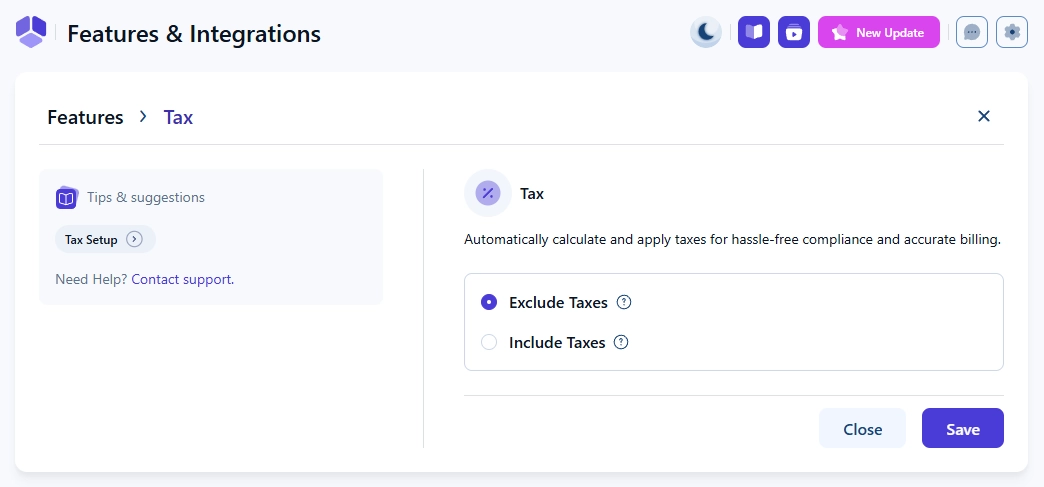
How do I enable the taxes feature?
You can enable taxes by opening Amelia → Features & Integrations → Features and activating the Taxes feature. When it is enabled, the Enable button becomes Disable and a Set up button appears. Selecting Set up lets you choose whether taxes are excluded from the price or included in the price.
What is the difference between excluded and included taxes?
When taxes are excluded, the listed price does not contain tax and the tax amount is added on top of the subtotal. For example, if a service is priced at $150 and you apply a 19% tax, the subtotal remains $150 and the tax is displayed separately before checkout.
When taxes are included, the listed price already contains the tax amount. In this case, the price shown to customers is the final amount and the tax value is not displayed separately during the booking process.
How do I create and manage taxes?
To define tax rates, open Amelia → Finance → Taxes and click + Tax. You can add the tax name, select whether the tax uses a percentage or fixed amount, and enter the value. You can also choose which services, extras, events, and packages the tax should apply to. You can create multiple tax rates, but only one tax can be applied to a single service, extra, event, or package at a time.
How are taxes displayed on the front end?
Front end display depends on whether taxes are included or excluded. When taxes are excluded, the tax appears as a separate line in the summary.
When taxes are included, the tax is already part of the displayed price and no separate tax line is shown. In both cases, the total amount reflects the correct tax calculation for the booking.
Where can I see taxes in the back end?
You can see applied tax values by opening Bookings, selecting a booking, and reviewing the payment details in the right side overview.
The View invoice button appears only if you previously enabled the Invoices feature.
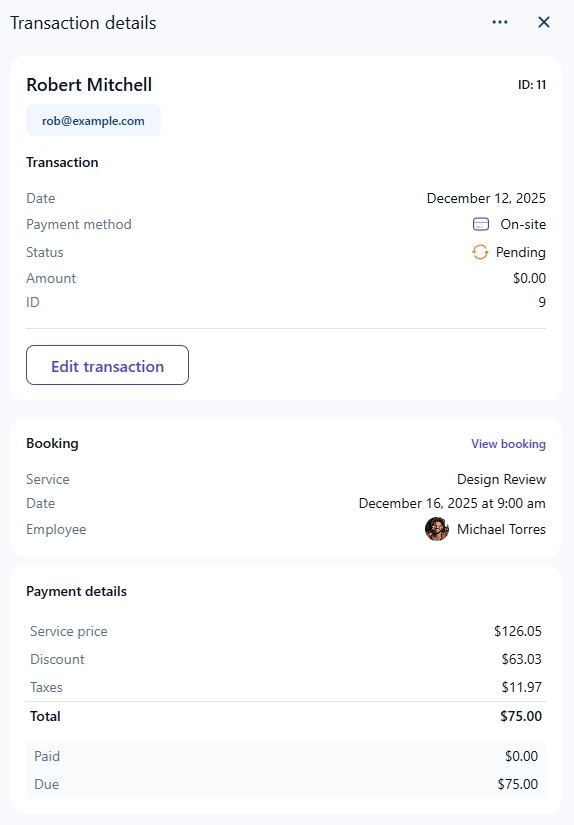
Since taxes are shown as part of the pricing breakdown, you can also find them in Finance → Transactions when you click on a transaction to view the full payment summary.
How are taxes calculated when coupons are applied?
Taxes behave differently depending on whether they are excluded from or included in the listed price. Amelia recalculates the final amount by first applying the coupon to the correct price layer and then calculating the tax on the adjusted amount.
- If taxes are excluded, the coupon reduces the base price first and the tax is calculated on the discounted amount. For example, if a service costs $100 excluding tax and a 10% coupon is applied, the price becomes $90. A 10% tax on $90 results in a total of $99.
- If taxes are included, Amelia extracts the base price, applies the coupon, and then recalculates the tax. For example, if a service costs $100 with a 10% tax included, the base price is $90.91. Applying a 10% coupon reduces the base price to $81.82 and adding the 10% tax results in a final price of $90.
When taxes are included in the displayed price, coupon discounts always apply to the base price before tax, not to the tax included total.
What should I keep in mind when working with taxes?
- Only one tax rate can be applied to a single service, extra, event, or package.
- Changing between included and excluded taxes affects how prices appear on the front end.
- Coupons always adjust the price before tax is calculated, regardless of tax type.
- Taxes appear in the booking overview and in the Finance section for easy reporting.
- Use descriptive tax names to keep your pricing structure clear.