Limited time discount Book Smarter This Christmas
Up to 50%Off

How do I create and manage customer-related custom fields in Amelia

Customer Custom Fields allow you to collect and store additional information directly inside each customer’s profile instead of storing it only within individual bookings.

For example, a clinic can store long-term medical notes on a patient profile, or a gym can track membership preferences that remain available across all future bookings.

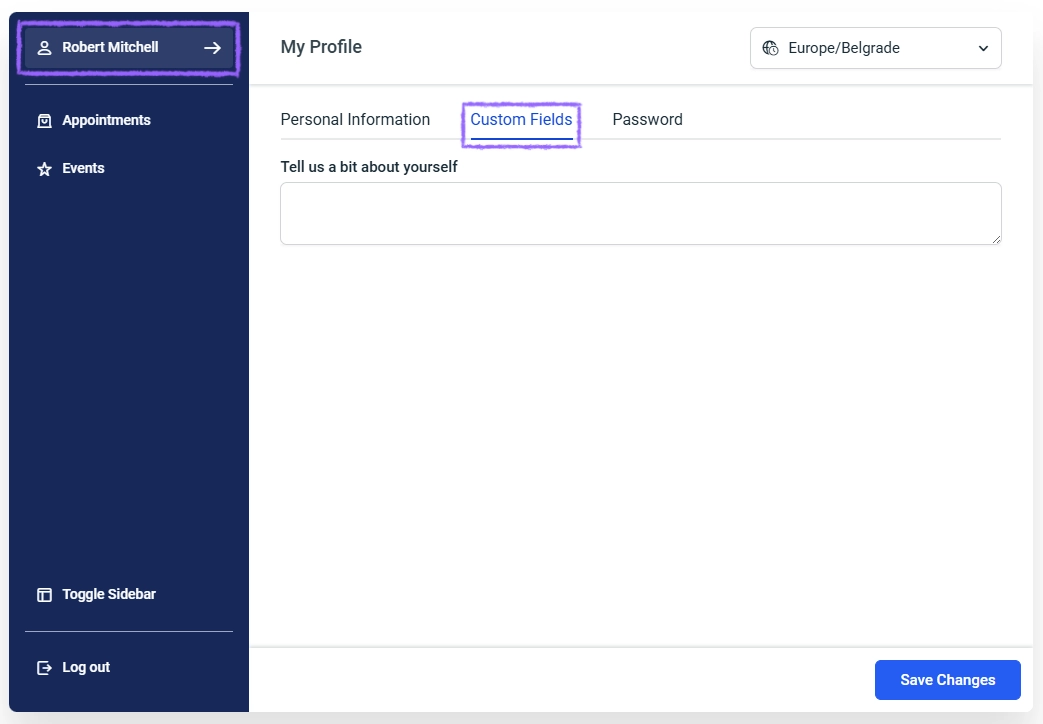
Customer Panel in Amelia showing editable customer custom field

How do customer custom fields differ from booking-related fields?

Unlike booking-related fields that store data only inside a specific appointment or event, Customer Custom Fields are permanently linked to each customer’s profile and are automatically reused for future bookings.

Customer Custom Fields can appear during booking if enabled, and customers can later view or update their own values through the Customer Panel.

How do I access the customer custom fields settings?

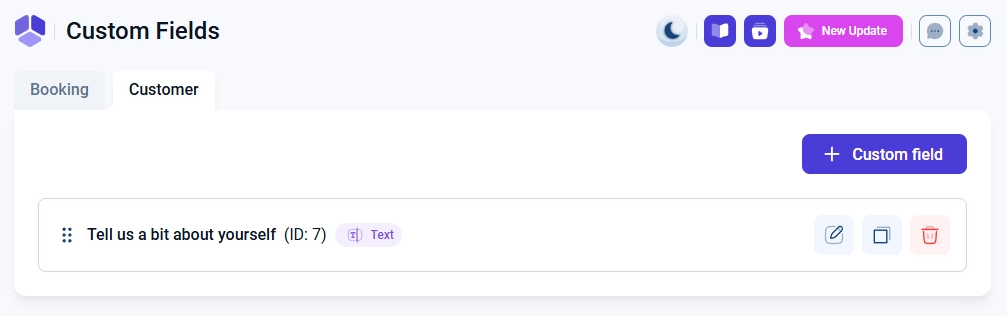
You can manage all customer-related Custom Fields from Amelia → Custom Fields in your WordPress dashboard by selecting the Customers tab at the top of the screen.

To create a new field, click the + Custom field button and choose the desired field type from the list to open the creation modal.

Customer Custom Fields tab selected in the Amelia Custom Fields settings

What field types can I use for customer customfields?

Customer Custom Fields support the same set of field types as booking-related fields.

  • Text – For short, single-line responses.
  • Text Area – For longer, multi-line input.
  • Text Content – A static text block for displaying instructions, notices, or links (supports clickable links in "< a href >").
  • Selectbox – A dropdown list with predefined values.
  • Checkbox – Allows selecting one or multiple options (supports clickable links in "< a href >").
  • Radio Buttons – Allows selecting only one option (supports clickable links in "< a href >").
  • Attachment – Allows file uploads linked to the customer profile.
Info Info

Advanced users can extend supported attachment file types (for example, to allow .zip uploads) by modifying the database directly. This option is not available through the plugin interface.

  • Date Picker – Allows selecting a specific date.
  • Address – Automatically fills address details when Google Maps API is configured.
Alert Please note

To use the Address field with Google Maps autocomplete, you must add a valid API key in Settings → General Settings and enable billing in your Google Cloud account, as Google applies usage limits and pricing independently from Amelia.

How do I configure a customer custom field?

Each Customer Custom Field is configured using the same creation modal as booking-related fields, with additional options that control when the field is shown during booking.

  • Label – Defines the field name shown to customers.
  • Visible at – Controls when the field appears during booking:
    • First booking only – Field appears only the first time the customer books and is saved to their profile.
    • All bookings – Field appears every time the customer books, allowing updates on each new booking.
  • Options – Available for Selectbox, Checkbox, and Radio Buttons to define selectable values.
  • Translate – Available for labels and options on multilingual websites if additional languages are defined in Amelia’s general settings.
  • Required – Defines whether the field must be filled before completing a booking.
  • Include in invoice – Determines whether the field appears on invoices.
  • Width – Controls layout using 1/1 or 1/2 width.

Once saved, the selected field type cannot be changed.

Info Info
Files uploaded through the Attachment customer custom field are stored in wp-content/uploads/amelia/ by default, and the upload location can be changed using the Attachment upload path setting with a relative path such as wp-content/uploads/bookings/.
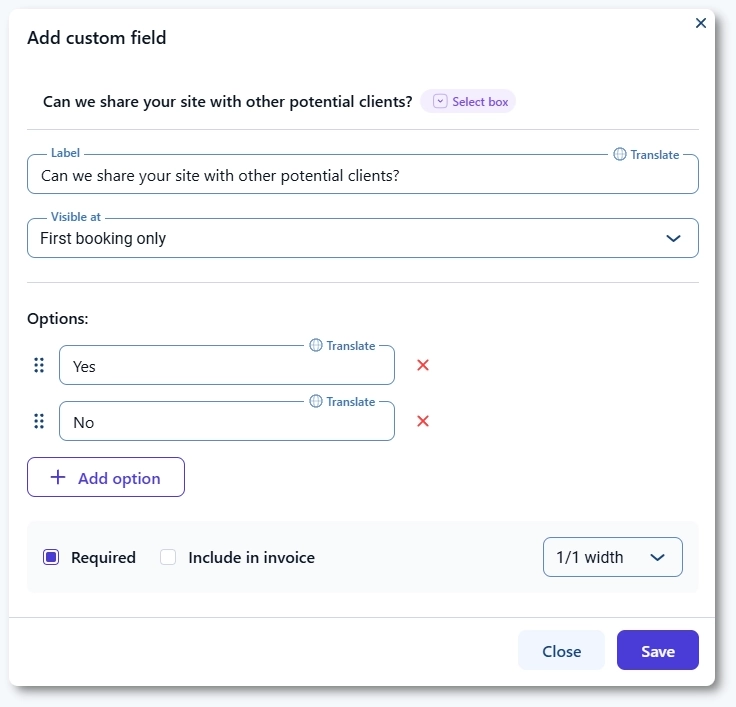
Customer Custom Field modal showing visibility, required, invoice, and width options

Where can I see and edit customer custom field data in the back end?

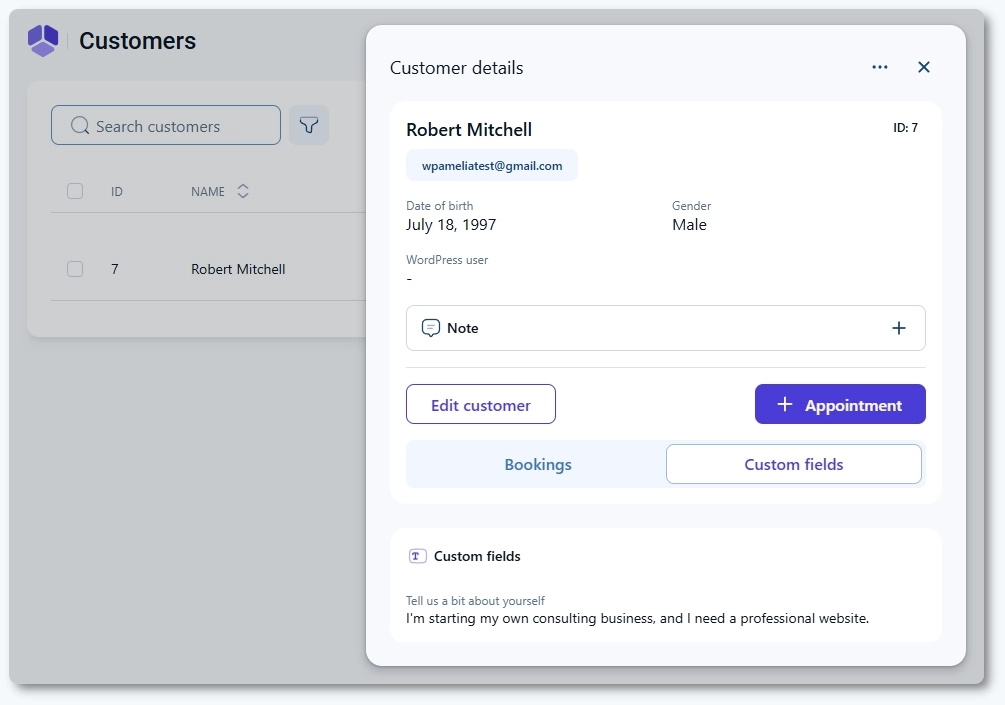
All customer-related Custom Field values are permanently stored inside each customer profile and remain available across all bookings.

Open Amelia → Customers and click on a customer to open the customer overview on the right side, then switch to the Custom fields tab to see all stored customer custom field values.

If you want to modify these values, you can click Edit customer in the right-side overview, or use the three-dots menu → Edit from the customer list, where the Custom fields tab is shown on the left side of the edit dialog.

Customer profile overview in Amelia showing customer custom field values

Where do customers view and edit their custom fields in the customer panel?

Customers can review and update their own Custom Field values directly from the Customer Panel, where profile-based fields are displayed under their personal information.

You can see an example of how this looks in the image at the top of this article.

Can customer custom fields be included in invoices?

Customer Custom Fields can be included in generated invoices, allowing profile-based data to appear directly on billing documents.

For full configuration details, refer to the Amelia Invoices documentation.

What should I know before using customer custom fields?

  • Customer Custom Fields are permanently linked to customer profiles and persist across all future bookings.
  • Field types cannot be changed after creation, so choosing the correct type is important.
  • Edits affect future usage only and do not overwrite historical booking data.
  • Deleted fields are permanently removed without recovery.
  • Translations are available only when multilingual support is enabled.