What are resources in Amelia
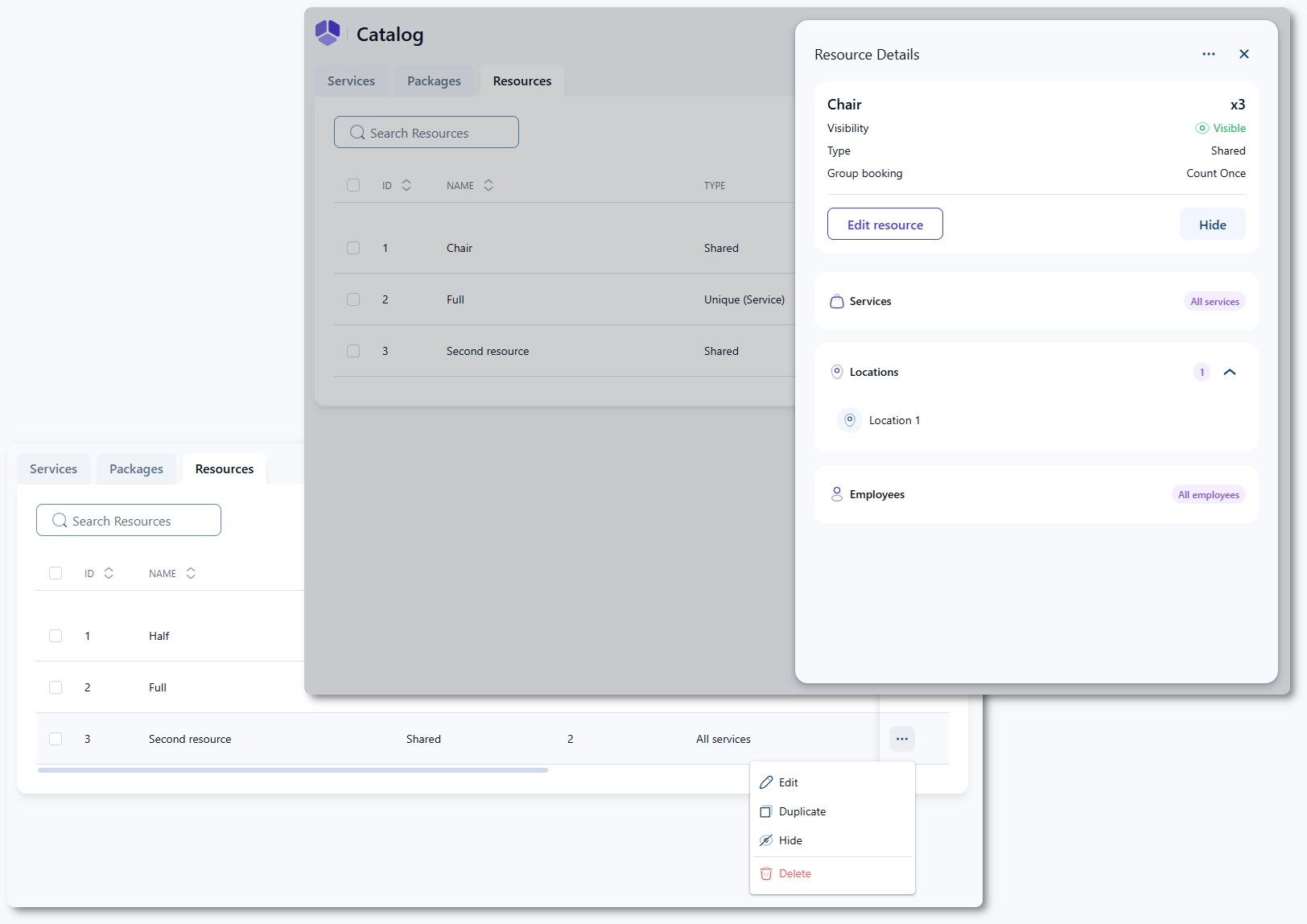
Resources in Amelia allow you to manage limited assets that are required for appointments, such as rooms, equipment, vehicles, tools, or courts. By assigning resources to services, employees, and locations, you can control availability based on real-world capacity instead of relying only on employee schedules.
How do I enable the Resources feature?
To enable Resources, go to Amelia →Features & Integrations → Features and activate the Resources feature by clicking the Enable button.
Once enabled, the Set up and Disable buttons will appear. Clicking Set up will take you directly to the Catalog → Resources page.
You can also access Resources manually at any time by navigating to Amelia → Catalog → Resources from your WordPress dashboard.
How do I create my first Resource?
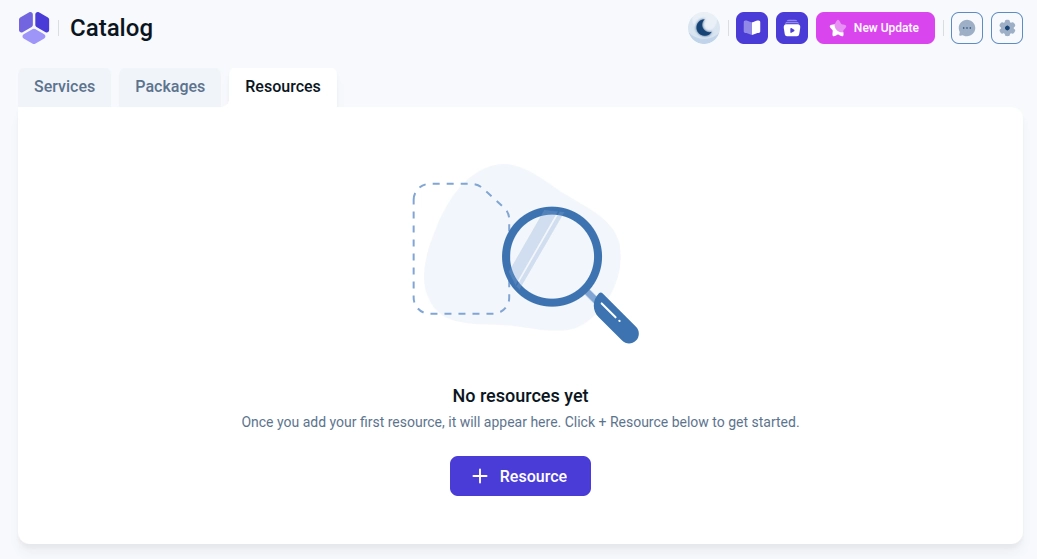
If no resources exist yet, a + Resource button will appear in the center of the page. Once at least one resource is created, the + Resource button will move to the top right corner.
Clicking this button opens the resource creation panel, where you can define all basic resource settings such as name, quantity, type, and visibility.
How do I create a Resource?
When creating a new resource, the Name field is mandatory and is used to identify the resource across the system. The Quantity value is always set next to the resource name on the right side of the panel.
The Enable resource usage for a group booking slider controls whether the resource quantity is counted for each additional person added to a group booking. If the resource quantity is set to anything higher than 1, this slider cannot be disabled. If the quantity is set to 1 and this slider is enabled, the quantity will automatically be increased to 2.
By default, the Quantity is shared radio option is selected. This means that the resource quantity is shared across all selected services, employees, and locations. Below this option, the Services, Locations, and Employees dropdowns are set to All services, All locations, and All employees unless manually changed.
If you select Quantity per service, the shared option is disabled and the resource becomes unique per service. In this mode, the resource quantity is counted separately for each selected service.
If you select Quantity per location, the other two radio options are disabled and the resource becomes unique per location. In this mode, the resource quantity is counted separately for each selected location.
In both unique modes, the Services, Locations, and Employees dropdowns are still available, but the quantity is applied individually per selected service or location.