How do employee integrations work in Amelia
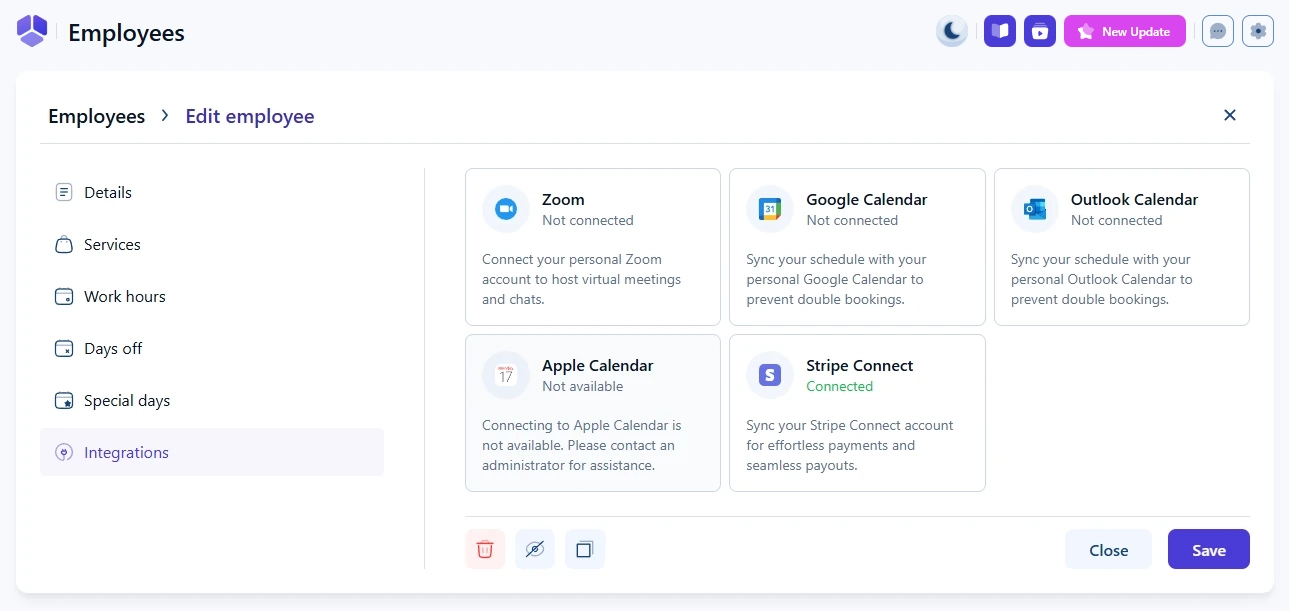
The Integrations tab in the employee profile is where each employee connects their own external tools, such as calendars, Zoom, and Stripe. These connections control where appointments are synced, how online meetings are created, and which account receives payouts.
The tab is only shown when at least one integration is enabled in Features & Integrations → Integrations.
When is the Integrations tab and each card visible?
The Integrations tab appears in the employee profile only if at least one integration is enabled globally. Inside the tab, you will see a card for each integration that is both enabled and configured.
Each integration card can show one of the following states:
- Connected – the integration is enabled and configured, and the employee is connected to their account.
- Not connected – the integration is enabled and configured, but the employee has not yet connected their account. The card is clickable.
- Not available – the integration is enabled but not fully configured in the main Integrations settings. The card is visible but greyed out and cannot be clicked.
If an integration is disabled globally, its card does not appear in the employee profile.
Who can connect integrations for an employee?
Both administrators and employees can connect integrations:
- Administrators can open the employee profile in the back end and connect available integrations from the Integrations tab.
- Employees can connect their own integrations from the Employee Panel, if it is enabled.
Connections made in one place are reflected in the other, since they belong to the same employee profile.
For calendar integrations (Google, Outlook, Apple), administrators can only select calendars they personally have access to. This means that if an admin connects a calendar for the employee, it must be a calendar from an account the admin can access, such as multiple calendars under a shared company account.
How do calendar integrations work for employees?
Calendar integrations let employees sync their Amelia schedule with an external calendar and block Amelia time slots based on existing events in that calendar.
In the employee profile, supported calendars may include:
- Google Calendar
- Outlook Calendar
- Apple Calendar
Each employee can connect one calendar at a time. This calendar is used to:
- Write new Amelia appointments and events to the external calendar.
- Read busy time slots from the external calendar and block them in Amelia.
For detailed setup steps, refer to the calendar integration documentation, such as the Google Calendar, Outlook Calendar, or Apple Calendar integration pages.
How does the Zoom integration work for employees?
The Zoom integration allows employees to host virtual meetings for their Amelia appointments and events.
In the employee profile, the Zoom card shows whether the employee is connected. When the integration is configured globally, the employee (or admin) can open the card and choose which Zoom user to sync with using the Sync with dropdown.
Only Zoom users that are available through the main Zoom integration configuration will appear in this dropdown. The chosen Zoom user is then used for all online meetings scheduled for that employee in Amelia.
More details about Zoom requirements and supported account types are covered in the Zoom integration documentation.
How does the Stripe Connect integration work for employees?
The Stripe Connect integration allows employees to receive payouts to their own Stripe accounts when customers pay online.
When Stripe Connect is enabled and configured globally, the employee’s Stripe card shows a Sync with dropdown. Here, you can select the Stripe account that should be linked to that employee
For full setup instructions, refer to the Stripe Connect integration documentation.
Only Stripe accounts that are available through the Stripe Connect configuration will appear in the dropdown. The selected account is used for routing payouts related to that employee’s bookings.
What should I keep in mind when using employee integrations?
When working with employee integrations, keep the following in mind:
- Each employee can be connected to only one calendar at a time.
- Calendar integrations both write new Amelia bookings to the external calendar and read busy events to block time in Amelia.
- Administrators can only connect calendars and accounts they personally have access to in the external service.
- Employees are usually the best ones to connect their personal calendars from the Employee Panel.
- Disabling or disconnecting an integration stops future syncing but does not remove past bookings from the external calendar.
For each integration, always make sure it is fully enabled and configured in the main Features & Integrations → Integrations settings before employees attempt to connect their accounts.