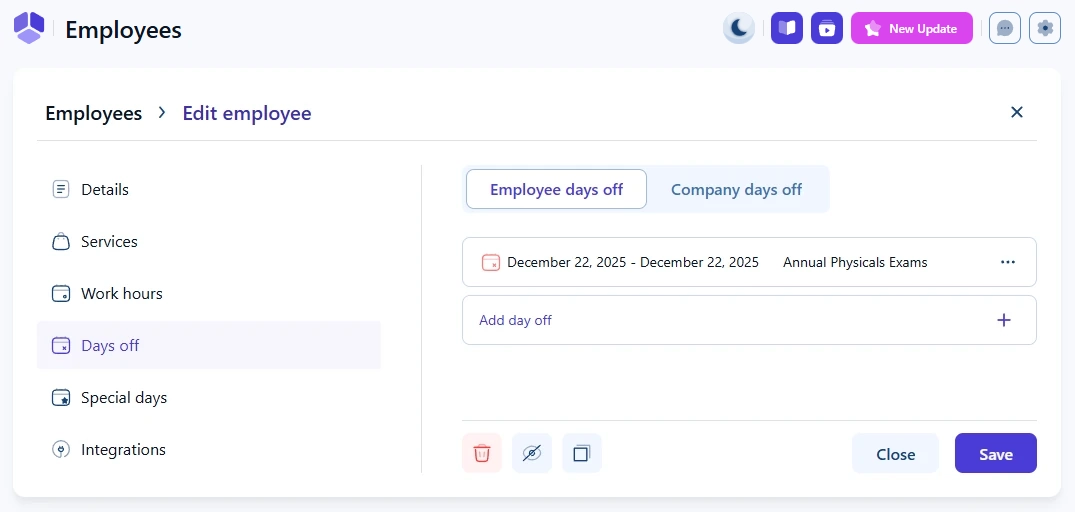
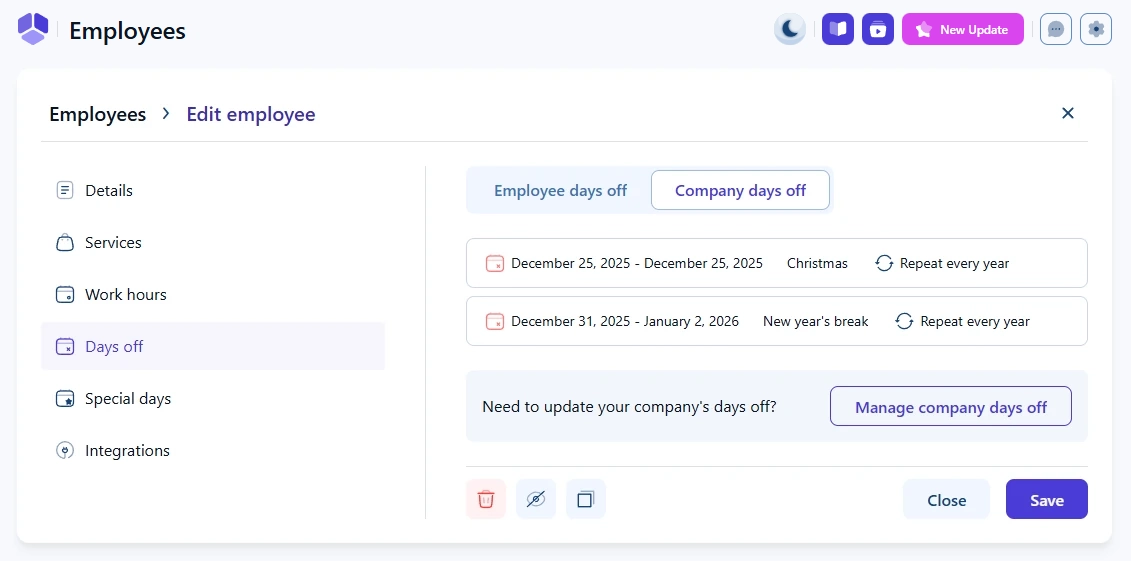
Employee days off are used to block one or more full calendar days for a specific employee. When a day off is set, the employee cannot receive any bookings on that date, regardless of regular work hours or special day configurations.
Days off are ideal for vacations, holidays, sick leave, or any situation where the employee should not be bookable for the entire day.
How do days off interact with work hours and special days?
Days off have the highest priority in Amelia’s availability system.
Days off override special days.
Days off override regular work hours.
This means that if a date is marked as a day off, it will always be blocked for booking, even if special days or normal work hours are defined for that same date.
How are employee days off defined?
Days off can be added as:
A single date
A range of dates
There is no hourly blocking for days off. If a date is selected, the entire day is blocked for booking.
Where do I manage days off for an employee?
Days off are managed per employee in Employees > Edit employee > Days off.
This tab contains two sections:
Employee days off – personal days off added only for that employee
Company days off – global days off that apply to all employees
Company-wide days off are configured separately in the main settings and cannot be edited from the employee profile. You can learn more about them in the Company Days Off documentation.
What are company days off inside the employee profile?
When company-wide days off exist, they appear automatically in the Company days off tab inside each employee profile.
These days off:
Apply to all employees
Cannot be edited from the employee profile
Must be managed from the main company settings
How do I add a day off for an employee?
To add a new day off, open the Days off tab and click Add day off. In the popup, select the date or date range, enter a name for the day off, and save the changes.
You can also enable the Repeat yearly option when adding a day off if the same holiday or event occurs every year.