


How do employee work hours work in Amelia
The Work hours tab defines when an employee is available for appointments. This is where you set daily working periods, split the day into multiple segments, assign locations, and control which services can be booked during each time range.
What work hours are set by default for new employees?
By default, new employees inherit the company working hours defined in Amelia. If company work hours are not customized, newly created employees automatically receive a Monday to Friday, 9:00 am to 5:00 pm schedule, while Saturday and Sunday remain turned off.
You can read more about how company-level work hours are configured in the Company Working Hours documentation.
These default work hours can be fully edited or deleted for each individual employee.
How is the Work hours tab structured?
The Work hours tab is organized by days of the week, from Monday to Sunday. Each day can be turned on or off and can contain one or multiple working periods.
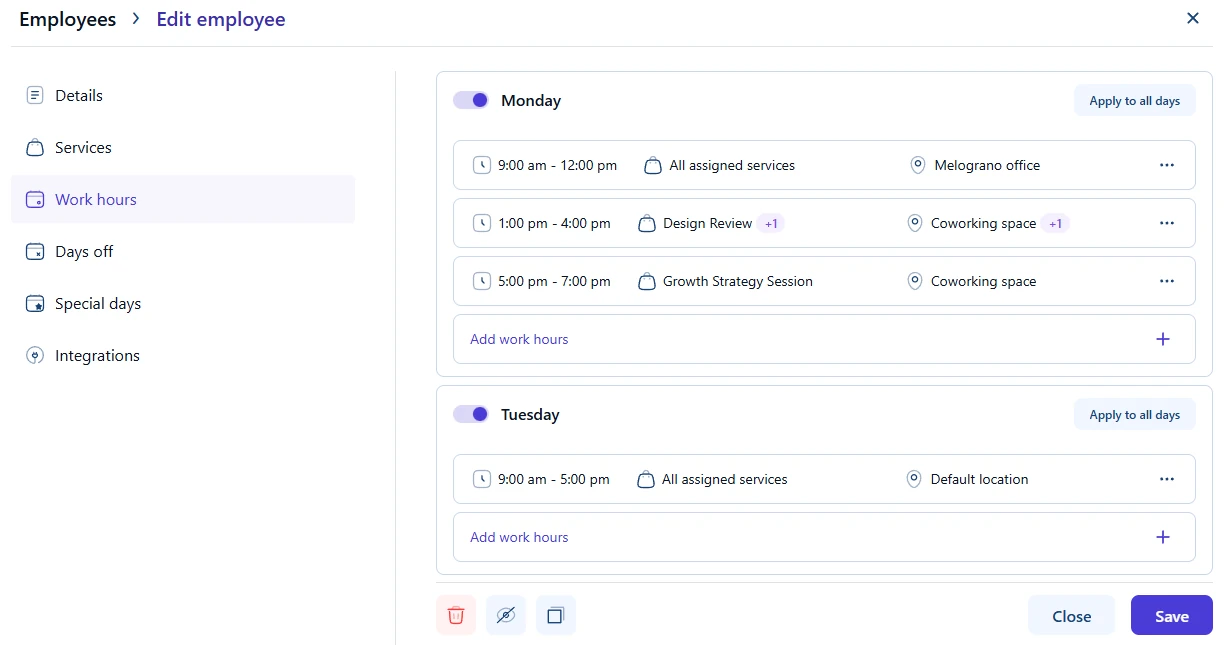
Each working period defines:
- The time range
- The services available during that time
- The location where the employee works
How do I create and edit employee work hours?
To create or edit work hours, open the Employees page, create a new employee or edit an existing one, and switch to the Work hours tab.
Each day of the week can be turned on or off using the day toggle. When a day is enabled, you can add one or more working periods for that day.
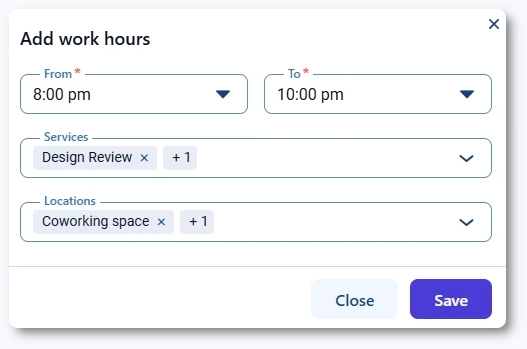
To add a new working period, click Add work hours on the selected day, define the start and end time, and save the changes.
You can edit or delete any existing period using the options on the right side of the period row.
All changes to work hours take effect immediately after saving the employee.
How do multiple work periods and breaks work?
Amelia does not use a separate break system. Instead, breaks are created naturally by splitting the day into multiple working periods.
For example, setting one period from 9:00 am to 12:00 pm and another from 1:00 pm to 3:00 pm automatically creates a one-hour break between 12:00 pm and 1:00 pm.
When adding new periods, Amelia requires that working periods are added from the earliest to the latest time within the day. If a period already exists from 9:00 am to 5:00 pm, you cannot add another period that starts earlier, such as 8:00 am or 7:00 am.
How do locations work inside work hours?
Every new working period is assigned to the employee’s default location automatically (the one assigned in the Details tab).
If you use multiple locations, you can change the location per working period. This allows an employee to work from one location during part of the day and from another location later in the same day.
For example, an employee can work from 9:00 am to 12:00 pm at one location, and from 2:00 pm to 5:00 pm at another location.
You can also assign multiple locations to the same working period. In that case, when one location is booked for a specific time slot, all other locations assigned to that same period are automatically disabled for that time slot.
How do services work inside work hours?
By default, all services assigned to the employee are available in every working period.
If needed, you can restrict a working period to only a specific service. This allows you to define different services for different parts of the day.
For example, an employee can offer consultations in the morning and a different type of service in the afternoon, even on the same day.
Can I copy work hours to other days?
Yes. Each day includes an Apply to all days option that allows you to copy the same working periods, locations, and service assignments to all other active days with a single click.